Administrator tools
The administration portal lets account administrators manage user accounts, control seat assignments, and monitor token expenditure. This page describes how to access the portal and what you can do there.
The admin portal is shared between the Treble web app and the Treble SDK. If your organization has a dual subscription, you can manage users and monitor token expenditure for both products from the same portal.
Accessing the admin portal
To access the admin portal:
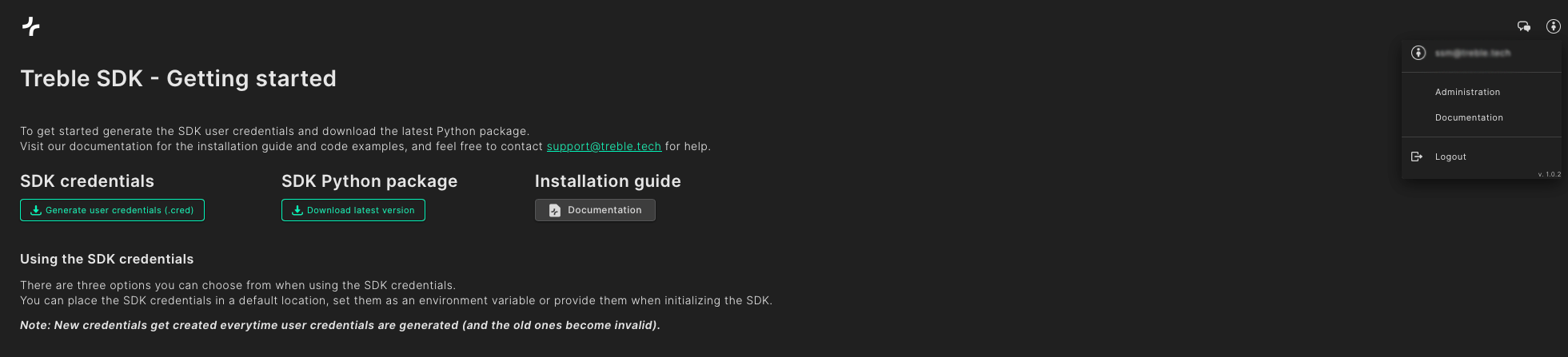
- Go to app.treble.tech and log in with your email and the password you set when your organization first created an account with Treble.
- Click your user icon in the upper right corner, then select Administration from the drop-down menu.
Managing users and seats
Your subscription distinguishes between user accounts and active seats:
- A user account identifies a person in your organization and stores their credentials and history.
- An active seat grants a user account access to the SDK. The number of active seats is determined by your subscription plan.
This separation means you can maintain more user accounts than you have seats. For example, if a team of ten people uses the SDK but your subscription includes five seats, you can unassign a seat from one user and assign it to another without deleting either account.
Adding and removing users
To add a user:
- Click the green Add user button on the right of the screen and enter the appropriate details.
- After pressing Create from this window, an onboarding email will be sent to the user so they can create a password and download the SDK.
To remove a user:
- In the farthest right column of the User table, after the Usage 12M column, hover your mouse until three icons appear.
- Click the trash icon on the right of the view, and then Confirm the removal.

Removing a user from your account will prevent them from accessing your organization's account in the SDK, but it will not delete the simulations, devices, materials, or other data created by the user and associated with your organization.
Assigning and unassigning seats
Once the user account has been created you can assign or unassign a seat using the drop-down menu in the SDK Access column of the User table.
Unassigning a seat doesn't delete the user account. The user keeps their project, simulation, and device history, and regains access as soon as a seat is assigned to them again.
Adding administrators
An existing user can be granted admin status by using the drop-down menu in the Role column and selecting "Admin".
Monitoring token expenditure
The admin portal provides three views of your organization's token expenditure, each accessed separately:
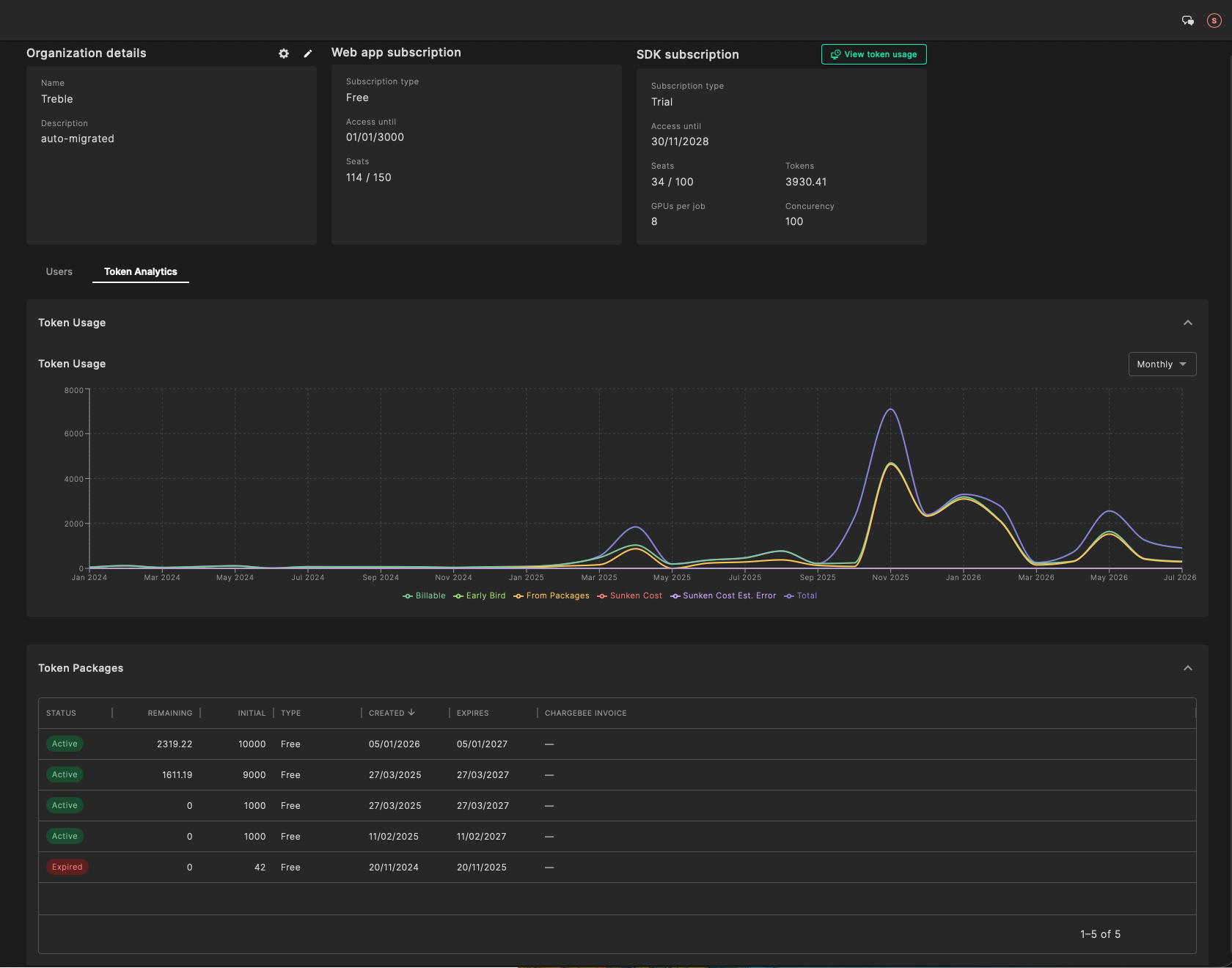
- The Token Analytics tab to the right of the Users tab shows total token expenditure across your subscription, as well your token package history.
- The per user view breaks expenditure down by each member of your organization.
- The View token usage tab along the top of the screen breaks expenditure down by project, simulation, and.
Total token expenditure
The Token Analytics tab shows an interactive plot of the cumulative token expenditure in your organization over time, as well as the days and quantities of token packages purchased by your organization.
Use this view to track overall consumption of tokens against your organization's token toals.
Token expenditure per user
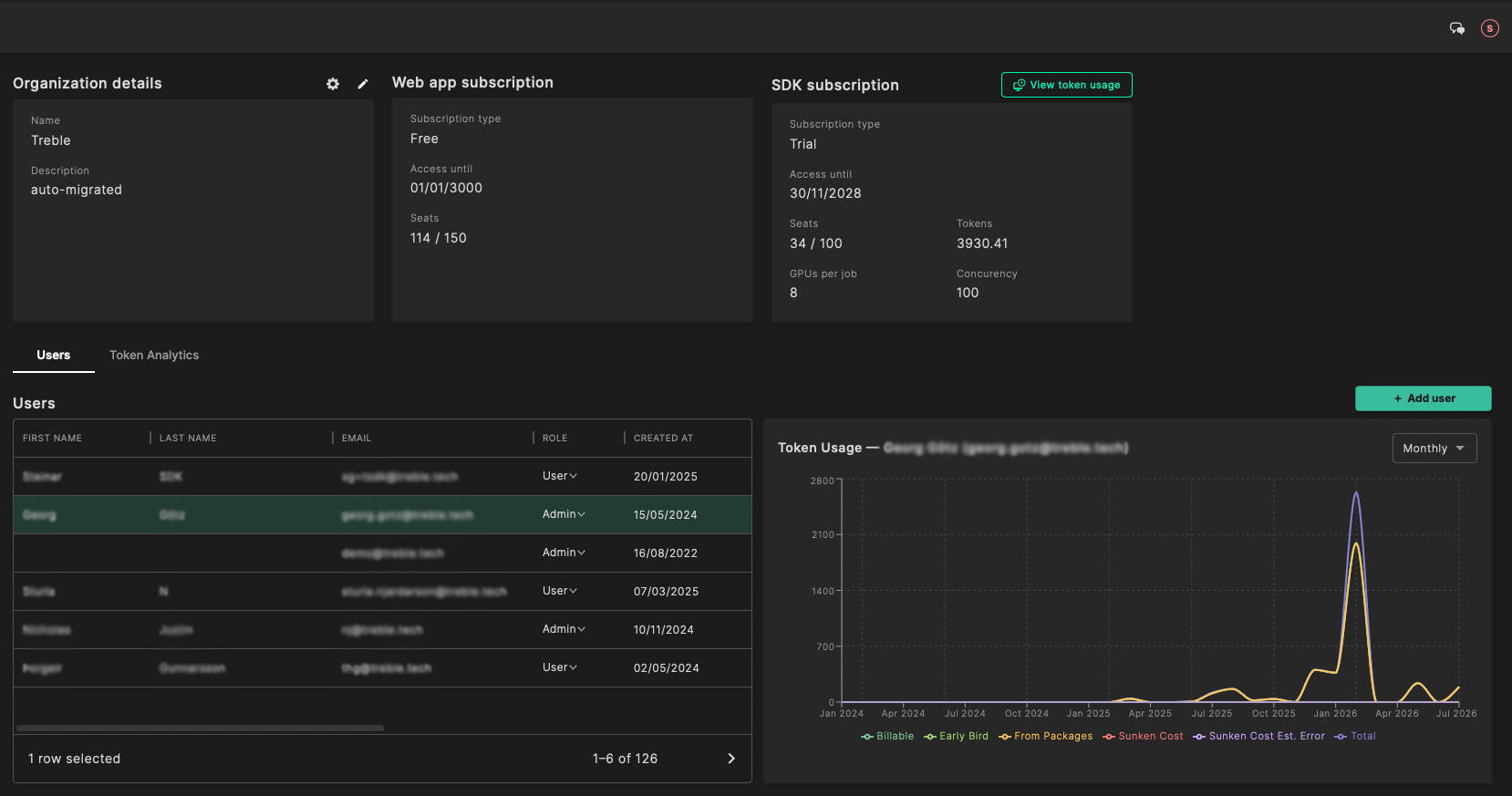
To view the token usage by user, highlight the account in the Users view to display an interactive graph similar to the overal token expenditure graph. The per-user graph shows a graph of the total token expenditure of the account over the selected time period.
Use this view to examine usage patterns over time for individual accounts.
To identify which accounts are spending the most tokens, use the Usage 30D, Usage 6M, and Usage 12M columns to sort token usage in ascending or descending order.
Token expenditure per project and simulation
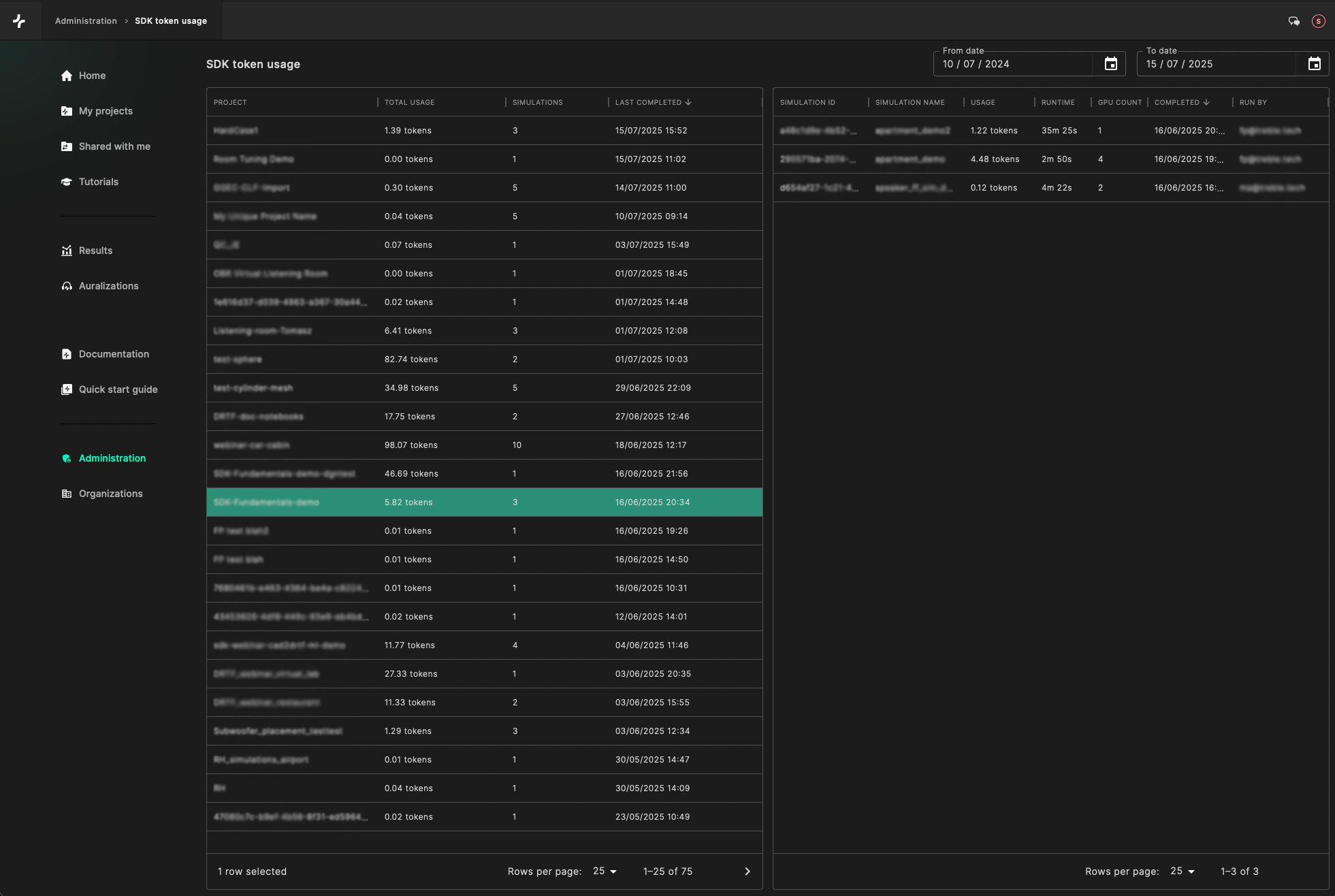
The View token usage window shows a detailed table of existing projects within your organization, with a count of the tokens expended in each project. By clicking into a specific project, you can see a per-simulation breakdown of the tokens used, as well as the run time, GPUs used, dtime of completion, and the user who started it.
Use this view to monitor the cost of certain projects or investigate the cost of individual simulatiosn.