Import a room from Blender
This guide has been tested with Blender version 4.3.
This guide demonstrates how to use Blender [1] to assign materials to different parts of a model, thereby defining layers within an OBJ file for Treble's geometry import.
Blender is an open-source 3D graphics software that uses a destructive modeling approach, allowing you to create 3D models by manipulating vertices (points), edges (lines connecting vertices), and faces (flat surfaces enclosed by edges).
Blender offers a range of export options, including Wavefront OBJ files, which
are compatible with Treble's geometry import. To define layers within an OBJ
file [2,3] for Treble's geometry import, assign materials to
different parts of the model using the usemtl keyword. Treble reads each
material as a separate layer. For example:
# define vertices
v 0 1 0
v 0 0 0
v 1 0 0
v 1 1 0

usemtl SquareMaterial
f 1 2 3 4 # this face belongs to the 'SquareMaterial' group
Key steps:
Prepare the geometry
- Create Geometry: Use Blender's modeling tools to create your geometry.
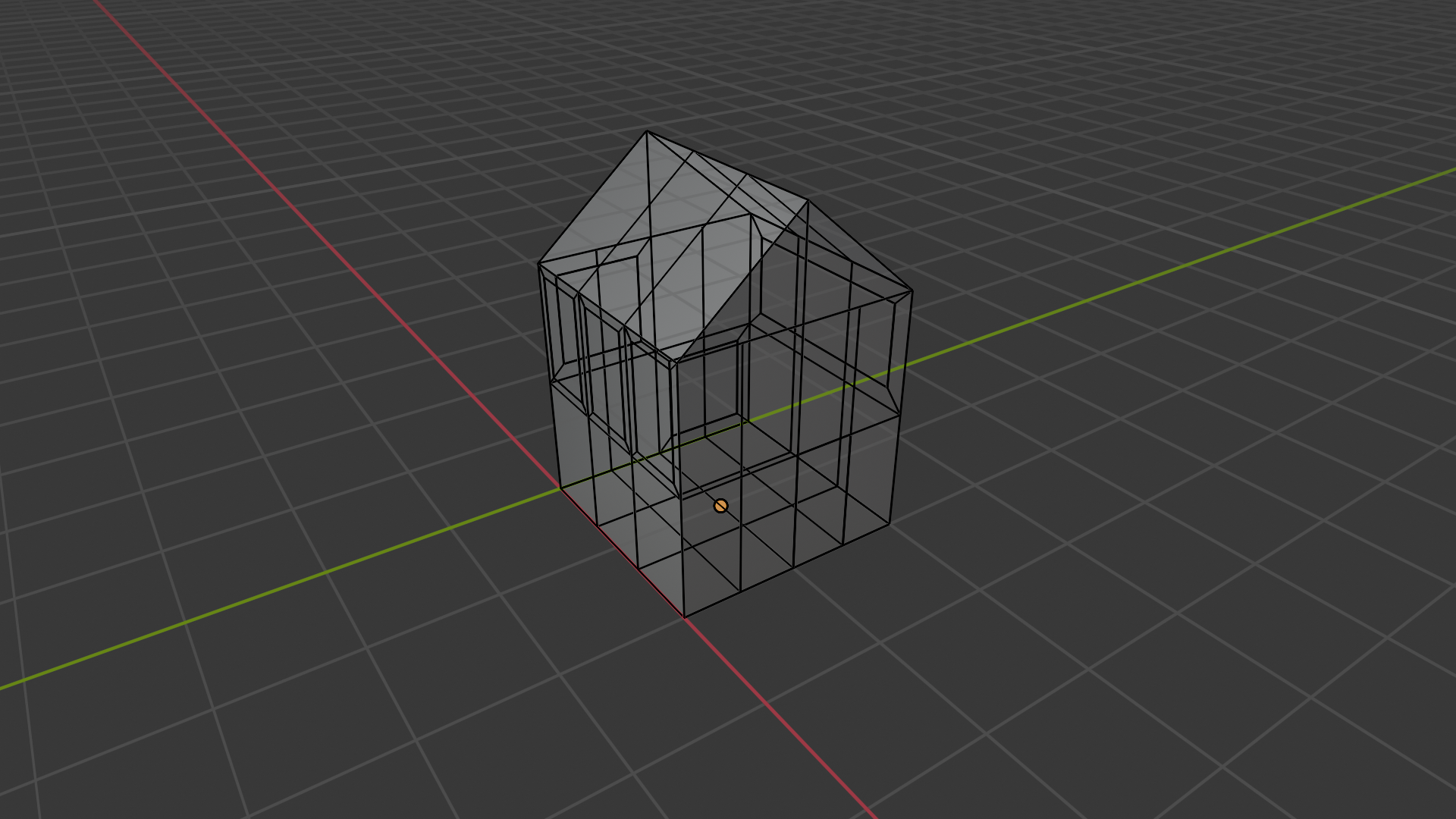
- Partition Surfaces: Partition the surfaces you want as different layers
into individual objects. A simple way to do this is by selecting the faces
you want in edit mode, and using
P > Selection.
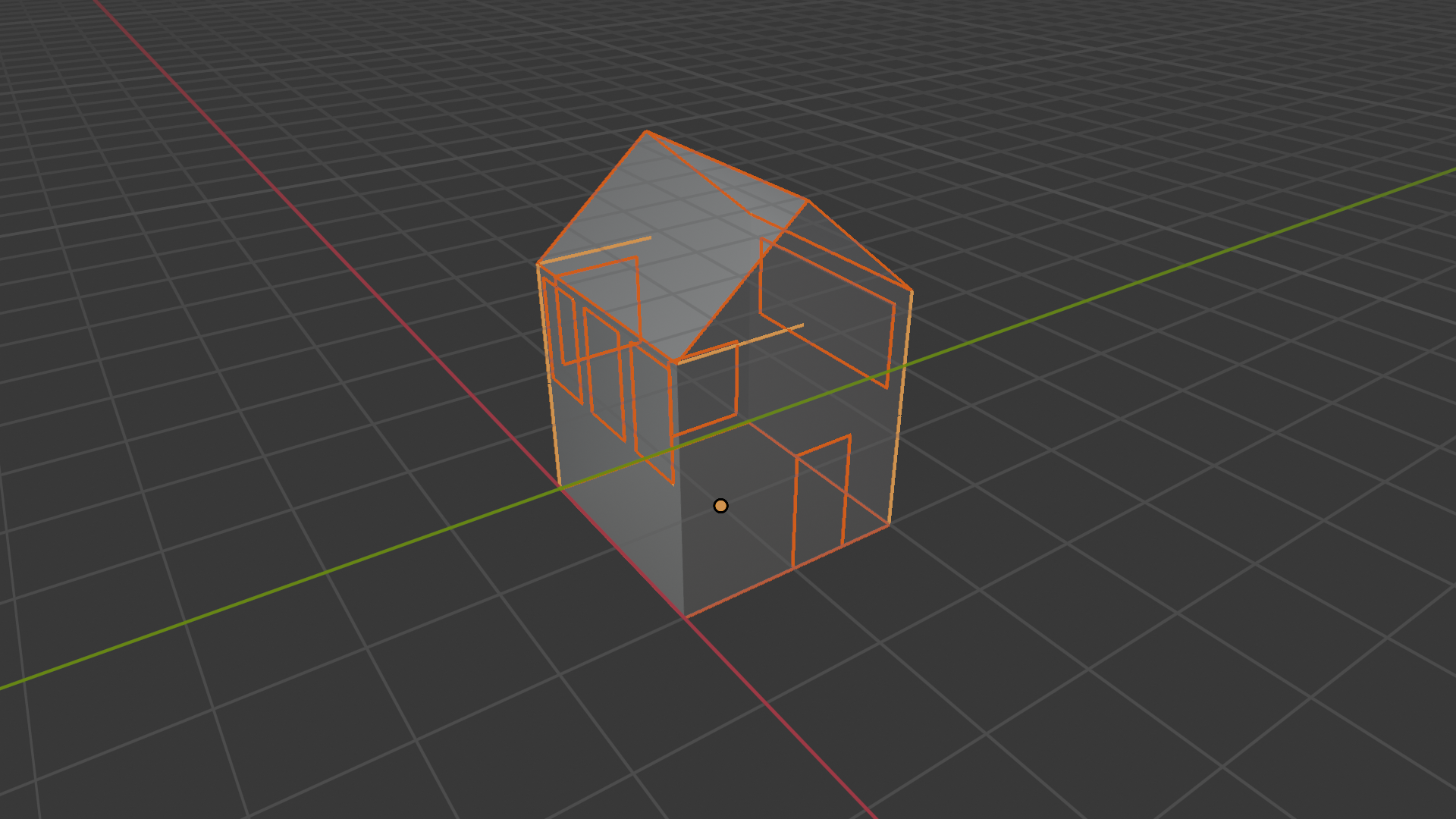
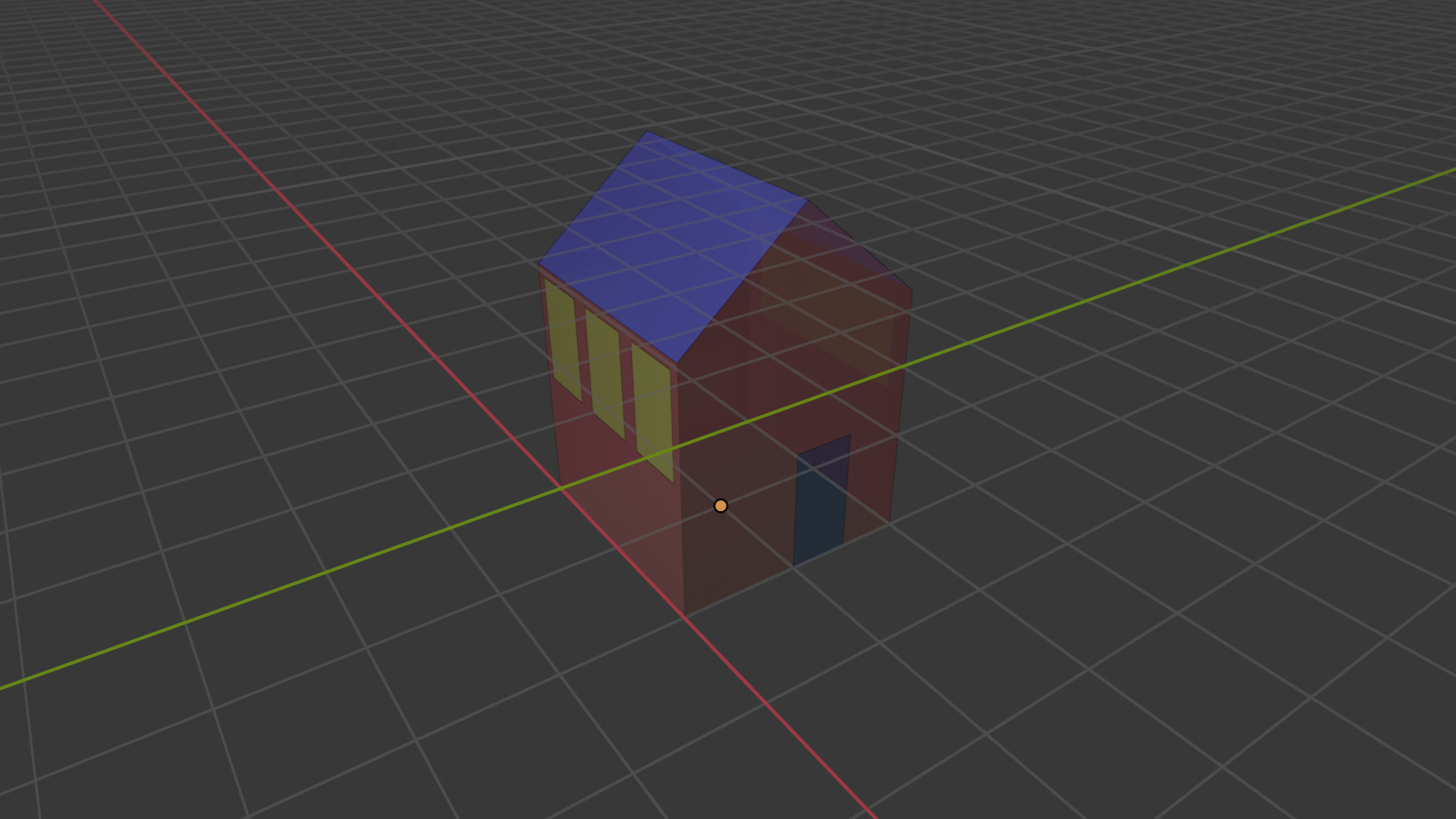
- Assign Materials: Assign a different material to each object. The names you choose for the materials appear directly as layer names in Treble. You can use the script below to automate this; it also assigns random colors to each object for clear distinction.
Export the model
Go to File > Export > Wavefront (.obj) and choose the following settings:
-
Forward Axis:
Y. -
Up Axis:
Z. -
Geometry Tab: Use default settings.
-
Grouping: Check
Material Groupsand leave the other boxes unchecked. -
Materials: Check the
Materialsbox to include material groups. This will generate a.mtlfile which can be discarded after export.
You can also use the script below to export an OBJ file with these settings. The resulting geometry should be readable by Treble's geometry import.
Scripts
Blender supports Python scripting, allowing users to automate tasks, create custom tools, and extend functionality. To use Python scripts in Blender, you can open the Scripting workspace, create or open a script in the text editor, and then run the script by pressing the "Run Script" button.
Automated material assignment
This script assigns random colored materials to each mesh object within a specified collection in Blender. The names of the different objects are mapped to material names, which will appear as layers in Blender.
This script assumes that all objects to export are included in a Collection
named Treble. You can edit this via the COLLECTION_NAME variable.
import random

import bpy

# Replace with your collection name
COLLECTION_NAME = "Treble"


def random_color():
    """Generate random color"""
    return (random.random(), random.random(), random.random(), 1)


def assign_random_materials_to_collection(collection_name):
    """Assign a random colored material to each layer"""
    collection = bpy.data.collections.get(collection_name)
    if collection is None:
        print(f"Collection '{collection_name}' not found.")
        return

    for obj in collection.objects:
        if obj.type == "MESH":
            # Clear existing materials from the object
            obj.data.materials.clear()

            # Create a new material
            mat = bpy.data.materials.new(name=obj.name)
            mat.diffuse_color = random_color()

            # Assign the new material to the object
            obj.data.materials.append(mat)


if __name__ == "__main__":
    assign_random_materials_to_collection(COLLECTION_NAME)
Export script
This script exports OBJ files with material groups from a specified collection in Blender, ensuring the correct orientation for Treble. It also removes the associated MTL file after export to clean up the output directory, as it serves no purpose in this case.
import os

import bpy

# Replace with desired output directory and model name
SAVE_DIRECTORY = "path/to/save/directory"
MODEL_NAME = "model_name"
OUTPUT_FILE_PATH = os.path.join(SAVE_DIRECTORY, MODEL_NAME)

# Replace with the collection name to export
COLLECTION_NAME = "Treble"


def export_obj_with_material_groups(filepath, collection_name):
    """Export OBJ with material groups from a specific collection"""
    collection = bpy.data.collections.get(collection_name)
    if not collection:
        print(f"Collection '{collection_name}' not found.")
        return

    # Deselect all objects
    bpy.ops.object.select_all(action="DESELECT")

    # Select objects in the specified collection
    for obj in collection.objects:
        obj.select_set(True)

    bpy.ops.wm.obj_export(
        filepath=filepath + ".obj",
        export_selected_objects=True,  # Export only selected objects
        export_materials=True,  # Export materials
        export_material_groups=True,  # Group objects by materials
        export_uv=False,  # Skip UVs for smaller file size
        forward_axis="Y",  # To match orientation in Treble
        up_axis="Z",  # To match orientation in Treble
        export_normals=False,  # Skip normals for smaller file size
        apply_modifiers=True,  # Apply modifiers for export (optional)
    )


if __name__ == "__main__":
    export_obj_with_material_groups(OUTPUT_FILE_PATH, COLLECTION_NAME)
    print(f"OBJ file exported with material groups to: {OUTPUT_FILE_PATH}")

    # Remove the MTL file generated by the export (cleanup)
    os.remove(OUTPUT_FILE_PATH + ".mtl")
Import the room into the SDK
Authenticate with the SDK and initialize a project
from treble_tsdk import treble

# Initialize Treble SDK instance and authenticate
tsdk = treble.TSDK()

# Get or create a project
project = tsdk.get_or_create_project("<project-name>")
Upload model to your project
model = project.add_model(
    "<model-name>",
    "<path/to/my/file.obj>",
)
model.as_live_model_status()  # displays geometry processing status in real-time

# Visual inspection
if model.status == "Valid":
    model.plot()
References
[1] Community, B. O. (2018). Blender - a 3D modelling and rendering package. Stichting Blender Foundation, Amsterdam. Retrieved from http://www.blender.org
[2] Wikipedia. (2024, April 17). Wavefront .Obj File. Retrieved from https://en.wikipedia.org/w/index.php?title=Wavefront_.obj_file&oldid=1219366874
[3] FileFormat.info.(n.d.). Wavefront OBJ: Summary from the Encyclopedia of Graphics File Formats. Retrieved from https://www.fileformat.info/format/wavefrontobj/egff.htm