Starting simulations
Once you've defined a geometry, assigned materials, and specified sources and receivers, you're
ready to create a SimulationDefinition. A Treble Simulation is created from an instance of
this class — or a list of instances — added to a project. Note that when you create a
SimulationDefinition, it isn't automatically added to the project. You can still inspect and
modify it before uploading; once uploaded, the simulation metadata is no longer mutable.
Simulation definitions
Simulation definition from energy decay threshold
The following example creates a hybrid simulation definition using the energy decay threshold as the termination criterion. The simulation continues until the EDC has decayed by 50 dB from its starting value.
If you are running a simulation meant to be convolved with audio for further downstream tasks, we recommend to set the energy decay threshold to at least -50 dB to avoid premature truncation (and resulting auralization artefacts) in the convolved output signal.
sim_def = treble.SimulationDefinition(
        name="My simulation", # unique name of the simulation
        simulation_type=treble.SimulationType.hybrid, # the type of simulation
        model=room, # a room created in an earlier step
        crossover_frequency=720, # which frequency the GA solver takes over from the DG solver
        energy_decay_threshold=50, # cut off the simulation when the energy decay curve reaches -50 dB
        receiver_list=[rec_1, rec_2], # two previously defined receivers
        source_list=[source], # one previously defined source
        material_assignment=material_assignment # the previously defined material assignment list
)
Simulation definition from a fixed impulse response duration
The following example defines the same simulation using a fixed impulse response duration of 0.1 s as the termination criterion.
sim_def = treble.SimulationDefinition(
        name="My simulation",
        simulation_type=treble.SimulationType.hybrid,
        model=room,
        crossover_frequency=720,
        ir_length=0.1, # cut off the simulation at 0.1 seconds long
        receiver_list=[rec_1, rec_2],
        source_list=[source],
        material_assignment=material_assignment
)
Simulation upload
Once the simulation definition is ready, add it to the project to create the simulation object and upload all associated data to the cloud:
simulation = project.add_simulation(sim_def)
Simulation definition modification
The properties of a SimulationDefinition are accessible and mutable until the definition is
uploaded to the project. The following example creates a definition and then updates the
energy_decay_threshold property:
# create a simulation definition
sim_def = treble.SimulationDefinition(
        name="My simulation", # unique name of the simulation
        simulation_type=treble.SimulationType.hybrid, # the type of simulation
        model=room, # a room created in an earlier step
        crossover_frequency=720, # which frequency the GA solver takes over from the DG solver
        energy_decay_threshold=35, # cut off the simulation when the energy decay curve reaches -35 dB
        receiver_list=receivers, # two previously defined receivers
        source_list=source, # two previously defined sources
        material_assignment=material_assignment # the previously defined material assignment list
)

# change the energy decay threshold
print(sim_def.energy_decay_threshold)
sim_def.energy_decay_threshold = 70
print(sim_def.energy_decay_threshold)
Simulation definition validation and correction
The following example demonstrates a complete validation and correction workflow. The model is a narrow shoebox room containing one valid and one invalid source and receiver.
First, create and plot the definition to inspect source and receiver placement:
sim_def = treble.SimulationDefinition(
        name="My simulation", # unique name of the simulation
        simulation_type=treble.SimulationType.hybrid, # the type of simulation
        model=room, # a room created in an earlier step
        crossover_frequency=720, # which frequency the GA solver takes over from the DG solver
        energy_decay_threshold=35, # cut off the simulation when the energy decay curve reaches -35 dB
        receiver_list=receivers, # two previously defined receivers
        source_list=source, # two previously defined sources
        material_assignment=material_assignment # the previously defined material assignment list
)
sim_def.plot()
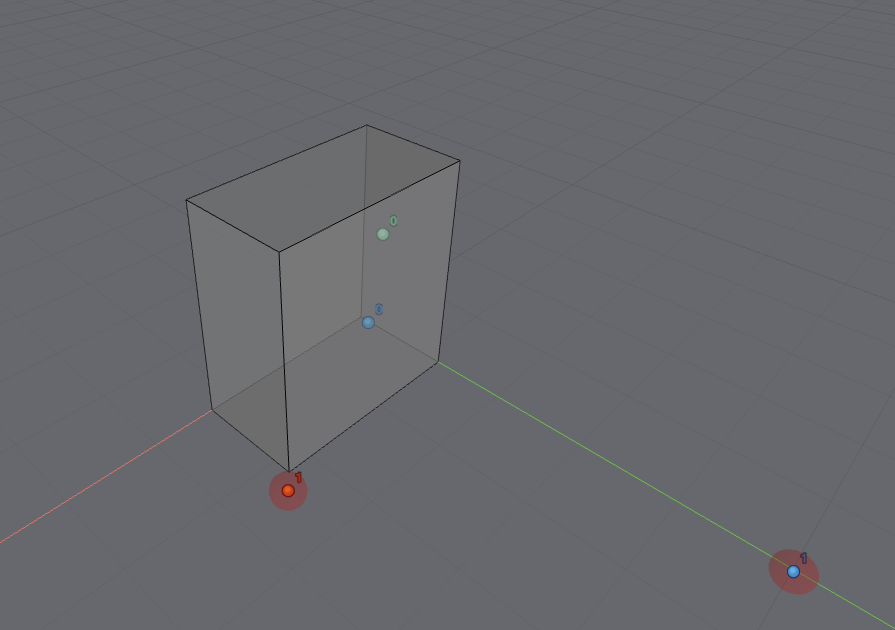
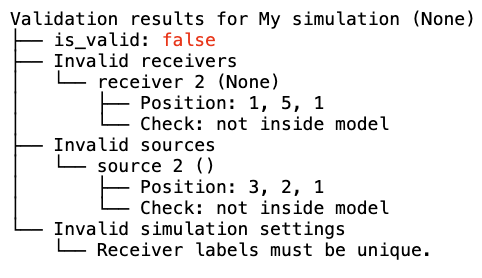
The source and receiver highlighted in red are invalid. To inspect the details of each validation failure:
validation = sim_def.validate()
dd.display(validation)
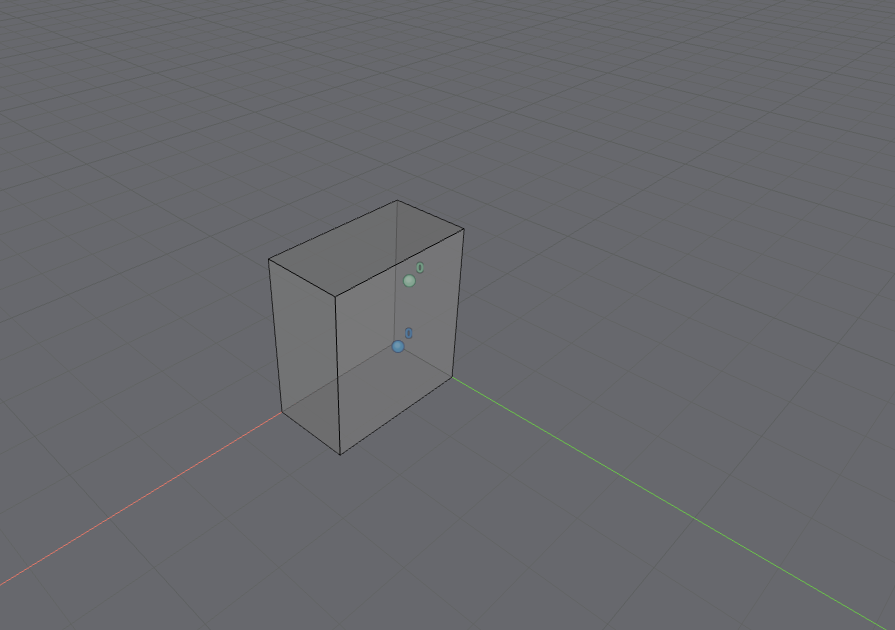
Use the helper methods to remove the invalid entries and confirm the result:
sim_def.remove_invalid_sources()
sim_def.remove_invalid_receivers()
sim_def.plot()
Simulation execution and token expenditure
Once a simulation has been added to a project, you can check its token cost, start it, monitor its progress, and cancel it if needed. The simulation object is returned when you add the definition to the project, but can also be retrieved at any time by ID or name:
# retrieve a simulation by ID
simulation = project.get_simulation('IDstr')

# retrieve a simulation by name
simulation = project.get_simulation_by_name('namestr')
To display the IDs, names, and high-level metadata of all simulations in a project — including crossover frequency, number of receivers, and number of sources:
dd.display(project.get_simulations())
Single simulation token cost
After adding a simulation to the project, check its token cost before running it. Using
.wait_for_token_cost() ensures the cost is returned only after the model has been processed
in the cloud; the value returned is the final cost of running the simulation:
dd.display(simulation.wait_for_token_cost())
Single simulation execution
Start an individual simulation with the following call. The token cost and your remaining balance are displayed once the simulation has completed:
simulation.start()
To monitor the progress of individual tasks within the simulation in real time:
simulation.as_live_progress()
Single simulation cancellation
To cancel a running simulation:
simulation.cancel()
When a simulation is cancelled, it's stopped in the cloud and you're billed for the proportion of the simulation that ran. For example, cancelling a 1-token simulation at 50% completion results in a charge of 0.5 tokens.
Simulations cancelled within 60 seconds of starting do not cost anything.
Project-level token cost
To view the token cost of all simulations in a project at once:
dd.display(project.wait_for_token_cost())
The output is a table listing each simulation alongside its status, estimated runtime, quoted cost, and billed cost.
Project-level simulation execution
To start all simulations in a project that haven't yet run:
project.start_simulations()
The token cost and your remaining balance are displayed once all simulations have completed. To monitor progress across all simulations in the project:
simulation.as_live_progress()
Project-level simulation cancellation
To cancel all running simulations in a project:
project.cancel_simulations()
The same partial-billing rules apply as for individual cancellations: you're billed for the proportion of each simulation that ran before cancellation.
Simulations cancelled within 60 seconds of starting do not cost anything.