Simulating a device
Treble devices can accommodate both sound sources and microphones. Device simulation injects microphones as point-receivers on the device geometry and simulates physical sound sources by applying a normal velocity condition to a specified region of the source geometry.
To separate a source into its passive and active parts, Treble uses the same geometry layer-based workflow as in regular room simulations.
Treble generates devices from a wave-based (DG) free-field simulation and saves them as reusable library objects, so teams across your organization can apply the same validated source model in multiple projects.
A minimal example
For this example we use a two-way loudspeaker as our geometric model.
This is a device with two microphones and
two sources (represented by named layers labelled tweeter and woofer in the geometry).
from treble_tsdk import treble

# Initialize Treble SDK instance and authenticate
tsdk = treble.TSDK()

# Get or create a project
project = tsdk.get_or_create_project('devices')
Load and inspect the geometry
Here, we load a speaker model from a 3dm file.
See Importing device geometry for further instructions on how to import and save geometries to your project.
The input geometry should have named layers for each radiating surface you want to use as a source.
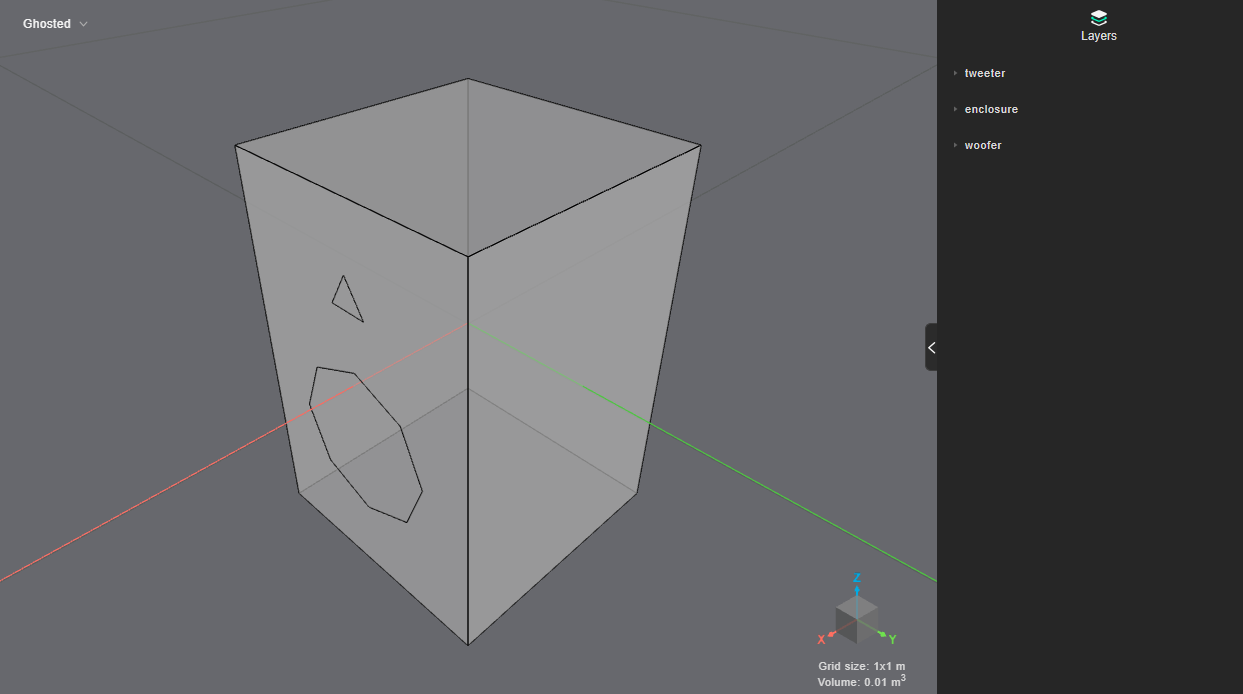
In this example, the device has two radiating surfaces on layers named "woofer" and "tweeter".
If the geometry check succeeds (status: Valid), the checked geometry can be added to the project as a model.
If it fails, inspect the reported issues and fix the geometry before proceeding.
# Create loudspeaker-shaped geometry component
device_model = project.get_model_by_name("two-way-loudspeaker")
if device_model is None:
    device_geometry_check = tsdk.device_library.create_device_geometry_definition(
        "loudspeaker_two_way.3dm",
        source_layers=["woofer", "tweeter"],
    )
    device_geometry_check.as_live_device_geometry_status()
    device_model = project.add_model("two-way-loudspeaker", device_geometry_check)
Inspect the model using Treble's plotting functions:
device_model.plot()
Initialize and run the device simulation
A device simulation automatically wraps your source geometry in a spherical domain and places an array of receivers around the device. It runs a full wave-based (DG) simulation up to a specified frequency under free-field conditions.
The DeviceSimulationDefinition takes the following key parameters:
model: A validated device model from the previous step.frequency: The maximum simulation frequency in Hz. Higher frequencies require finer meshes and longer computation times. The minimum is 100 Hz.source_layers: A list of layer names from the geometry that should act as radiating surfaces (boundary velocity sources). Each layer is simulated independently.device_microphones: A list ofDeviceMicrophoneInfoobjects defining physical microphone positions on the device. Each placement has:label: a unique name for the microphone.location: the 3D coordinates, relative to the device origin.project_to_mesh: ifTrue, the position is projected onto the nearest geometry surface. Set toFalseif the position is already at the desired location (e.g. outside the device body).
reference_microphones: Optional microphone positions for creating reference filters. These must be inside the receiver sphere and outside the device body but are otherwise placed freely. Use them to create reference correction filters for the sources, as shown in Creating a device.
In this example we use our two source layers ("woofer" and "tweeter"), in addition to two device microphones (one on each side of the device).
We also place a reference microphone in front of each membrane.
from treble_tsdk.core.device_definition import DeviceMicrophoneInfo
from treble_tsdk.device.device_simulation_definition import DeviceSimulationDefinition

device_simulation_definition = DeviceSimulationDefinition(
    name="loudspeaker-simulation",
    model=device_model,
    frequency=8000,
    source_layers=["woofer", "tweeter"],
    device_microphones=[
        DeviceMicrophoneInfo(label="right-device-mic", location=treble.Point3d(0.0, 0.1,0.05),project_to_mesh=True),
        DeviceMicrophoneInfo(label="left-device-mic", location=treble.Point3d(0.0, -0.1,0.05),project_to_mesh=True),
    ],
    reference_microphones=[
        DeviceMicrophoneInfo(
            label="ref-mic-woofer",
            location=treble.Point3d(0.200,0.000,-0.050),
            project_to_mesh=False,
        ),
        DeviceMicrophoneInfo(
            label="ref-mic-tweeter",
            location=treble.Point3d(0.200,0.000,0.070),
            project_to_mesh=False,
        )
    ],
)
Initializing the DeviceSimulationDefinition also prints an estimate of the
maximum valid frequency for each ambisonics order:
> Maximum frequency resolved per ambisonics order guideline
┏━━━━━━━━━━━━━━━━━━┳━━━━━━━━━━━━━━━━━━━━━━━━━━━━┳━━━━━━━━━━━━━━━━━━━━━━━━━━━━━━━━┓
┃ Ambisonics order ┃ Frequency for whole device ┃ Frequency for distance to mics ┃
┡━━━━━━━━━━━━━━━━━━╇━━━━━━━━━━━━━━━━━━━━━━━━━━━━╇━━━━━━━━━━━━━━━━━━━━━━━━━━━━━━━━┩
│        2         │          493.7 Hz          │            976.5 Hz            │
│        4         │          987.5 Hz          │           1952.9 Hz            │
│        8         │         1974.9 Hz          │           3905.8 Hz            │
│        16        │         3949.8 Hz          │           7811.7 Hz            │
│        24        │         5924.8 Hz          │           11717.5 Hz           │
│        32        │         7899.7 Hz          │           >12000 Hz            │
└──────────────────┴────────────────────────────┴────────────────────────────────┘

        An estimate of how well this device, with a sphere radius of
        0.221m  and max distance to mic 0.112 m,  (origin 0,0,0), is captured with the DRTF for the given ambisonics order.
Visualize the simulation set-up:
device_simulation_definition.plot()
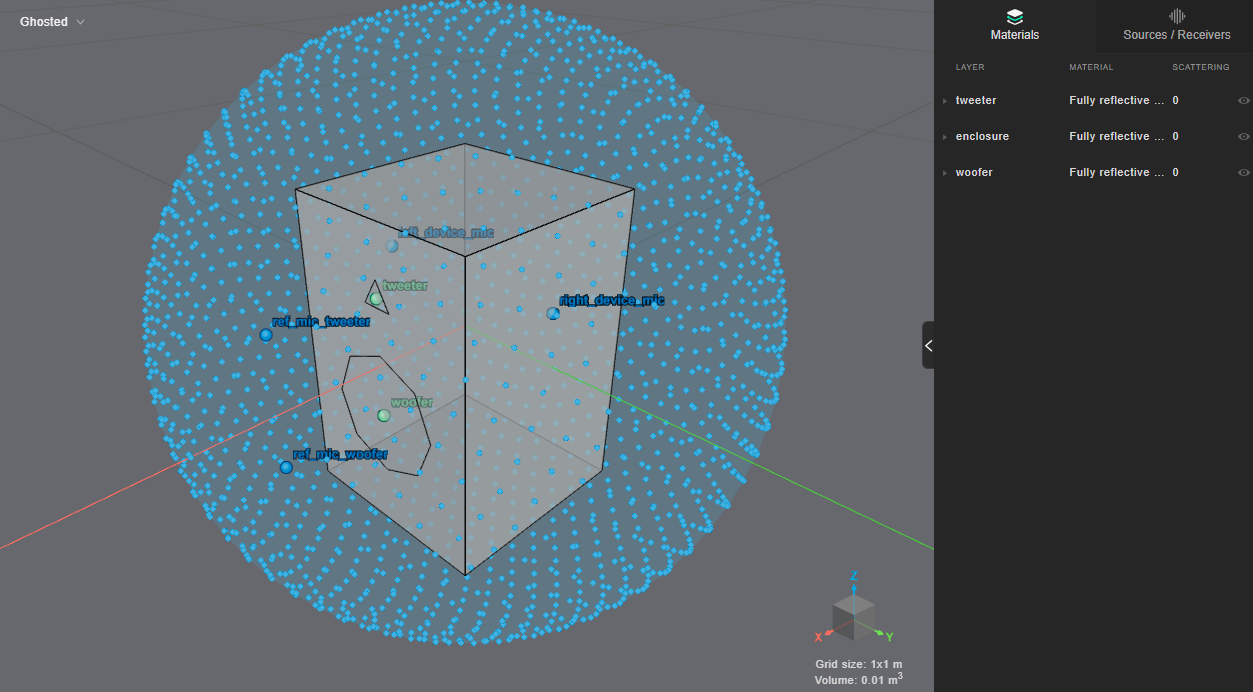
Try to center your device around the origin. This can reduce the size of the sphere required to run the simulation and increase the maximum usable frequency at each ambisonics order.
Once you're happy with your simulation layout, add the simulation to your project, start the simulation process and monitor its progress:
device_simulation = project.get_simulation_by_name(device_simulation_definition.name)
if device_simulation is None:
    device_simulation = project.add_simulation(device_simulation_definition)
    device_simulation.start()
    device_simulation.as_live_progress()
To create and register a device from your simulation results, see Creating a device.
Advanced simulation settings
DeviceSimulationDefinition also accepts these optional parameters. The defaults work for most devices:
num_receivers: The number of receivers spread over the receiver sphere. The default is 1906, which is enough for ambisonics order 32. A lower value gives a smaller result set, but the device can then only be used at lower ambisonics orders.receiver_sphere_radius: The radius of the receiver sphere in meters. By default it is computed from the device geometry: the smallest sphere that encloses the device, plus a fixed margin.exterior_sphere_radius: The radius of the outer absorbing sphere in meters, which emulates free-field conditions. By default it is computed from the source positions and the receiver sphere radius.material_assignment: A list ofMaterialAssignmentobjects that override the material on specific layers. By default every layer of the device is fully reflective.simulation_settings: ASimulationSettingsobject for advanced solver and post-processing parameters. See Simulation settings for the available options.descriptionandmetadata: A free-text description and a dictionary of string key-value pairs stored with the simulation.