Creating a device
A device is created from a completed device simulation.
The simulation results are processed into a DeviceDefinition object,
which may be registered in the device library.
From the library, the device can be placed in any room simulation,
where it acts as both a source and a receiver.
Creating the DeviceDefinition object automatically runs two post-processing steps on the completed simulation:
- Far-field expansion extrapolates the near-field simulation results on the receiver sphere to far-field directivity data, for both source layers and device microphones.
- Spherical harmonics decomposition breaks the directivity patterns into spherical harmonic (ambisonics) coefficients, creating a compact and renderable representation of the device's responses.
A device can also carry filters for its microphones and sources. The filters are stored with the device and applied whenever its impulse responses are fetched, so the simulation results stay unfiltered, allowing you to modify the filters without running a new simulation.
The examples on this page continue the two-way loudspeaker example in Simulating a device.
A minimal example
To create a device object, you need only provide a name for the device
to the create_device_definition method on the completed device simulation object.
You may also specify the ambisonics order of the device response.
A higher order captures finer detail and raises the valid frequency of the device.
An ambisonics order of 16 is chosen by default.
Creating the device definition
Calling create_device_definition triggers the far-field expansion and spherical harmonics decomposition processes, which are run remotely:
from treble_tsdk import treble

# Initialize Treble SDK instance and authenticate
tsdk = treble.TSDK()

# Get or create a project
project = tsdk.get_or_create_project('devices')

# Fetch your device simulation
device_simulation = project.get_simulation_by_name("loudspeaker-simulation")

# Apply far-field expansion and fit spherical harmonics to the simulation results
device_definition = device_simulation.create_device_definition(
    name="loudspeaker-twoway",
    ambisonics_order=16,
)
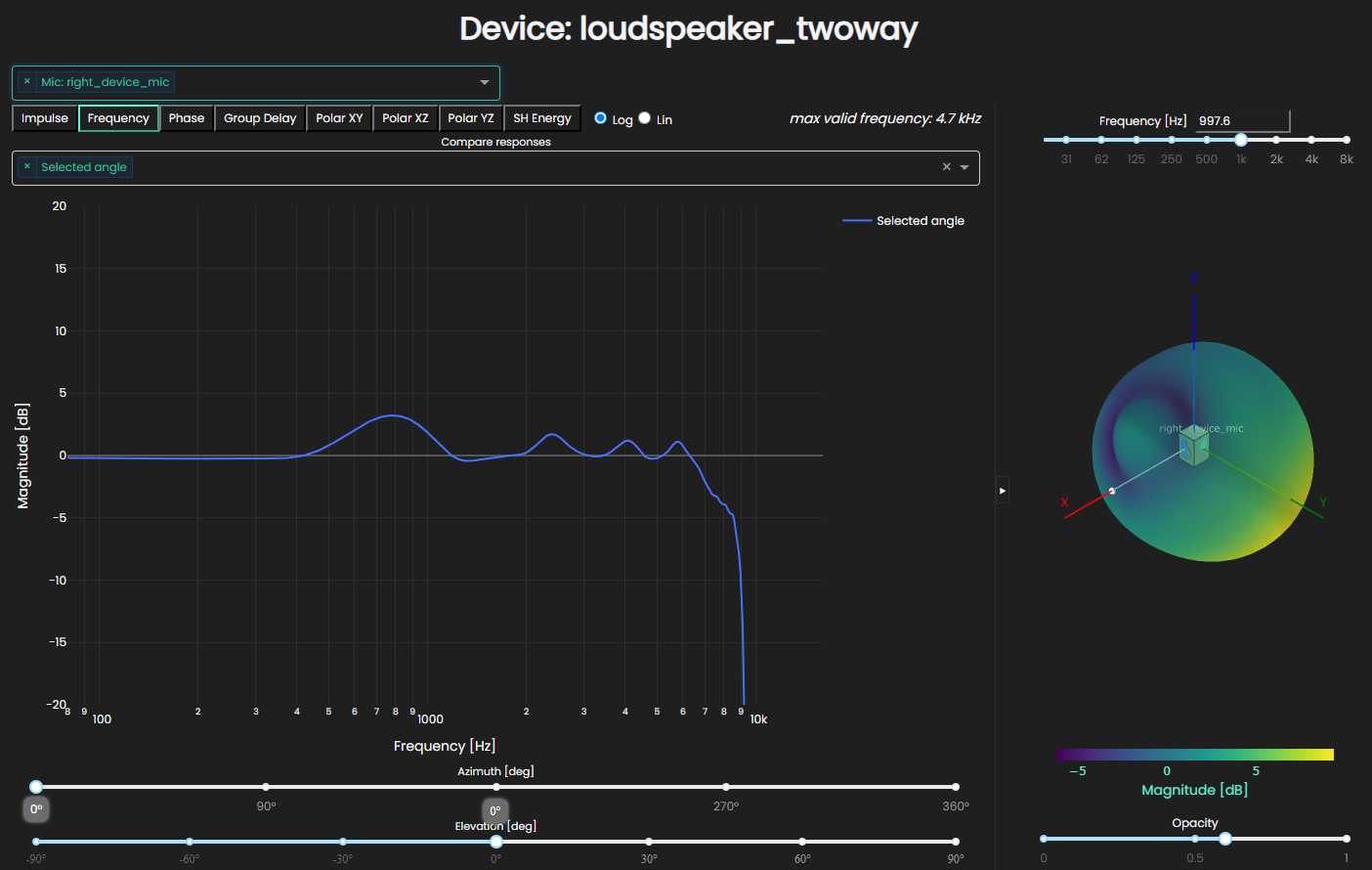
Once the DeviceDefinition has successfully been created, you can explore its contents using Treble's visualization tools:
device_definition.plot()
Registering your device
The final step of the creation process is to store the DeviceDefinition in the library. Once registered, the device can be:
- Retrieved by name with
tsdk.device_library.get_device_by_name(...). - Used as a source in any room simulation (see Using device results).
- Shared across projects without re-running the device simulation.
# Retrieve the device, returns None if the device does not exist
device = tsdk.device_library.get_device_by_name("loudspeaker-twoway")
if device is None:
    # Add the device to the device library
    device = tsdk.device_library.add_device(device_definition)
Adding filters to devices
Filters for the device microphones can be passed in the same call, keyed by microphone label, as a single filter or a list of filters applied in order. Any filter from Postprocessing works, such as gain, Butterworth, FIR, IIR and biquad filters. See Processing pipelines for how a list of filters is applied. This example models the low-frequency roll-off and sensitivity of the microphones:
device_simulation = project.get_simulation_by_name("loudspeaker-simulation")

mic_filters = [
    treble.ButterworthFilter(hp_order=2, hp_frequency=100),
    treble.GainFilter(0.8),
]

device_definition = device_simulation.create_device_definition(
    name="loudspeaker-twoway",
    ambisonics_order=16,
    device_mic_filters={
        "right-device-mic": mic_filters,
        "left-device-mic": mic_filters,
    }
)
Microphones that aren't listed stay unfiltered.
The microphone filters apply to every device impulse response, whether the sound comes from the device's own sources or from other sources in the room.
Filters for the device sources may be set in the same way using the device_source_filters keyword.
Referencing the device sources
By default, a device source is driven at a membrane velocity of 1 m/s. To reference a source to the pressure at one of its reference microphones instead, create a correction filter from the device definition. Because the filter comes from the processed definition, the source filters are set in a second step, after the definition exists.
woofer_ref = device_definition.get_reference_mic_reference_filter(source_index=0, mic_label="ref-mic-woofer")
tweeter_ref = device_definition.get_reference_mic_reference_filter(source_index=1, mic_label="ref-mic-tweeter")

device_definition.set_source_filters("woofer", [woofer_ref, treble.ButterworthFilter(lp_order=4, lp_frequency=2000)])
device_definition.set_source_filters("tweeter", [tweeter_ref, treble.ButterworthFilter(hp_order=4, hp_frequency=2000)])
Each source layer gets its own filter chain, applied in order. In this example the chains also add a 2 kHz crossover between the woofer and the tweeter.
If the device has no reference microphones, use get_on_axis_reference_filter(source_index=...) to reference a source to its on-axis response instead.
Advanced device creation settings
In addition to source/microphone filters, the device definition
can store a description for the device. You may also specify a group,
indicating the device belongs to a larger set of devices within your project:
device_simulation = project.get_simulation_by_name("loudspeaker-simulation")

device_definition = device_simulation.create_device_definition(
    name="loudspeaker-twoway",
    description="A two-way loudspeaker with two sources and two microphones",
    group="loudspeakers"
)
Phase linearization
When building the DeviceDefinition, you may request that the phase of the simulated signal be linearized above the
maximum valid frequency. This has the effect of concentrating the spherical harmonics energy into
the lower orders and can be useful for representing spatial data at higher frequencies
at lower orders.
Note that phase linearization is a heuristic and not a substitute for a full wave-based simulation represented with high-order ambisonics.
device_simulation = project.get_simulation_by_name("loudspeaker-simulation")

device_definition = device_simulation.create_device_definition(
    name="loudspeaker-twoway",
    ambisonics_order=4,
    linearize_phase=True
)
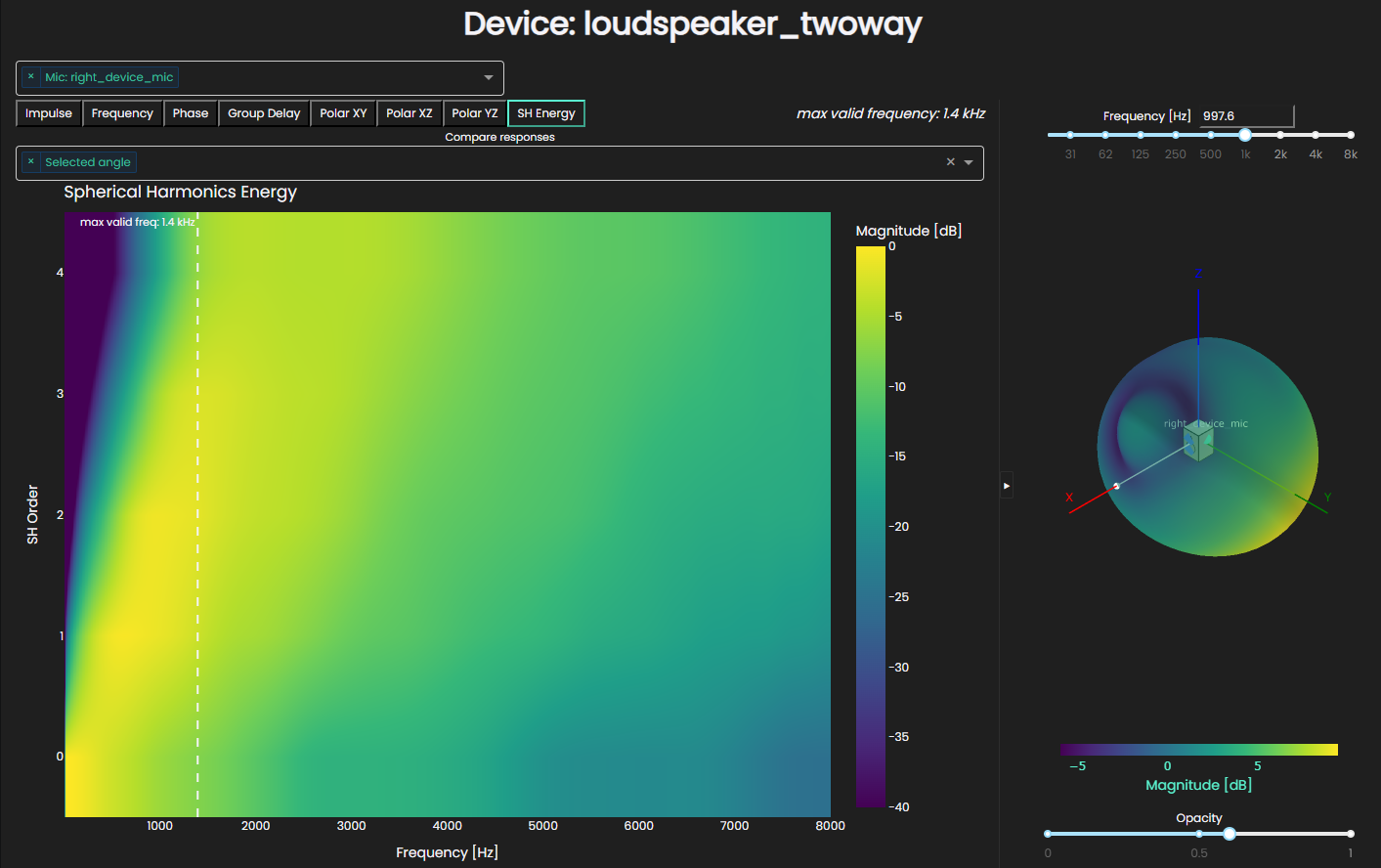
For our two-way loudspeaker, the right-device-mic has maximum valid frequency of 1.4 kHz at ambisonics order 4
but the low orders do not contain much of the high-frequency energy content:
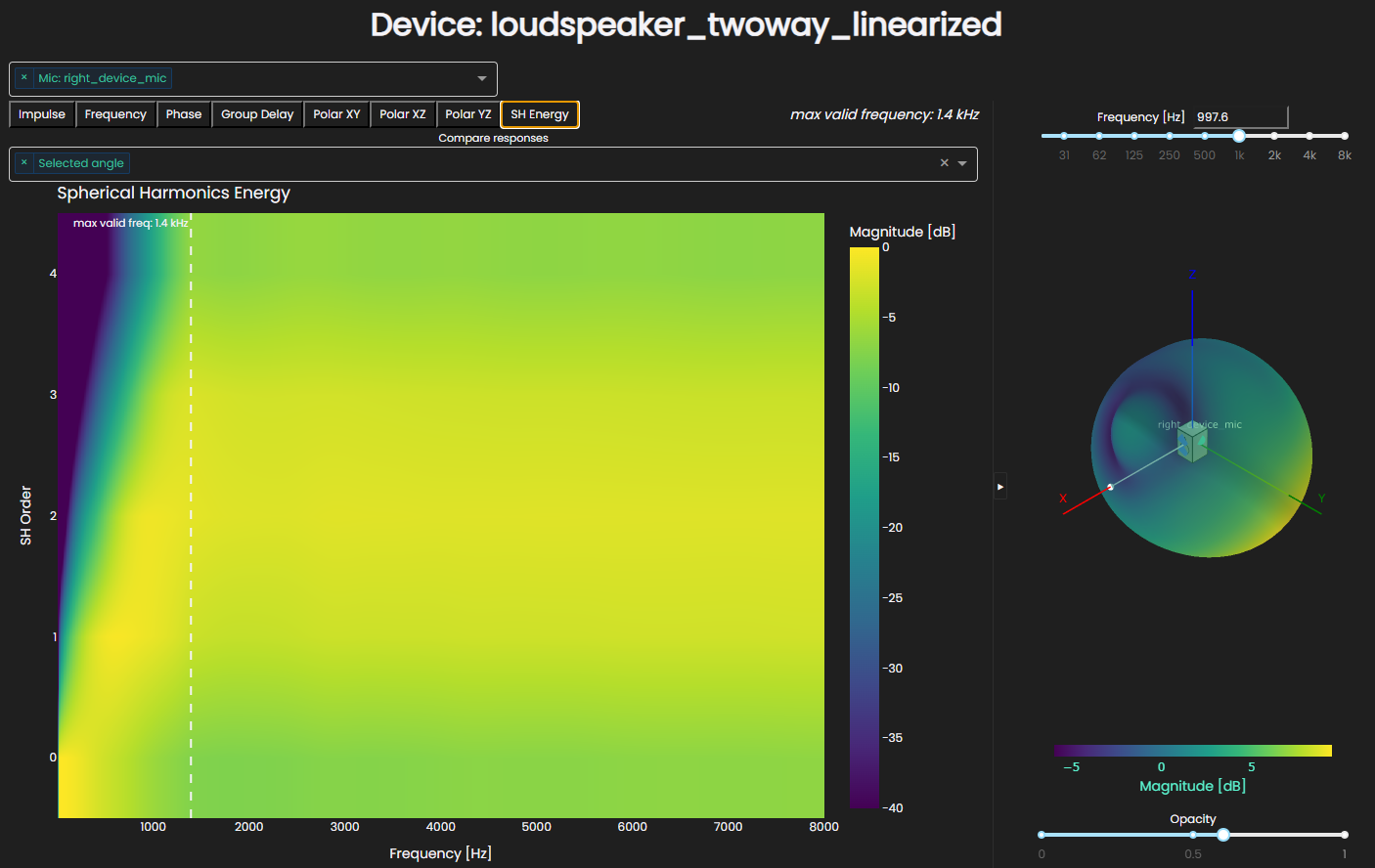
By contrast, linearizing the phase concentrates the energy into the lower orders: