Importing device geometry (legacy)
Using setup_drtf_simulation
Set up a DRTF simulation
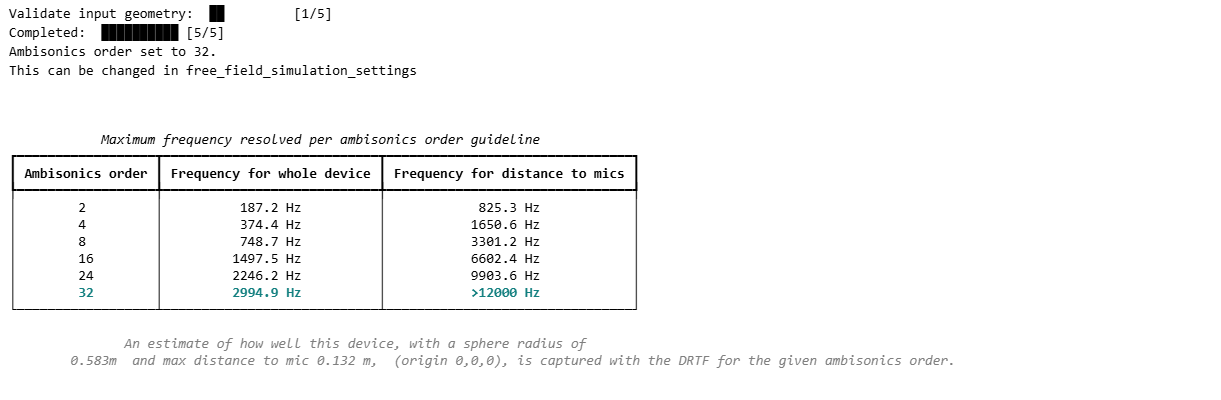
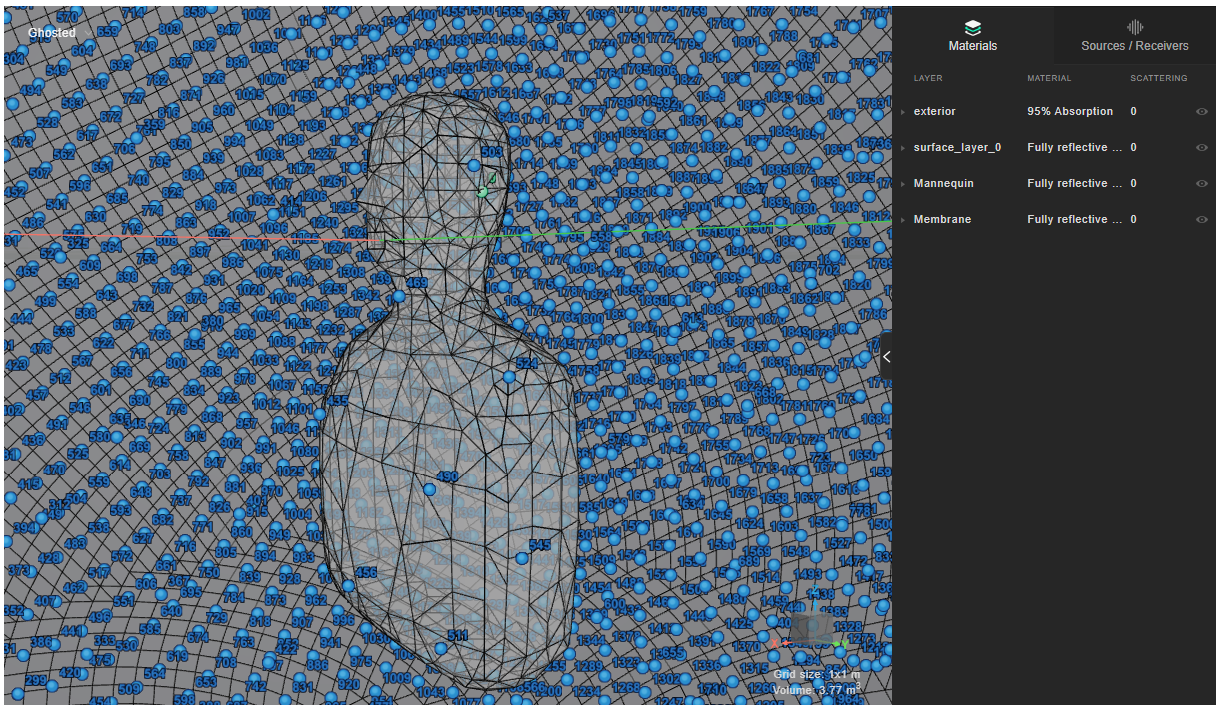
Now you can use the imported model to set up a free field simulation, producing a free field simulation definition.
device_microphone_placements = [-0.091,0.078,0.056]

ff_def = project.setup_drtf_simulation(
    simulation_name="mann_ff_32",
    freefield_model_name="mann_ff_model_32",
    device_geometry=model,
    device_microphone_placements=device_microphone_placements,
    frequency=12000,
    ambisonics_order=32,
    impulse_sampling_rate=32000,  # optional; permitted values are 32000, 48000, and 96000
)
ff_def.plot()
Create volumetric mesh
When you add the simulation definition to the project you trigger the creation of the volumetric mesh: see Local mesh sizing to control how it's built.
sim = project.add_simulation(ff_def)
Plot mesh
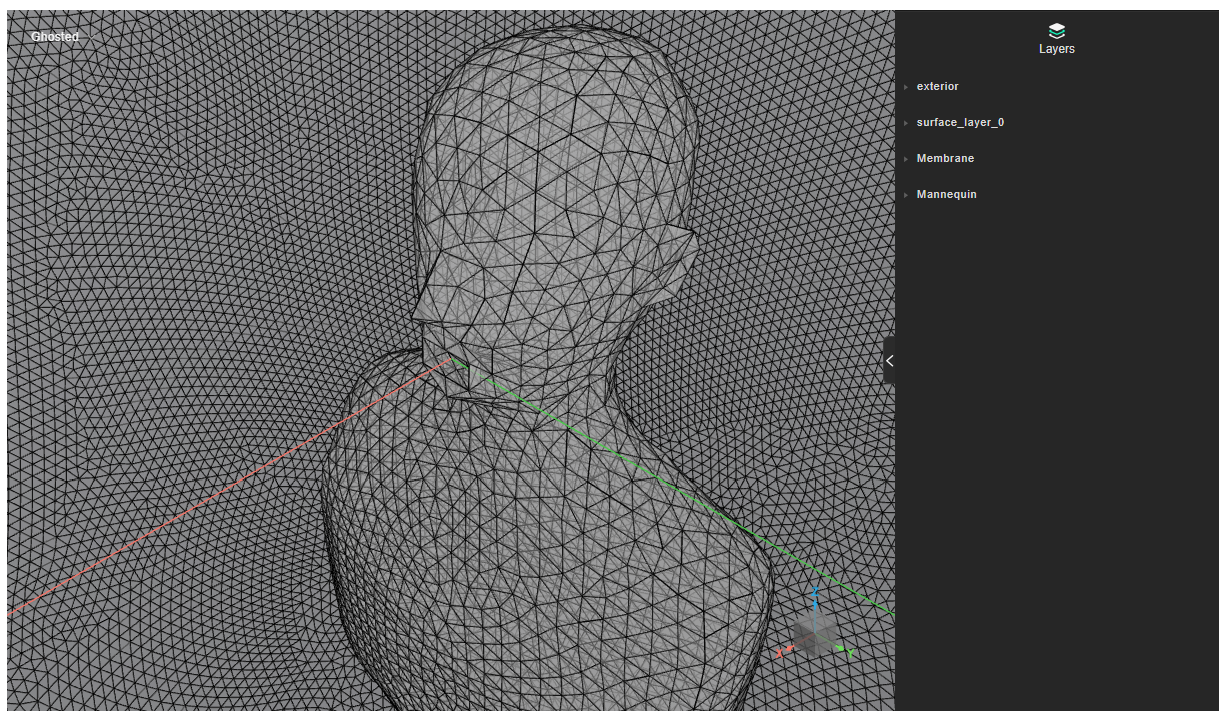
You can inspect the boundary surfaces of the volumetric mesh by calling get_mesh_info().plot() on the simulation previously created. This will work once the volumetric mesh has been calculated at full.
sim.get_mesh_info().plot()
Plot mesh efficiency
After the DG-FEM mesh is created, you can also display general mesh information in a table:
simulation.get_mesh_info().as_table()
The DG-FEM mesh efficiency is defined by three conditions:
- elements are as close as possible to regular tetrahedrons
- elements are as homogeneous as possible in size and volume
- elements do not have edges smaller than a certain length

Other legacy workflows
The following examples allow to modify the model during the creation of the free field simulation after is being already imported. We advise to avoid this and use the create_device_geometry_definition instead.
Geometry simplification (legacy)
When adding a free field model, you can tune the geometry simplification settings to remove unwanted detail.
from treble_tsdk.client.api_models import GeometryCheckerSettingsDto

ff_m = treble.free_field.add_free_field_model(  # Creates the freefield model
    project=project,
    name=freefield_model_name,
    geometry=device_model_path,
    device_microphone_placements=mics,
    geometry_checker_settings=GeometryCheckerSettingsDto(
        simplificationThreshold=0.01
    ),
)
Add free field model (legacy)
The following example sets up a free field simulation in two steps. First, it adds the model as a free field model. At this stage it is possible to set up the microphone positions to be used later. A legacy method allows to specify the size of the microphone triangles.
mics = treble.free_field.DeviceMicrophonePlacements(  # Locations and size of the device microphones (or boundary velocity source)
    list_of_points=device_microphone_placements,
    injected_triangle_edge_length = 8e-3  # optional
)

ff_m = treble.free_field.add_free_field_model(  # Creates the freefield model
    project=project,
    name=freefield_model_name,
    geometry=device_model_path,
    device_microphone_placements=mics,
)
Once the model is added, you can inspect its position in the free field. You should center the model as much as possible, as explained in the previous example:
ff_m.plot()
You can then create a free field simulation definition and plot it.
freefield_simulation_name = "basic_example"

sim_def = treble.free_field.FreeFieldSimulationDefinition(  # Creates the simulation definition
    name=freefield_simulation_name,
    free_field_model=ff_m,
    frequency=frequency,
    receiver_sphere_radius=1,
    simulation_purpose=treble.free_field.FreeFieldSimulationPurpose.device,
)
sim_def.plot()
After this step you can add the simulation definition to the project, which triggers creation of the volumetric mesh.
sim = project.add_simulation(sim_def)
Inspect the volumetric mesh:
sim.get_mesh_info().plot()
Start the simulation:
sim.start()
Transform model before DRTF simulation (legacy)
If you need to move or rotate the device model before running the free field simulation, you can first import the model with add_model.
from treble_tsdk.geometry.generator import GeometryComponentGenerator

freefield_model_name = "Smart_speaker_model"
freefield_simulation_name = "Smart_speaker_sim"


microphoneA = treble.Point3d(0.00,0.00,0.115)
microphoneB = treble.Point3d(0.01,0.00,0.115)
microphoneC = treble.Point3d(-0.01,0.00,0.115)

device_microphone_placements = [ # microphone coordinates
    microphoneA,
    microphoneB,
    microphoneC
    ]

frequency = 12000
ambisonics_order = 32

speaker = project.add_model(
   model_name="Smart_Speaker",
   model_file_path=model_file_path
)
speaker.wait_for_model_processing()
speaker.plot()
Then, you can set up a transform and apply it to the model by turning it into a geometry component.
translation = treble.Vector3d(0, 0, -0.05)
rotation = treble.Rotation(0, 0, 0)
transform = treble.Transform3d(translation, rotation)

gc = GeometryComponentGenerator.create_component_from_model(speaker,component_name="my_translated_speaker",transform=transform)

gc.plot()
You can then use the transformed geometry component in the free field simulation.
# update microphone coordinates with translation
device_microphone_placements = [p + translation for p in device_microphone_placements]

ff_def = p.setup_drtf_simulation(
    simulation_name=freefield_simulation_name,
    freefield_model_name=freefield_model_name, # unique name
    device_geometry=gc, # geometry component
    device_microphone_placements=device_microphone_placements, # updated coordinates
    frequency=frequency,
    ambisonics_order=ambisonics_order,
)
ff_def.plot()
Simplification off (legacy)
If small required edges are removed during import, you can globally switch off edge simplification by setting mesher_settings.simplify_mesh to False, which lowers the simplification tolerances applied by the meshing algorithms:
from treble_tsdk.core.simulation import MesherSettings

sim_def = treble.free_field.FreeFieldSimulationDefinition(
    name=freefield_simulation_name,
    free_field_model=ff_m,
    frequency=frequency,
    receiver_sphere_radius=1,
    source_input="surface_layer_0",
    simulation_purpose=treble.free_field.FreeFieldSimulationPurpose.device,
    free_field_simulation_settings=ff_sim_settings,
    mesher_settings=MesherSettings(simplify_mesh=False),
)
The code examples can be run by downloading the .3dm files made available below: