Downloading and saving results
Downloading results
After running a simulation in Treble the following data can be downloaded:
- Excel spreadsheet with an overview of all results within the simulation
- All IR's for the selected source in a .zip file
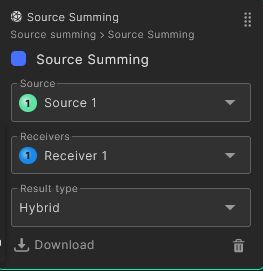
In order to download the data, select Download in the bottom left corner of the results view.
Excel Spreadsheet
The Excel spreadsheet contains the following information:
- A setup sheet in which the user can see:
- Name of the Treble project, space and simulation
- Chosen transition frequency and volume if the simulation is wave based
- Number of rays and image source order of the simulation
- Impulse length
- All layers are listed with their scattering and absorption values, as well as the corresponding surface area and absorption area
- A sheet with all relevant parameter results, averaged across all receivers for each source
- One sheet for each source receiver pairing with the relevant parameter results.
- Each of the individual source receiver sheets also contain the normalization coefficients for that pair. When working with the downloaded IR's in other tools, those coefficients can be used to avoid clipping.
Impulse responses
When downloading the impulse responses for the chosen source, the .zip file contains .wav files with both the mono and 2nd order ambisonic IR's for all receivers in the simulation. The 2nd order ambisonic IR's have the following properties:
- The receiver is always pointed in the direction of the positive x-axis
- The data is formatted in the ACN channel order with SN3D normalization
- The relevant normalization coefficients can be found in the Excel spreadsheet as documented above
Saving and loading result setups
When analyzing simulation results in Treble you can save your current result setup for quick access later, both for yourself and your team members. This is useful for preserving a specific combination of simulations, sources, receivers and parameter views that you want to revisit or share with collaborators.
What gets saved
A saved result setup preserves:
- The selected simulation(s) and any active comparisons
- The chosen source and receiver selection
- Any summed sources included in the setup
Saving a result setup
To save your current setup, select the Save button in the top left corner of the viewport while in the results view.

A popup will appear where you can name the setup and add an optional description.

Loading a saved result setup
There are two ways to load a previously saved result setup:
- Select the Load icon in the top left corner of the viewport while in the results view
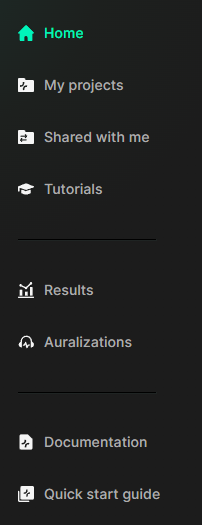
- Open the result setups from the side panel on the homepage
Sharing with project members
If you save a result setup in a project with multiple members, all members of the project will have access to the saved setup. This makes it easy to align your team on which results to review or present.
Editing a saved setup
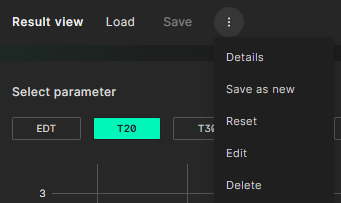
When you modify a saved result setup you can save the updated version by selecting the action menu (three dots) in the top left corner of the viewport. From here you can:
- Save to override the existing setup with your changes
- Save as new to keep the original and create a separate copy
- Edit description to update the name or description
Deleting a saved setup
To delete a saved result setup, open it and select the action menu (three dots), then choose Delete. A confirmation prompt will appear.