Screenshot mode
Screenshot mode lets you export a clean, high-resolution image of the 3D view. Use it to capture your model, source and receiver positions, surface receiver heatmaps or reflection tracking results for reports and presentations. There is also a separate option to download surface receiver heatmaps as a ZIP archive containing individual .png files.
Screenshot mode is available in both the editor and the results view.
Entering and exiting screenshot mode
To enter screenshot mode, click the camera icon in the toolbar at the top right of the 3D view, or press S on your keyboard.
While screenshot mode is active, the header, toolbars and surrounding panels are hidden, and the side panel on the right is replaced by the Capture mode panel. A frame on top of the 3D view shows the area that will be exported, with its output size shown above it.
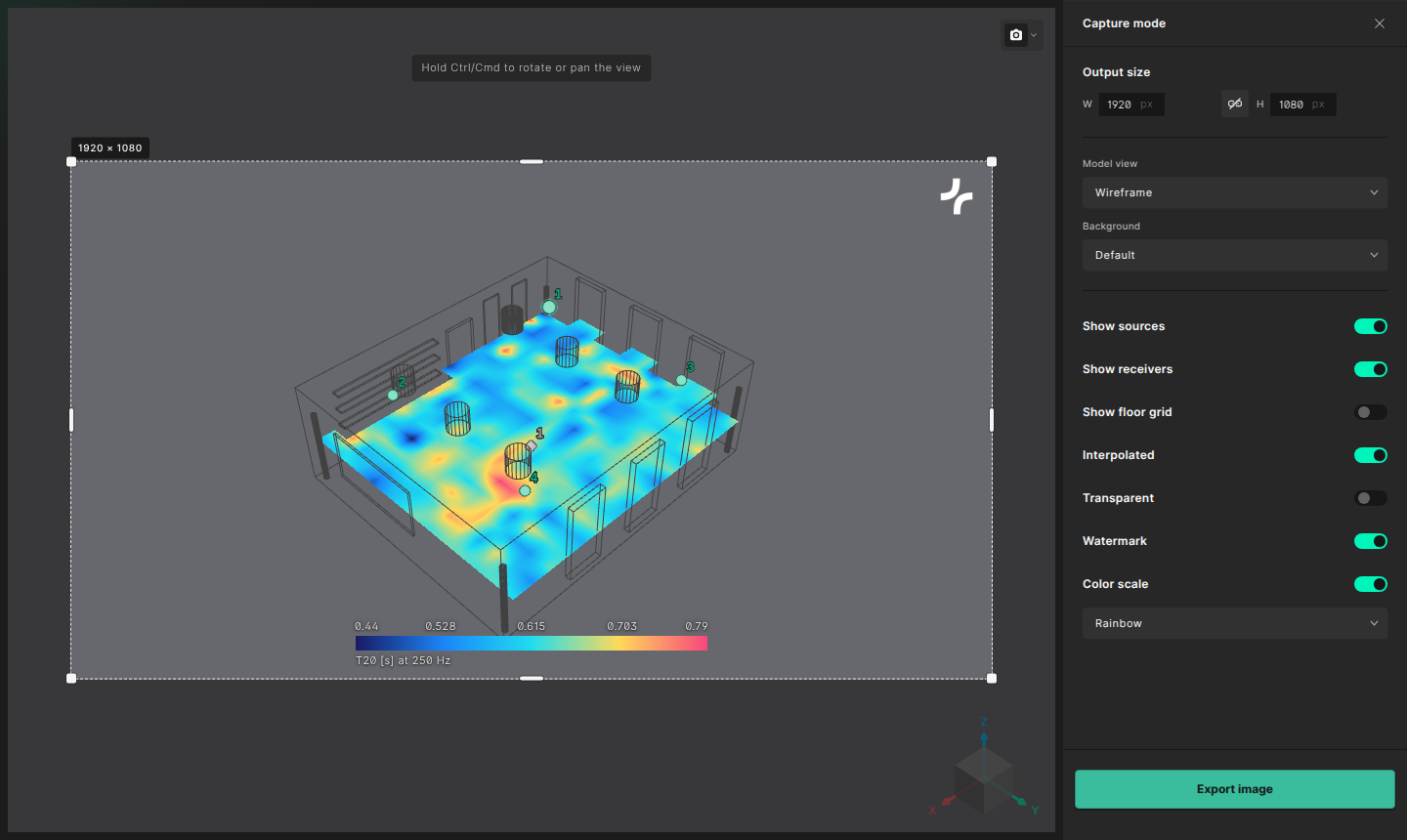
To exit screenshot mode, press Esc, click the camera icon again, or close the Capture mode panel. The 3D view returns to the model view you were using before.
Framing the image
Rotating and panning the view
While screenshot mode is active, regular mouse input adjusts the frame instead of the camera. To move the camera, hold Ctrl (Cmd on macOS):
- Ctrl/Cmd + drag rotates the view.
- Ctrl/Cmd + right-drag pans the view.
A hint at the top of the 3D view reminds you of these controls. Release Ctrl/Cmd to go back to adjusting the frame.
Adjusting the frame
- Drag inside the frame to move it.
- Drag an edge or corner of the frame to resize it.
- You can also select an edge or corner handle and use the arrow keys to resize the frame in 1 px steps, or 10 px steps while holding Shift.
Only the area inside the frame is exported. When you resize the frame, the output size in the Capture mode panel updates to match the new aspect ratio.
Capture mode panel
Output size
Set the width (W) and height (H) of the exported image in pixels. The default size is 1920 × 1080 px, and each side can be between 320 and 4096 px.
Click the link icon between the two fields to lock the aspect ratio. When the aspect ratio is locked, changing one dimension updates the other, and resizing the frame keeps its shape.
Model view
Choose how the model is drawn in the image: Shaded, Ghosted or Wireframe. If you entered screenshot mode while viewing a visual model, the Rendered option is also available.
Background
- Default uses the same background as the 3D view.
- Transparent exports a PNG with a transparent background, which is useful when placing the image on top of other content. The 3D view previews a transparent background as white.
- Custom lets you pick any background color using the color swatch next to the dropdown.
The watermark and color scale switch between light and dark text automatically, so they stay readable on the chosen background.
Display options
| Option | Description |
|---|---|
| Show sources | Shows or hides source markers. |
| Show receivers | Shows or hides receiver markers. |
| Show floor grid | Includes the floor grid in the image. Off by default. |
| Interpolated | Surface receiver results only. Switches between the interpolated and the per-grid-point heatmap. See Surface receivers view. |
| Transparent | Surface receiver results only. Shows the heatmap with transparency. |
| Reflection metadata | Reflection tracking results only. Adds a card to the image with the settings and details of the selected reflections. |
| Watermark | Adds the Treble logo to the image. |
| Color scale | Surface receiver results only. Adds the color scale to the bottom of the image. When it is turned on, you can also pick the color scheme of the heatmap. |
Exporting the image
Click Export image at the bottom of the Capture mode panel. The image is downloaded as treble_screenshot.png, using the output size, frame and options you have chosen.
Your screenshot settings, including the frame, are remembered for each simulation, so you can come back and export a matching image later in the same session. Reloading the page resets them to the defaults.
Downloading surface receiver heatmaps
In the surface receivers results view, the arrow next to the camera icon opens a menu with two options:
- Screenshot mode enters screenshot mode.
- Download heatmaps (.zip) downloads
surface_heatmaps.zip, which contains an image of each surface receiver heatmap together with an image of the color scale (color_scale.png).