Importing device geometry
This page aims to support the device simulation workflow by showing how to import geometry that can be used to generate Device Related Transfer Functions (DRTF) specific to the geometry imported. See Mesh optimization for background on meshing and quality metrics and look at the Tutorials for specific workflows, such as exporting from Rhino, Solidworks, Autocad. Treble SDK currently allows to import NURBS from Rhinoceros, as well as already meshed objects.
The geometry to be imported should be drawn in meters in one of these file formats:
- .3dm (NURBS or 3D mesh)
- .obj (3D mesh)
- .dxf (3D mesh aka 3DFACE)
Basic examples
The following examples explain how to import a mannequin geometry saved as a .3dm. You can find the geometry in the zipped folder of examples at the bottom of the page.
Create device geometry definition
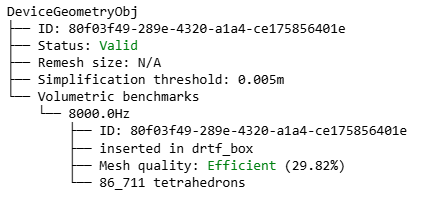
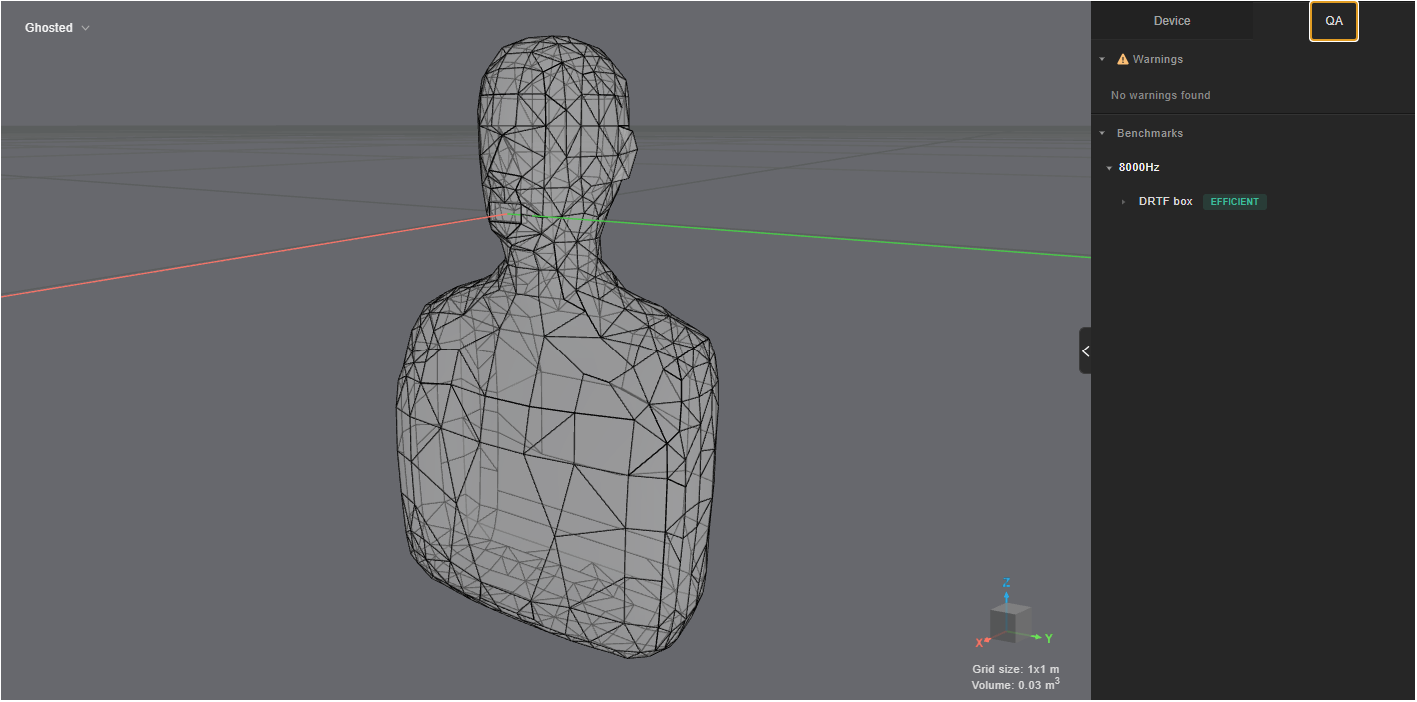
Use the following code to check the quality of a device geometry prior to running a free field simulation. The default check runs with simplification threshold of 0.005 m, and a volumetric benchmark at 8000 Hz upper frequency. For this mannequin, the volumetric mesh efficiency is 29.82%.
from pathlib import Path

device_geometry_check = tsdk.source_receiver_device_library.create_device_geometry_definition(
    Path("examples/MannequinHatsSimplified.3dm")
)
device_geometry_check.as_live_device_geometry_status()
device_geometry_check.plot()
To stop an in-progress geometry check, call cancel():
device_geometry_check.cancel()
Add model
With create_device_geometry_definition you can check geometry quality, but you still need to add the model to the project to save it for later, meaning that if you run a new geometry check without creating a new reference, you'll lose the previous one. Once you're satisfied with the check results, add the model to the project:
project = tsdk.get_or_create_project("checking_devices")

model_name = "SimpleMannequin"
model = project.get_model_by_name(model_name)
if model is None:
    model = project.add_model(model_name, device_geometry_check)
Set up a DRTF simulation
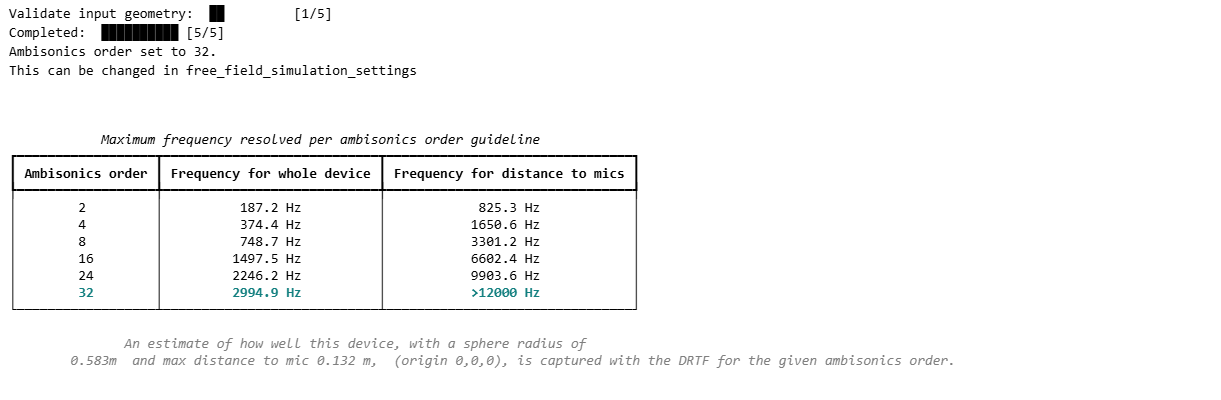
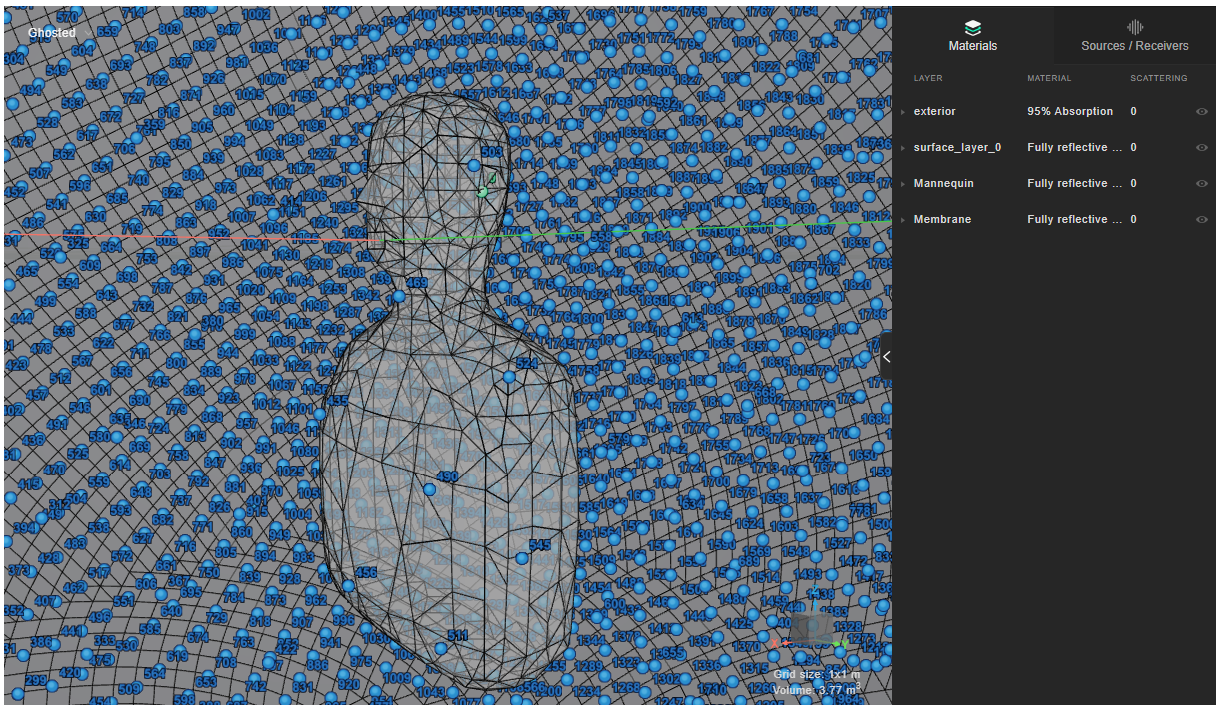
Now you can use the imported model to set up a free field simulation, producing a free field simulation definition.
device_microphone_placements = [-0.091,0.078,0.056]

ff_def = project.setup_drtf_simulation(
    simulation_name="mann_ff_32",
    freefield_model_name="mann_ff_model_32",
    device_geometry=model,
    device_microphone_placements=device_microphone_placements,
    frequency=12000,
    ambisonics_order=32,
    impulse_sampling_rate=32000,  # optional; permitted values are 32000, 48000, and 96000
)
ff_def.plot()
Create volumetric mesh
When you add the simulation definition to the project you trigger the creation of the volumetric mesh: see Local mesh sizing to control how it's built.
sim = project.add_simulation(ff_def)
Plot mesh
You can inspect the boundary surfaces of the volumetric mesh by calling get_mesh_info().plot() on the simulation previously created. This will work once the volumetric mesh has been calculated at full.
sim.get_mesh_info().plot()
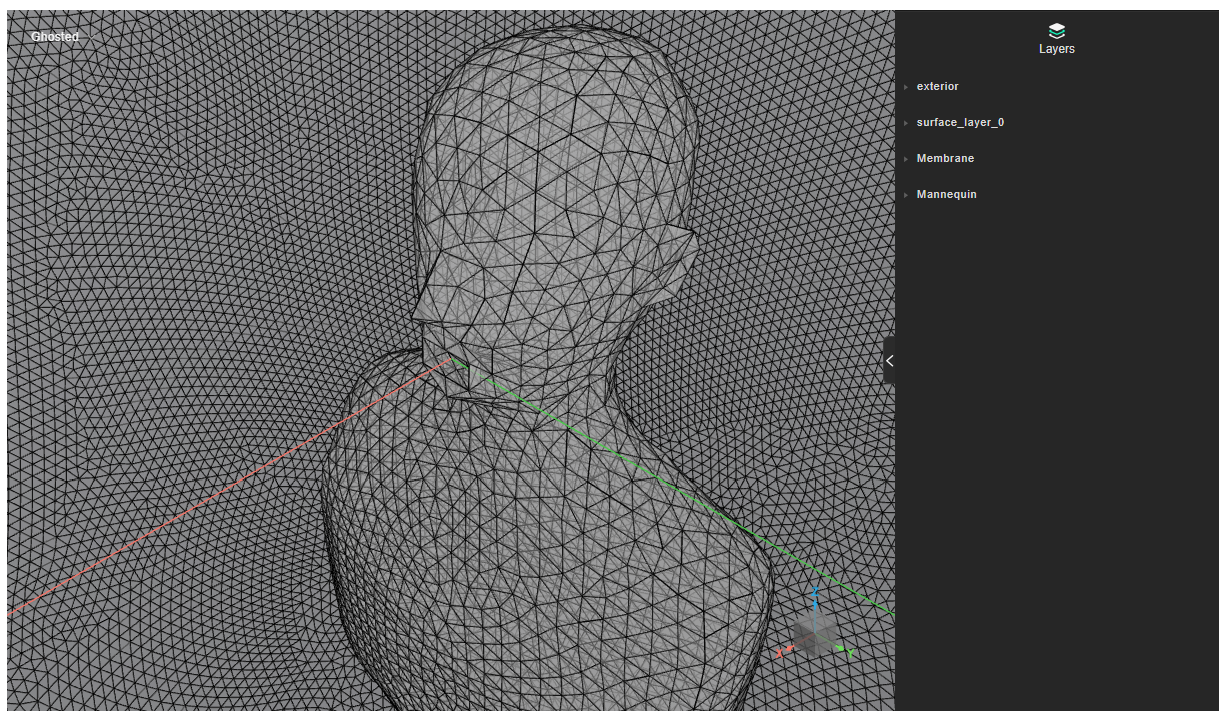
Plot mesh efficiency
After the DG-FEM mesh is created, you can also display general mesh information in a table:
simulation.get_mesh_info().as_table()
The DG-FEM mesh efficiency is defined by three conditions:
- elements are as close as possible to regular tetrahedrons
- elements are as homogeneous as possible in size and volume
- elements do not have edges smaller than a certain length

Advanced examples
Simplification threshold
You can pass simplification_threshold as an argument to remove some detail above the specified threshold.
The simplification threshold is set to 0.001 by default and if set to None, it defaults to 1/5 of the remesh size (if provided) or of the automatically calculated remesh size otherwise.
In this example, the mesh quality is increased to 37.71% and the QA tab shows that there are a certain amount of short edges that could be improved in the source geometry.
from treble_tsdk.core.device_geometry_obj import DeviceGeometryCheckSettings
from pathlib import Path

device_geometry_check = tsdk.source_receiver_device_library.create_device_geometry_definition(
    Path("examples/MannequinHatsSimplified.3dm"),
    settings=DeviceGeometryCheckSettings(simplification_threshold=0.01),
)
device_geometry_check.as_live_device_geometry_status()
device_geometry_check.plot()
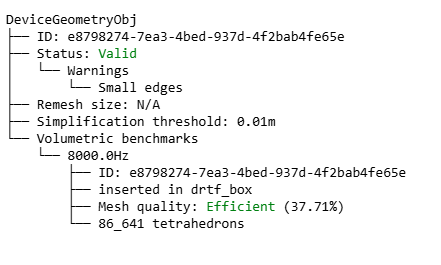
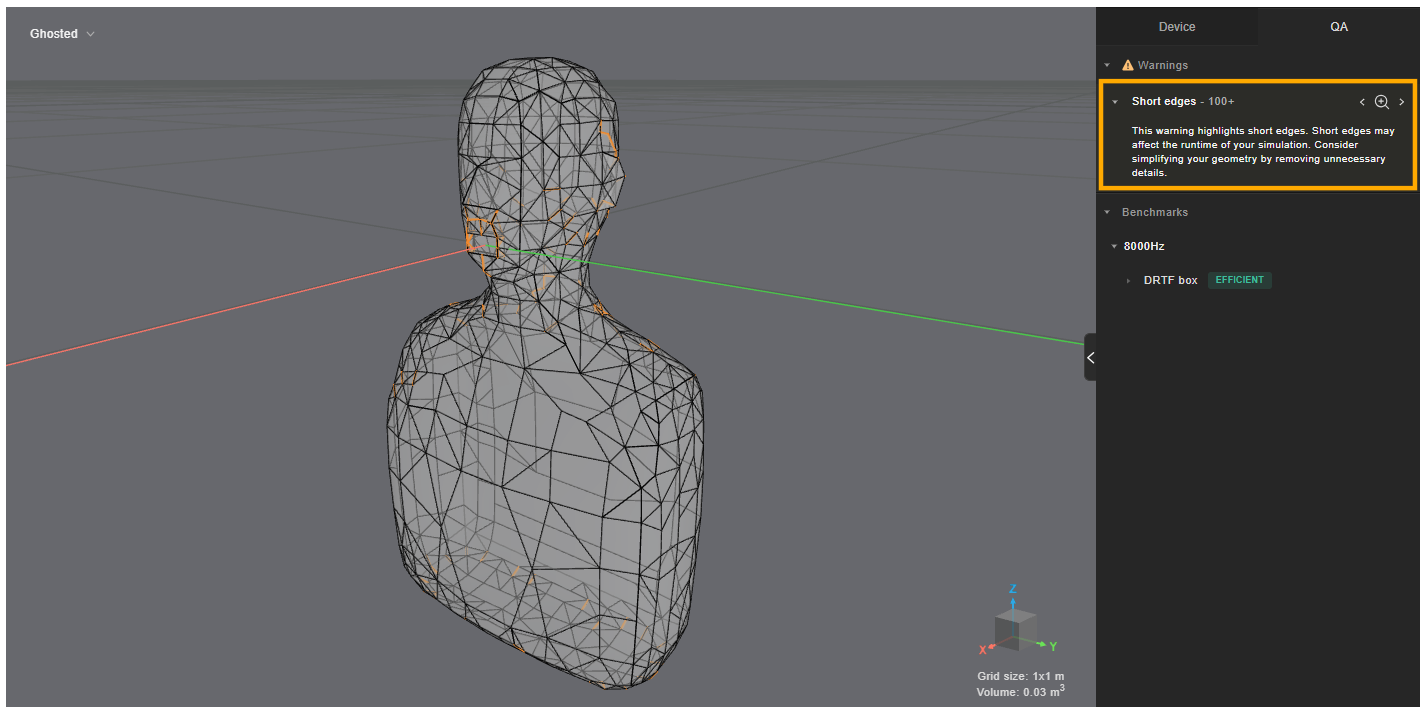
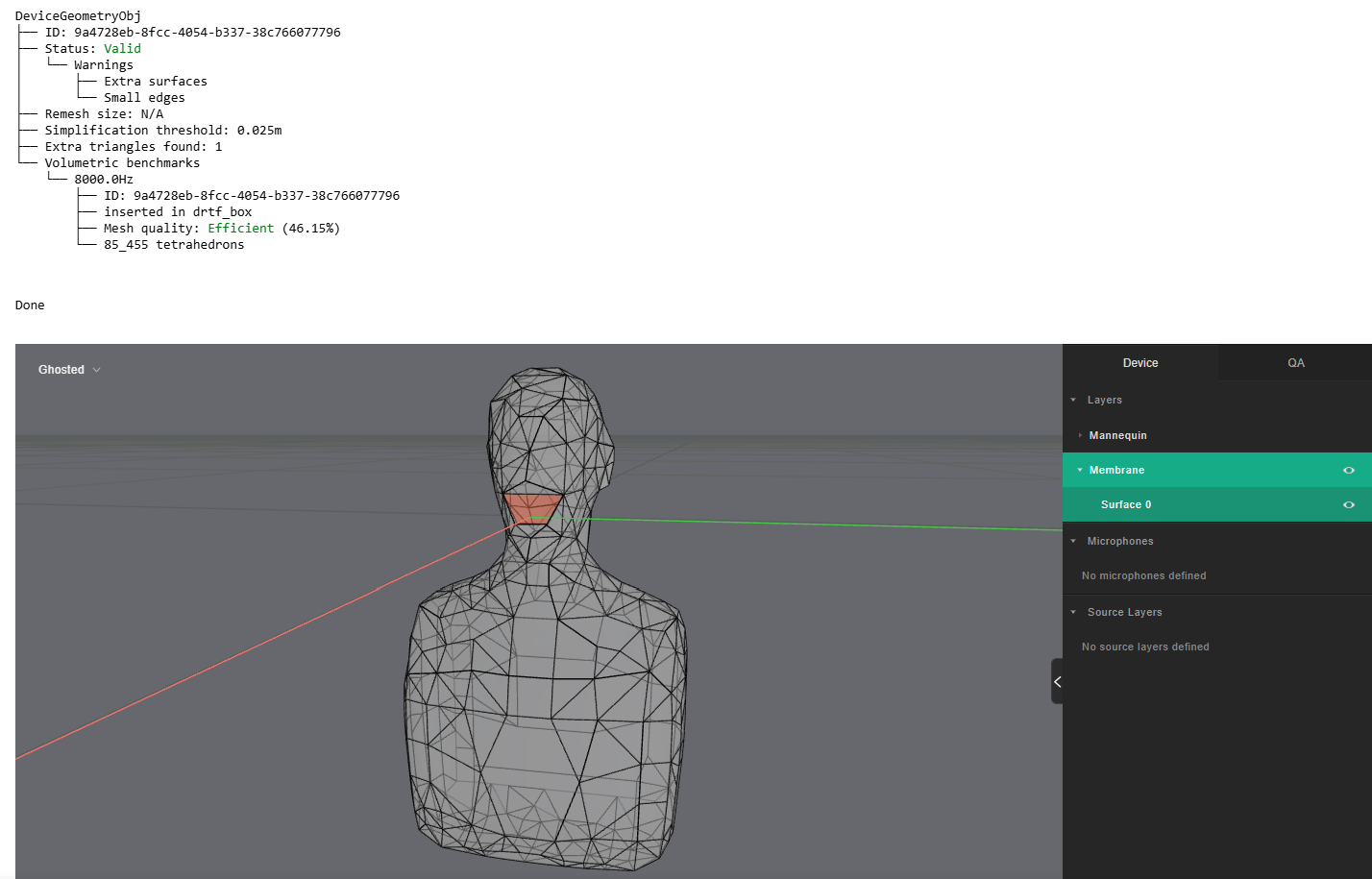
By setting simplification_threshold to 0.025 m, the mesh quality is increased to 46.15% but the membrane layer is deformed.
The cleaning should only be used to target some isolated cases (e.g. setting it to 0.002 to tackle few small edges); if there is a lot of meaningful edges around that size, then the cleaning will distort the geometry more than remeshing (which is more context aware and attempts to preserve the curves).
from treble_tsdk.core.device_geometry_obj import DeviceGeometryCheckSettings
from pathlib import Path

device_geometry_check = tsdk.source_receiver_device_library.create_device_geometry_definition(
    Path("examples/MannequinHatsSimplified.3dm"),
    settings=DeviceGeometryCheckSettings(simplification_threshold=0.025),
)
device_geometry_check.as_live_device_geometry_status()
device_geometry_check.plot()
Remesh size
For cases like this you should use remesh_size, which will try to make more uniform the size of the triangles, preserving as much as possible the source geometry. Here you have an example of the result for remeshing with 1cm size. This generates many small triangles and the mesh quality drops to 10.93%.
from treble_tsdk.core.device_geometry_obj import DeviceGeometryCheckSettings
from pathlib import Path

device_geometry_check = tsdk.source_receiver_device_library.create_device_geometry_definition(
    Path("examples/MannequinHatsSimplified.3dm"),
    settings=DeviceGeometryCheckSettings(remesh_size=0.01),
)
device_geometry_check.as_live_device_geometry_status()
device_geometry_check.plot()
A fair rule of thumb is to have the simplification threshold set to 1/5 of the remesh size (if any remesh size is provided).
This can be done automatically by setting simplification_threshold to None when using remesh_size.
The outcome will be simplification_threshold=0.002, with the remaining short edge removed.
The mesh quality then raises to 23.93%.
from treble_tsdk.core.device_geometry_obj import DeviceGeometryCheckSettings
from pathlib import Path

device_geometry_check = tsdk.source_receiver_device_library.create_device_geometry_definition(
    Path("examples/MannequinHatsSimplified.3dm"),
    settings=DeviceGeometryCheckSettings(remesh_size=0.01, simplification_threshold=None),
)
device_geometry_check.as_live_device_geometry_status()
device_geometry_check.plot()
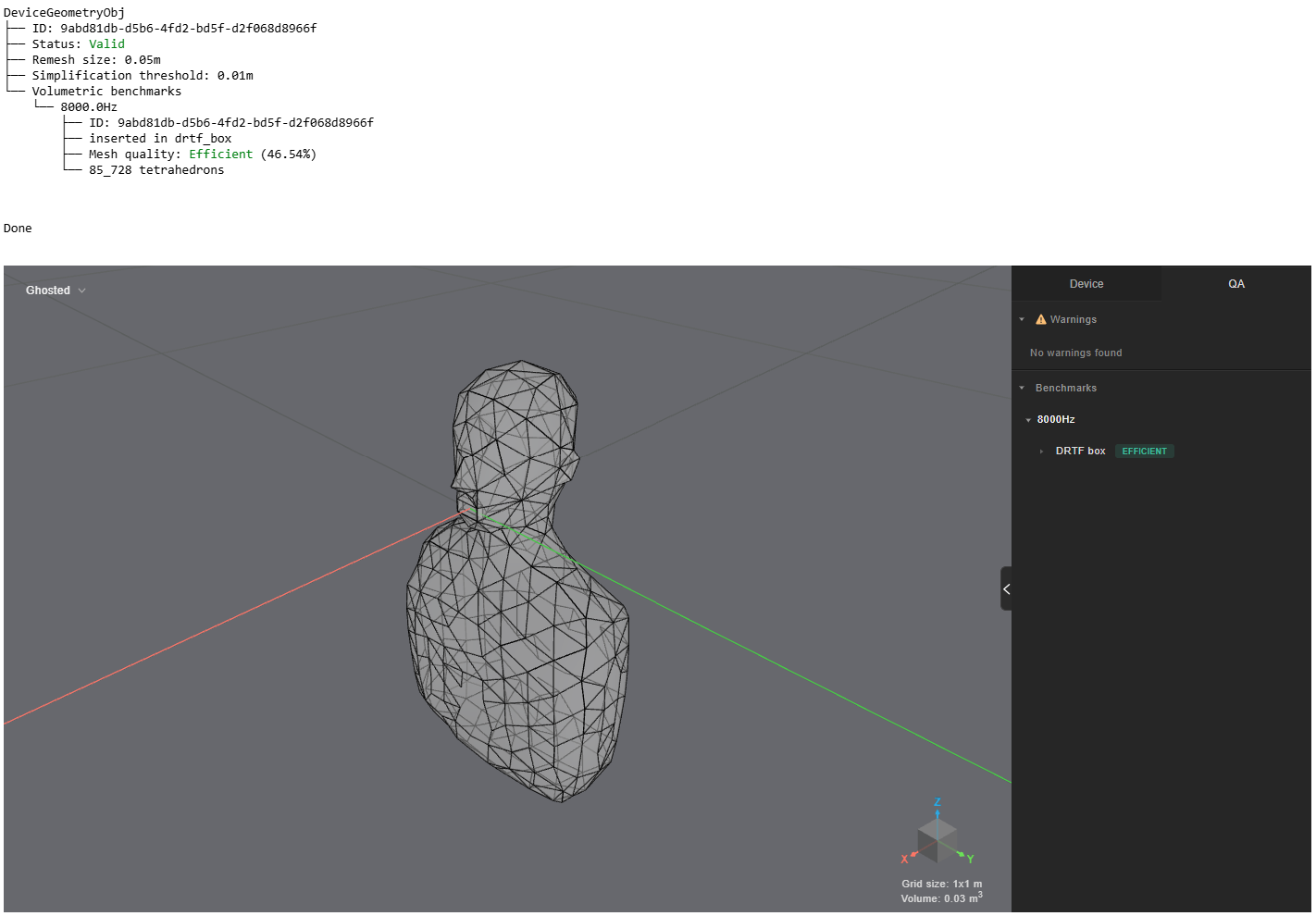
You set the parameter to 0.05 the mesh quality for the default benchmark will increase to 46.54%. If you set simplification_threshold to None it will pick up automatically the best value for the selected remesh_size.
from treble_tsdk.core.device_geometry_obj import DeviceGeometryCheckSettings
from pathlib import Path

device_geometry_check = tsdk.source_receiver_device_library.create_device_geometry_definition(
    Path("examples/MannequinHatsSimplified.3dm"),
    #simplification_threshold set to None becomes 0.01m as 1/5 of remesh_size
    settings=DeviceGeometryCheckSettings(remesh_size=0.05, simplification_threshold=None),
)
device_geometry_check.as_live_device_geometry_status()
device_geometry_check.plot()
Benchmark threshold
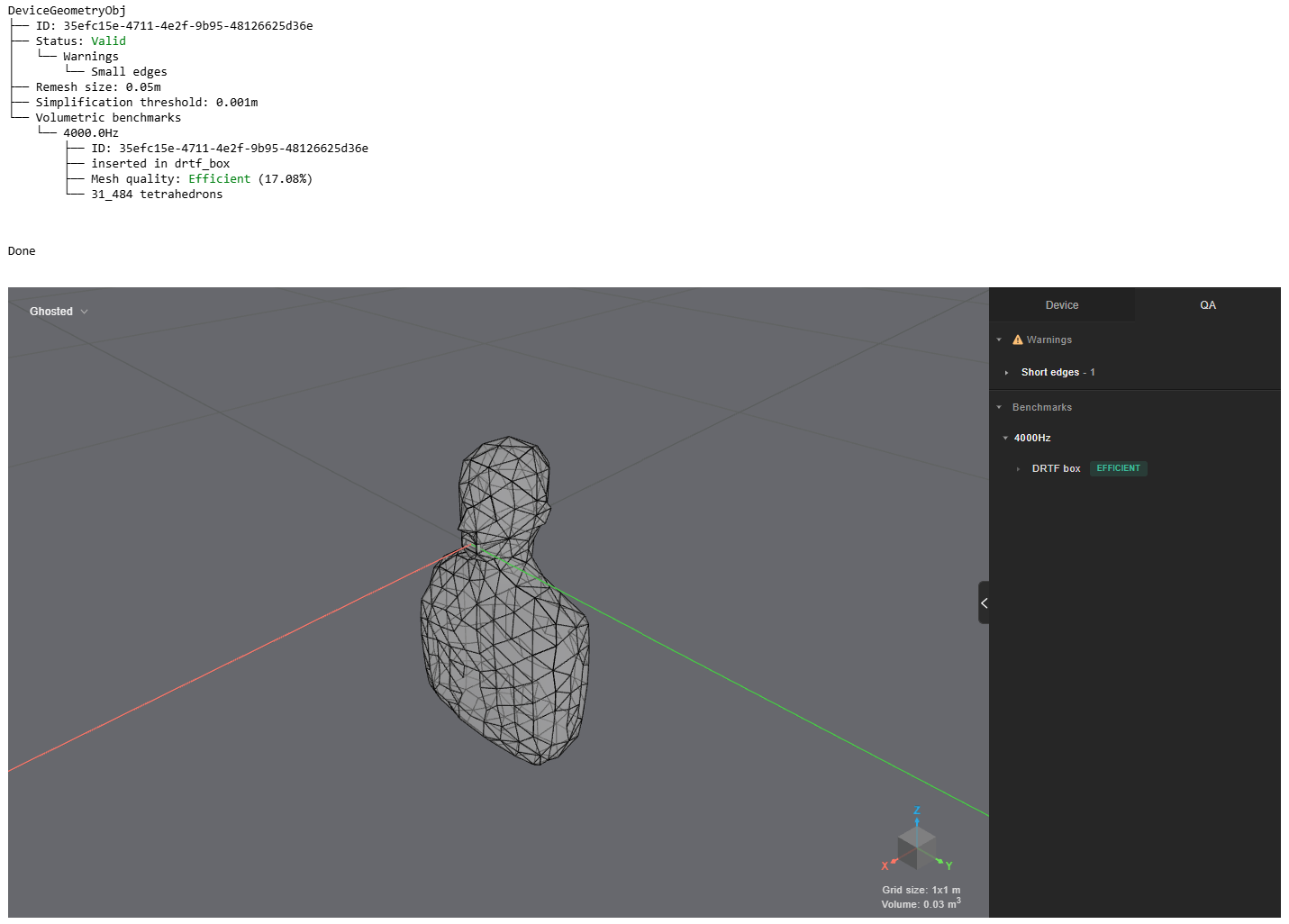
You can change the upper frequency of the benchmark and observe the results on mesh efficiency. For this case, the quality drops again to 17.08% because there are a good amount of edges whose lengths are shorter than the minimum relevant edge length for the benchmark's transition frequency.
from treble_tsdk.core.device_geometry_obj import DeviceGeometryCheckSettings, DeviceGeometryBenchmark,
from pathlib import Path

device_geometry_check = tsdk.source_receiver_device_library.create_device_geometry_definition(
    Path("examples/MannequinHatsSimplified.3dm"),
    settings=DeviceGeometryCheckSettings(remesh_size=0.05),
    benchmarks=[DeviceGeometryBenchmark(transition_frequency=4000)]
)
device_geometry_check.as_live_device_geometry_status()
device_geometry_check.plot()
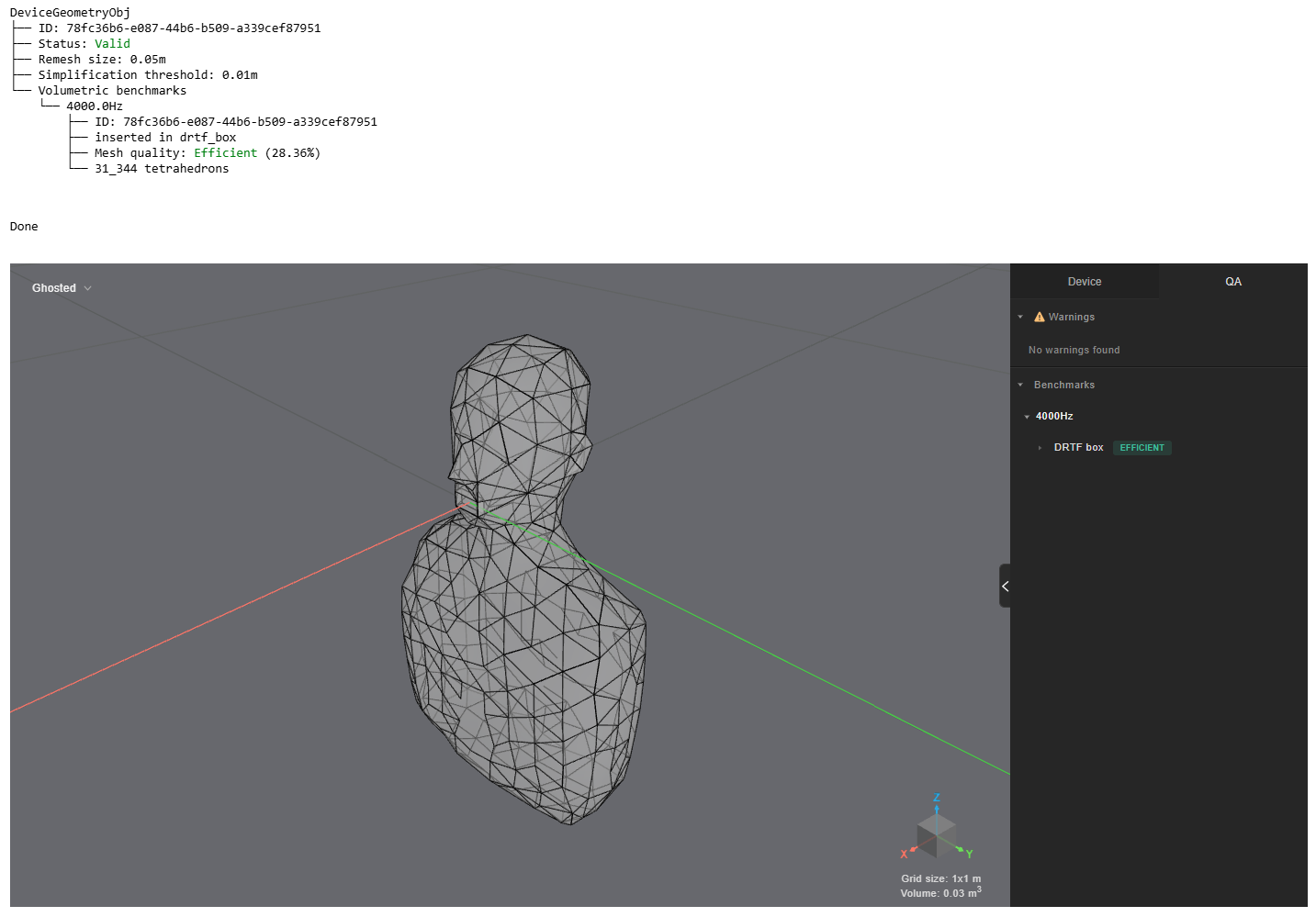
As we have learnt earlier, set the simplification_threshold to None to improve the mesh quality and get rid of short edges. Now the mesh quality for the benchmark at 4000 Hz is 28.36%.
from treble_tsdk.core.device_geometry_obj import DeviceGeometryCheckSettings, DeviceGeometryBenchmark,
from pathlib import Path

device_geometry_check = tsdk.source_receiver_device_library.create_device_geometry_definition(
    Path("examples/MannequinHatsSimplified.3dm"),
    settings=DeviceGeometryCheckSettings(remesh_size=0.05, simplification_threshold=None),
    benchmarks=[DeviceGeometryBenchmark(transition_frequency=4000)]
)
device_geometry_check.as_live_device_geometry_status()
device_geometry_check.plot()
Other benchmarks
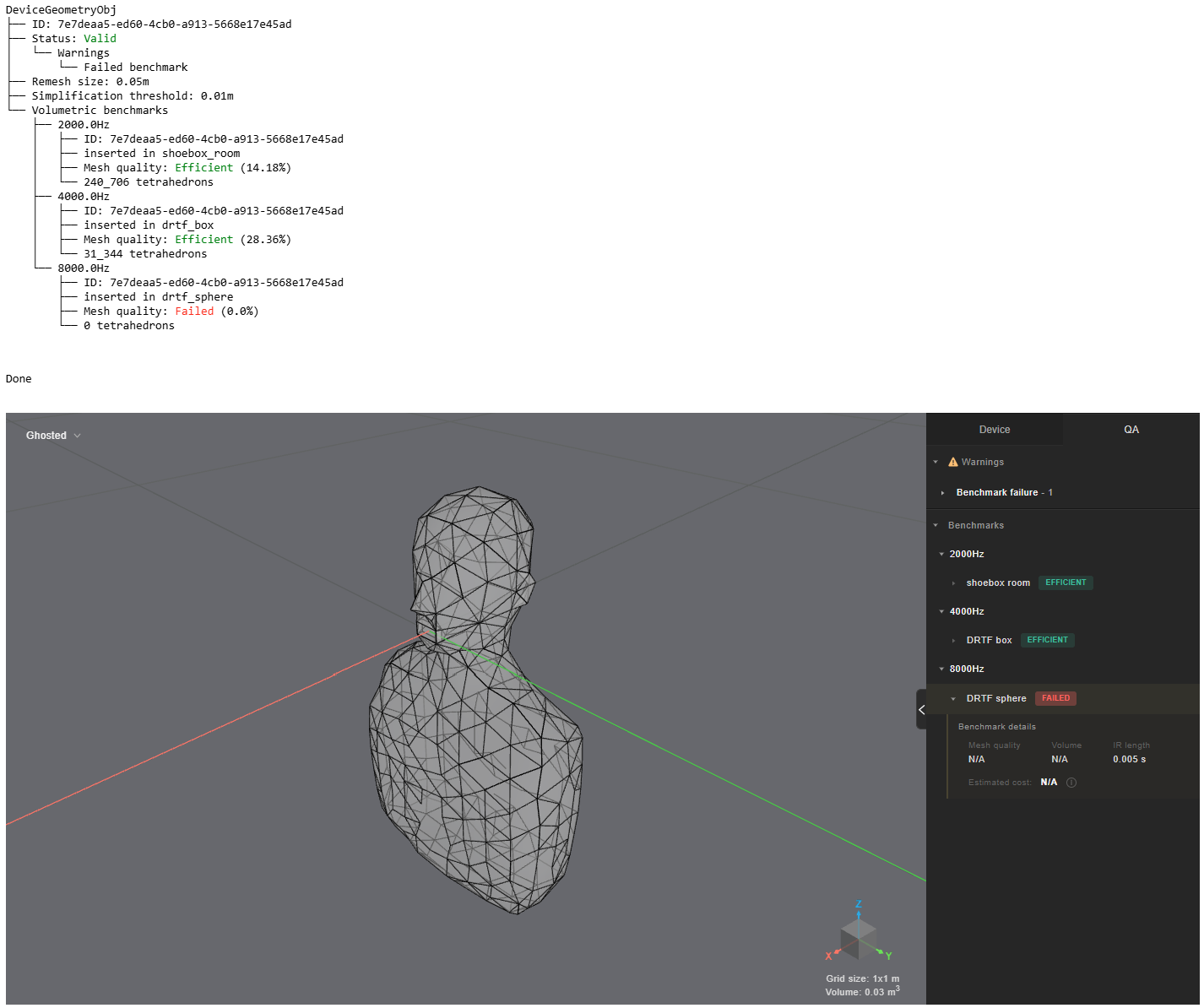
You can specify benchmarks with different transition frequencies and types as a list. In this example the mannequin is too big to fit comortably in the DRTF Sphere.
from treble_tsdk.core.device_geometry_obj import DeviceGeometryCheckSettings, DeviceGeometryBenchmark, DeviceGeometryBenchmarkModelType
from pathlib import Path

device_geometry_check = tsdk.source_receiver_device_library.create_device_geometry_definition(
    Path("examples/MannequinHatsSimplified.3dm"),
    settings=DeviceGeometryCheckSettings(remesh_size=0.05, simplification_threshold=None),
    benchmarks=[
        DeviceGeometryBenchmark(transition_frequency=4000),
        DeviceGeometryBenchmark(transition_frequency=8000, model_type=DeviceGeometryBenchmarkModelType.DRTF_SPHERE),
        DeviceGeometryBenchmark(transition_frequency=2000, model_type=DeviceGeometryBenchmarkModelType.SHOEBOX_ROOM)]
)
device_geometry_check.as_live_device_geometry_status()
device_geometry_check.plot()
Specify source layer
Use the settings source_layers to provide a list of layers that are intended to be used as boundary velocity layers later in the lifecycle of this device.
An additional verification step is run after the simplification to ensure that none of the faces in the source layers have been modified or ignored (if they were internal to the object and not exposed to the outside, for instance).
Setting the source layer with a source_layers argument locks the shape of the layer.
from treble_tsdk.core.device_geometry_obj import DeviceGeometryCheckSettings
from pathlib import Path

device_geometry_check = tsdk.source_receiver_device_library.create_device_geometry_definition(
    Path("examples/MannequinHatsSimplified.3dm"),
    source_layers= ["Membrane"],

)
device_geometry_check.as_live_device_geometry_status()
device_geometry_check.plot()
Microphone placement
The following rules apply:
- Device orientation
Orient the device on the X axis so that azimuthal rotations correspond to rotation in degrees. Center it on the axis as close as possible to the origin. Positive rotations are counterclockwise from the X axis.
- Microphone centering
Center the device at the origin (or as close as possible) to keep it within the required spherical radius — see Device Simulation for details.
Center both the model and microphones around the X axis — the meshing tools work best with symmetric placement.
Manipulate geometry
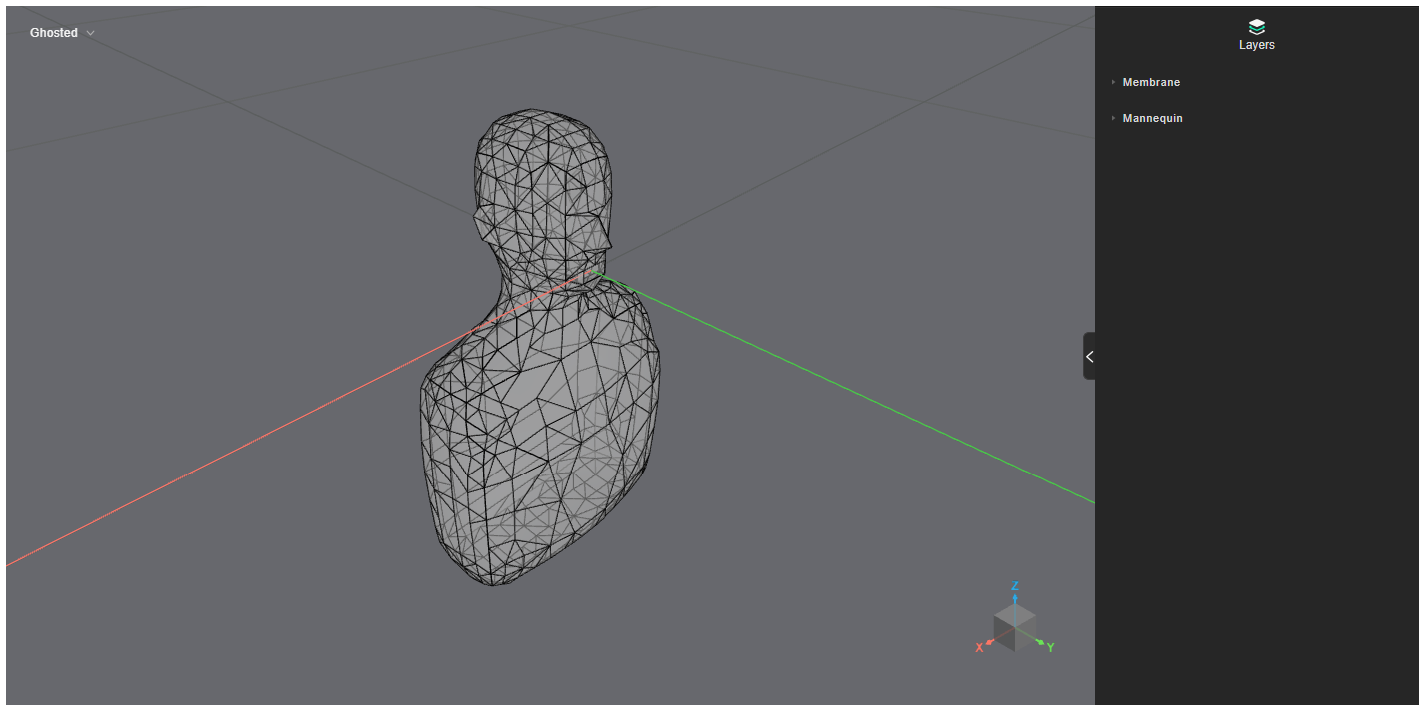
If you need to move or rotate the device model before the simulation, you can transform it into a geometry component using a transform and GeometryComponentGenerator.create_component_from_model. The original mannequin was already correctly facing the X axis, so we won´t rotate it. If you wished to do so, this is the code example.
from treble_tsdk.geometry.generator import GeometryComponentGenerator

translation = treble.Vector3d(0, 0, 0)
rotation = treble.Rotation(90, 0, 0)
transform = treble.Transform3d(translation, rotation)

rotated_mannequin = GeometryComponentGenerator.create_component_from_model(
    model,
    component_name="rotated_mann",
    transform=transform,
)
rotated_mannequin.plot()
This mannequin is rotated. You would then use rotated_mannequin instead of model in the following example.
Ignore extra faces
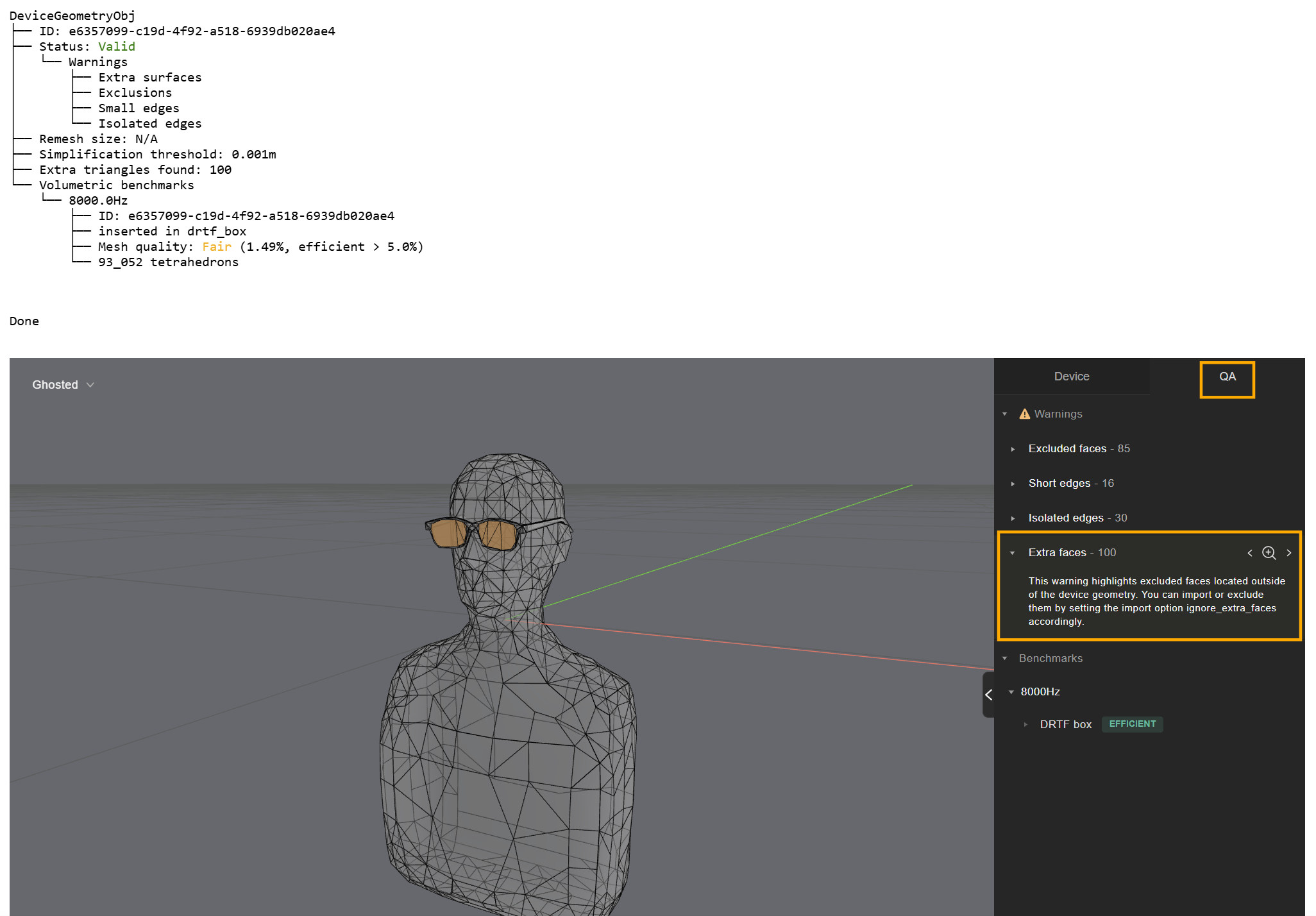
Use this setting to include the external faces that are excluded by the picking step. These faces can be the ones that are not part of the manifold part of the device, such as open surfaces 'dangling' from the device or parts floating outside of it.
from treble_tsdk.core.device_geometry_obj import DeviceGeometryCheckSettings, DeviceGeometryBenchmark, DeviceGeometryBenchmarkModelType
from pathlib import Path

device_geometry_check = tsdk.source_receiver_device_library.create_device_geometry_definition(
    Path("examples/SimpleMannequinGlasses.3dm"),
    settings=DeviceGeometryCheckSettings(simplification_threshold=0.001, ignore_extra_faces=False),
)
device_geometry_check.as_live_device_geometry_status()
device_geometry_check.plot()
Local mesh sizing
When a dg or hybrid simulation definition is added to a project (project.add_simulation()), the SDK creates a tetrahedral volumetric mesh. LocalMeshSizing controls how individual layers are meshed within that volumetric mesh. Pass a list of LocalMeshSizing objects to the local_mesh_sizing parameter of SimulationDefinition or FreeFieldSimulationDefinition. Changing local sizing requires updating and re-adding the simulation definition.
from treble_tsdk.core.model_obj import LocalMeshSizing
from treble_tsdk.core.simulation import MesherSettings
import numpy as np

local_sizing = []
element_size = 8e-3  # Max. element size for boundary velocity element (device mic)
element_area = (
    np.sqrt(3) / 4
) * element_size**2  # Max. element area estimation based on element size

local_sizing.append(
    LocalMeshSizing(
        layer_name="Layer 0",
        mesh_sizing_m=element_size,
        keep_exterior_edges=False,  # Has to be false to have a quality mesh
    )
)

sim_def = treble.free_field.FreeFieldSimulationDefinition(  # Creates the simulation definition
    name=freefield_simulation_name,
    free_field_model=ff_m_dev,
    frequency=frequency,
    receiver_sphere_radius=1,
    source_input="Layer 0",
    simulation_purpose=treble.free_field.FreeFieldSimulationPurpose.device,
    mesher_settings=MesherSettings(simplify_mesh=True),
    local_mesh_sizing=local_sizing,
)
sim_def.plot()

ff_sim = project.add_simulation(
    sim_def
)  # Adds the simulation definition to the project

simulation_mesh_collection = ff_sim.get_mesh_info()
simulation_mesh_collection.as_table()
source_mesh = simulation_mesh_collection.source_mesh_infos_by_label["source_0"]
source_mesh.plot()
Check out:
- the tutorial on geometry sizing to learn how to size layers differently on a device.
- the tutorial on lousdpeaker membrane sizing to learn how to size a membrane on a speaker with boundary velocity source in a room simulation.
If you encounter persistent meshing problems, contact Support.
Legacy workflows
The following examples allow to modify the model during the creation of the free field simulation after is being already imported. We advise to avoid this and use the create_device_geometry_definition instead.
Geometry simplification (legacy)
When adding a free field model, you can tune the geometry simplification settings to remove unwanted detail.
from treble_tsdk.client.api_models import GeometryCheckerSettingsDto

ff_m = treble.free_field.add_free_field_model(  # Creates the freefield model
    project=project,
    name=freefield_model_name,
    geometry=device_model_path,
    device_microphone_placements=mics,
    geometry_checker_settings=GeometryCheckerSettingsDto(
        simplificationThreshold=0.01
    ),
)
Add free field model (legacy)
The following example sets up a free field simulation in two steps. First, it adds the model as a free field model. At this stage it is possible to set up the microphone positions to be used later. A legacy method allows to specify the size of the microphone triangles.
mics = treble.free_field.DeviceMicrophonePlacements(  # Locations and size of the device microphones (or boundary velocity source)
    list_of_points=device_microphone_placements,
    injected_triangle_edge_length = 8e-3  # optional
)

ff_m = treble.free_field.add_free_field_model(  # Creates the freefield model
    project=project,
    name=freefield_model_name,
    geometry=device_model_path,
    device_microphone_placements=mics,
)
Once the model is added, you can inspect its position in the free field. You should center the model as much as possible, as explained in the previous example:
ff_m.plot()
You can then create a free field simulation definition and plot it.
freefield_simulation_name = "basic_example"

sim_def = treble.free_field.FreeFieldSimulationDefinition(  # Creates the simulation definition
    name=freefield_simulation_name,
    free_field_model=ff_m,
    frequency=frequency,
    receiver_sphere_radius=1,
    simulation_purpose=treble.free_field.FreeFieldSimulationPurpose.device,
)
sim_def.plot()
After this step you can add the simulation definition to the project, which triggers creation of the volumetric mesh.
sim = project.add_simulation(sim_def)
Inspect the volumetric mesh:
sim.get_mesh_info().plot()
Start the simulation:
sim.start()
Transform model before DRTF simulation (legacy)
If you need to move or rotate the device model before running the free field simulation, you can first import the model with add_model.
from treble_tsdk.geometry.generator import GeometryComponentGenerator

freefield_model_name = "Smart_speaker_model"
freefield_simulation_name = "Smart_speaker_sim"


microphoneA = treble.Point3d(0.00,0.00,0.115)
microphoneB = treble.Point3d(0.01,0.00,0.115)
microphoneC = treble.Point3d(-0.01,0.00,0.115)

device_microphone_placements = [ # microphone coordinates
    microphoneA,
    microphoneB,
    microphoneC
    ]

frequency = 12000
ambisonics_order = 32

speaker = project.add_model(
   model_name="Smart_Speaker",
   model_file_path=model_file_path
)
speaker.wait_for_model_processing()
speaker.plot()
Then, you can set up a transform and apply it to the model by turning it into a geometry component.
translation = treble.Vector3d(0, 0, -0.05)
rotation = treble.Rotation(0, 0, 0)
transform = treble.Transform3d(translation, rotation)

gc = GeometryComponentGenerator.create_component_from_model(speaker,component_name="my_translated_speaker",transform=transform)

gc.plot()
You can then use the transformed geometry component in the free field simulation.
# update microphone coordinates with translation
device_microphone_placements = [p + translation for p in device_microphone_placements]

ff_def = p.setup_drtf_simulation(
    simulation_name=freefield_simulation_name,
    freefield_model_name=freefield_model_name, # unique name
    device_geometry=gc, # geometry component
    device_microphone_placements=device_microphone_placements, # updated coordinates
    frequency=frequency,
    ambisonics_order=ambisonics_order,
)
ff_def.plot()
Simplification off (legacy)
If small required edges are removed during import, you can globally switch off edge simplification by setting mesher_settings.simplify_mesh to False, which lowers the simplification tolerances applied by the meshing algorithms:
from treble_tsdk.core.simulation import MesherSettings

sim_def = treble.free_field.FreeFieldSimulationDefinition(
    name=freefield_simulation_name,
    free_field_model=ff_m,
    frequency=frequency,
    receiver_sphere_radius=1,
    source_input="surface_layer_0",
    simulation_purpose=treble.free_field.FreeFieldSimulationPurpose.device,
    free_field_simulation_settings=ff_sim_settings,
    mesher_settings=MesherSettings(simplify_mesh=False),
)
The code examples can be run by downloading the .3dm files made available below: