Loudspeaker membrane sizing
This tutorial explains how to control the mesh sizing of a sound-emitting object, such as a loudspeaker with a membrane, in a room simulation.
Set up the project
Create or open the project:
from treble_tsdk import treble

tsdk = treble.TSDK()
project = tsdk.get_or_create_project("test-speaker")
Add the model
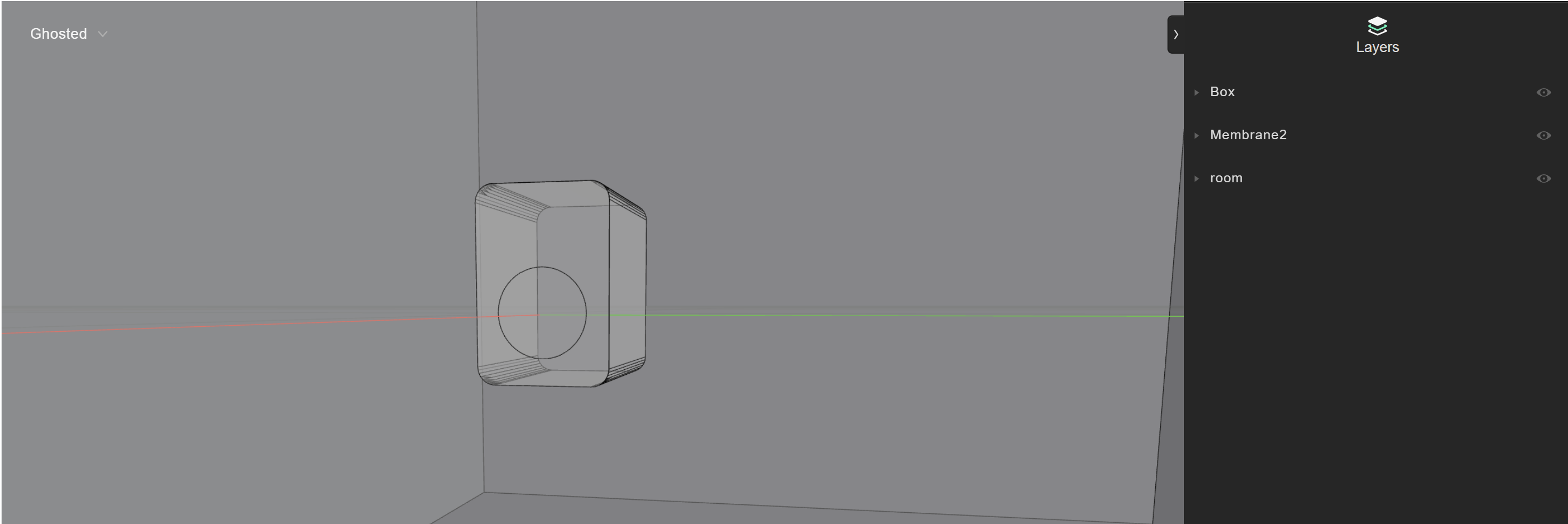
The room below contains a speaker with a circular membrane, imported as a model with separate layers. The code imports the model using add_model() without changing simplification parameters:
room_model = project.add_model(
        "speakerRoom_1",
        'mesh_examples/SpeakerRoom.3dm'
    )
room_model.wait_for_model_processing()
room_model.plot()
Add the model with a simplification threshold
The simplification_threshold parameter in GeometryCheckerSettings specifies a length in meters. The SDK removes any feature below this threshold. Use it with caution: setting it too large causes objects to disappear. For example, the speaker above (24 cm × 22 cm) would disappear with a threshold of 0.3 m.
room_model = project.add_model(
        "speakerRoom_1",
        'mesh_examples/SpeakerRoom.3dm',
        geometry_checker_settings=treble.GeometryCheckerSettings(simplification_threshold=0.01),
    )
room_model.wait_for_model_processing()
room_model.plot()
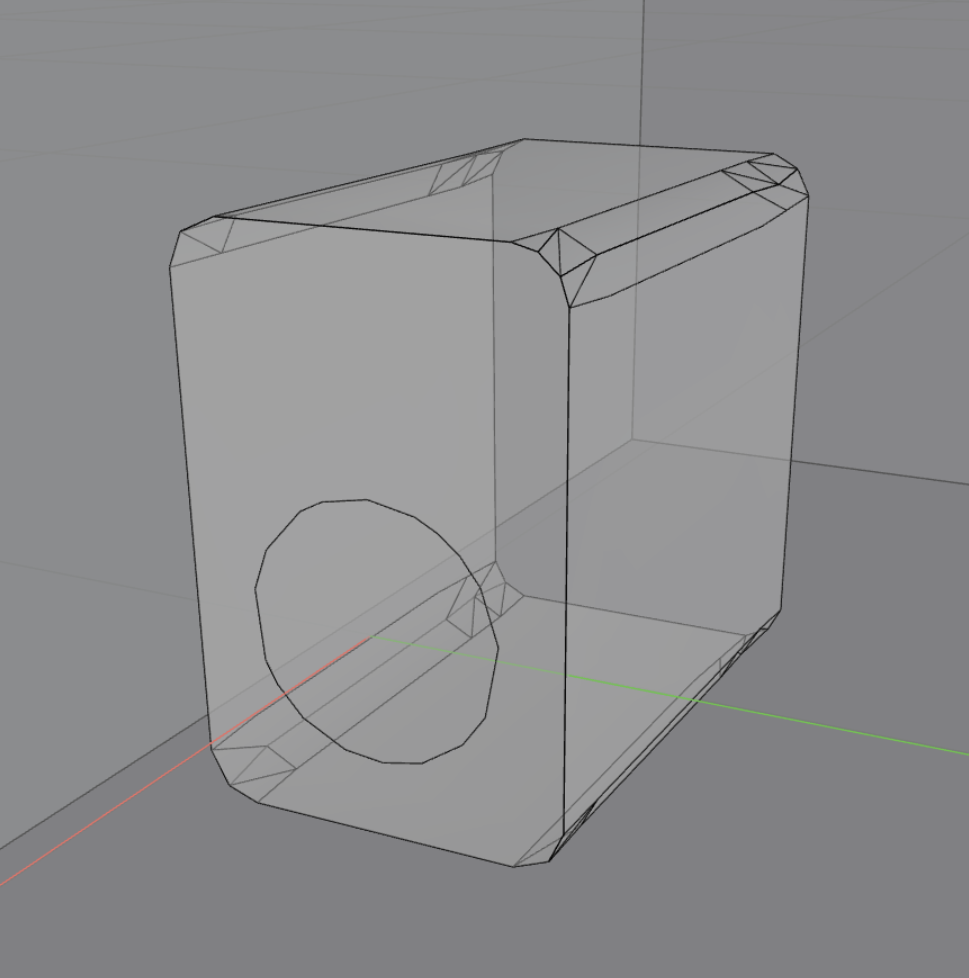
Applying a 1 cm threshold gives the result below. The speaker loses detail at the corners.
Volumetric mesh from a simulation definition
When you add a dg or hybrid simulation to a project, the SDK automatically calculates a tetrahedral volumetric mesh. The mesh is triggered by project.add_simulation(simulation_definition), including in the free field device import workflow.
When you add a simulation definition to the project, the SDK uses the simplified model as input for volumetric meshing and uses crossover_frequency to determine the optimal mesh size.
sim_def = treble.SimulationDefinition(
        name="Test Speaker Room sizing_1cm", # unique name of the simulation
        simulation_type=treble.SimulationType.dg, # the type of simulation
        model=room_model, # a room created in an earlier step
        crossover_frequency=3000, # upper limit for DG solver
        energy_decay_threshold=35, # cut off the simulation when the energy decay curve reaches -35 dB
        receiver_list=receiver_list, # two previously defined receivers
        source_list=[source_omni], # one previously defined source
        material_assignment=material_assignment, # the previously defined material assignment list
)

sim = project.add_simulation(sim_def)
Mesh plot
Plot the boundary surfaces of the volumetric mesh:
sim.get_mesh_info().plot()
The image below shows the volumetric mesh: the speaker is lacking detail at the rounded edge of the Membrane layer, which has become a diamond. To control mesh sizing per layer, see Local mesh sizing.
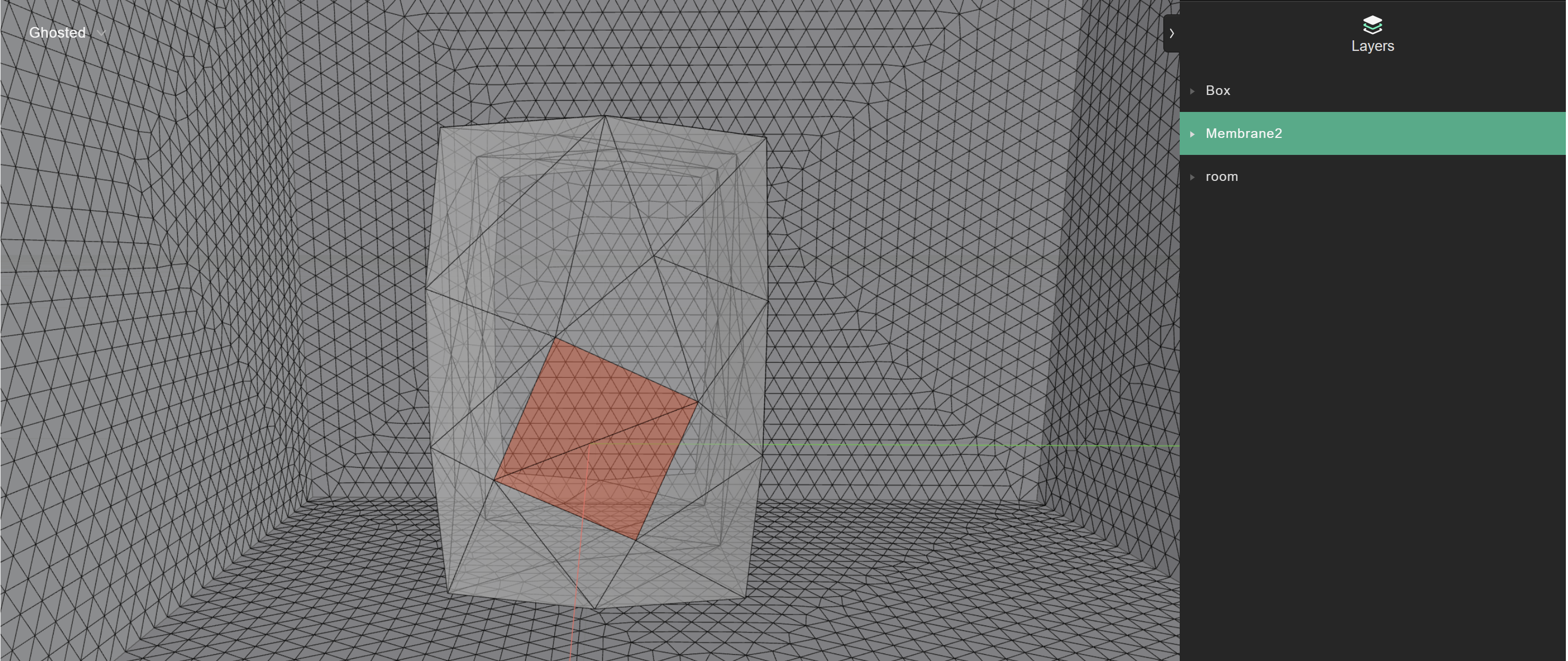
Use this plot to evaluate how curved surfaces are resolved. This is especially important when the meshing algorithm may over-simplify curved geometry, particularly at low transition frequencies.
Local mesh sizing
When a dg or hybrid simulation definition is added to a project (project.add_simulation()), the SDK creates a tetrahedral volumetric mesh. LocalMeshSizing controls how individual layers are meshed within that volumetric mesh. Pass a list of LocalMeshSizing objects to the local_mesh_sizing parameter of SimulationDefinition or FreeFieldSimulationDefinition. Changing local sizing requires updating and re-adding the simulation definition.
Local mesh sizing is likely to introduce smaller-than-necessary tetrahedrons and increase simulation runtime. You may need to adjust it a few times to achieve the desired result.
Sizing for a boundary velocity layer
To transform a membrane into a boundary velocity layer, create a source using the membrane layer. Local sizing can be specified independently for each layer. In this case the membrane layer is Membrane2, centered on the origin. If you don't specify source_position, the source is placed at the center of the layer.
source_boundary = treble.Source.make_boundary_velocity_layer(
    "source_label_membrane",
    "Membrane2",
    source_position=treble.Point3d(0, 0, 0),
)
Apply local mesh sizing
The simplified speaker from Add the model with a simplification threshold is missing detail at the rounded part where the source is placed. Import LocalMeshSizing and apply it to the simulation definition to address this:
from treble_tsdk.core.model_obj import LocalMeshSizing

local_sizing = []
local_sizing.append(
    LocalMeshSizing(
        layer_name="Membrane2",
        mesh_sizing_m=0.01,  # try to create internal elements of 1 cm
        keep_exterior_edges=False,
    )
)

sim_def = treble.SimulationDefinition(
    name="Test Speaker Room sizing_1cm",
    simulation_type=treble.SimulationType.dg,
    model=room_model,
    crossover_frequency=3000,
    energy_decay_threshold=35,
    receiver_list=receiver_list,
    source_list=[source_omni],
    material_assignment=material_assignment,
    local_mesh_sizing=local_sizing,
)

sim = project.add_simulation(sim_def)
sim.get_mesh_info().plot()
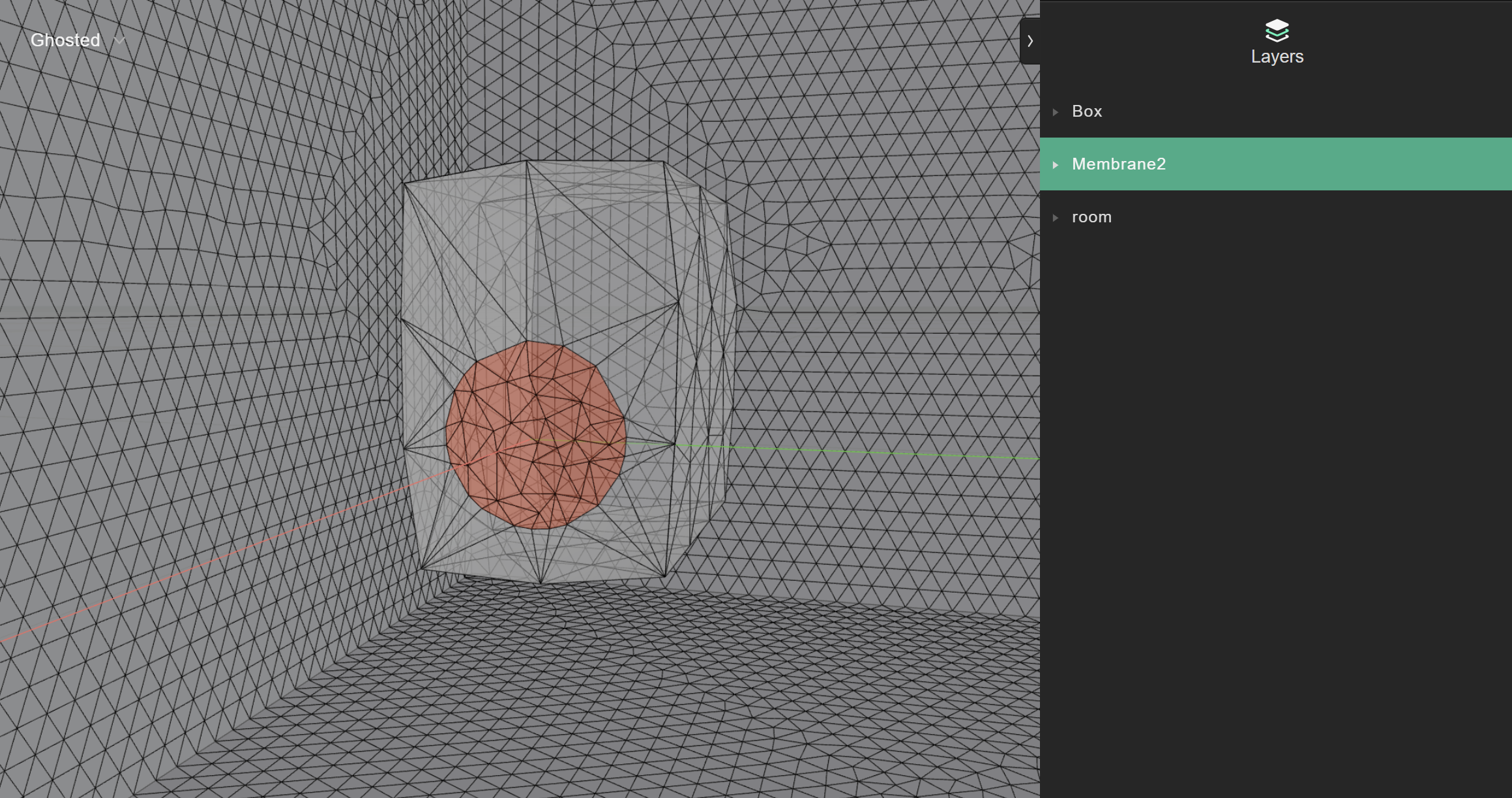
The result is a volumetric mesh with more detail around the circular membrane:
Keep exterior edges
Set keep_exterior_edges=True to preserve the rounded shape of the membrane:
from treble_tsdk.core.model_obj import LocalMeshSizing

room_model = project.add_model(
    "speakerRoom_no_simplification",
    'mesh_examples/SpeakerRoom.3dm',
)
room_model.wait_for_model_processing()

local_sizing = []
local_sizing.append(
    LocalMeshSizing(
        layer_name="Membrane2",
        mesh_sizing_m=0.03,  # try to create internal elements of 3 cm
        keep_exterior_edges=True,  # this preserves the outer part of the membrane
    )
)

sim_def = treble.SimulationDefinition(
    name="Test Speaker Room sizing_3cm Edges True",
    simulation_type=treble.SimulationType.dg,
    model=room_model,
    crossover_frequency=3000,
    energy_decay_threshold=35,
    receiver_list=receiver_list,
    source_list=[source_omni],
    material_assignment=material_assignment,
    local_mesh_sizing=local_sizing,
)

sim = project.add_simulation(sim_def)
sim.get_mesh_info().plot()
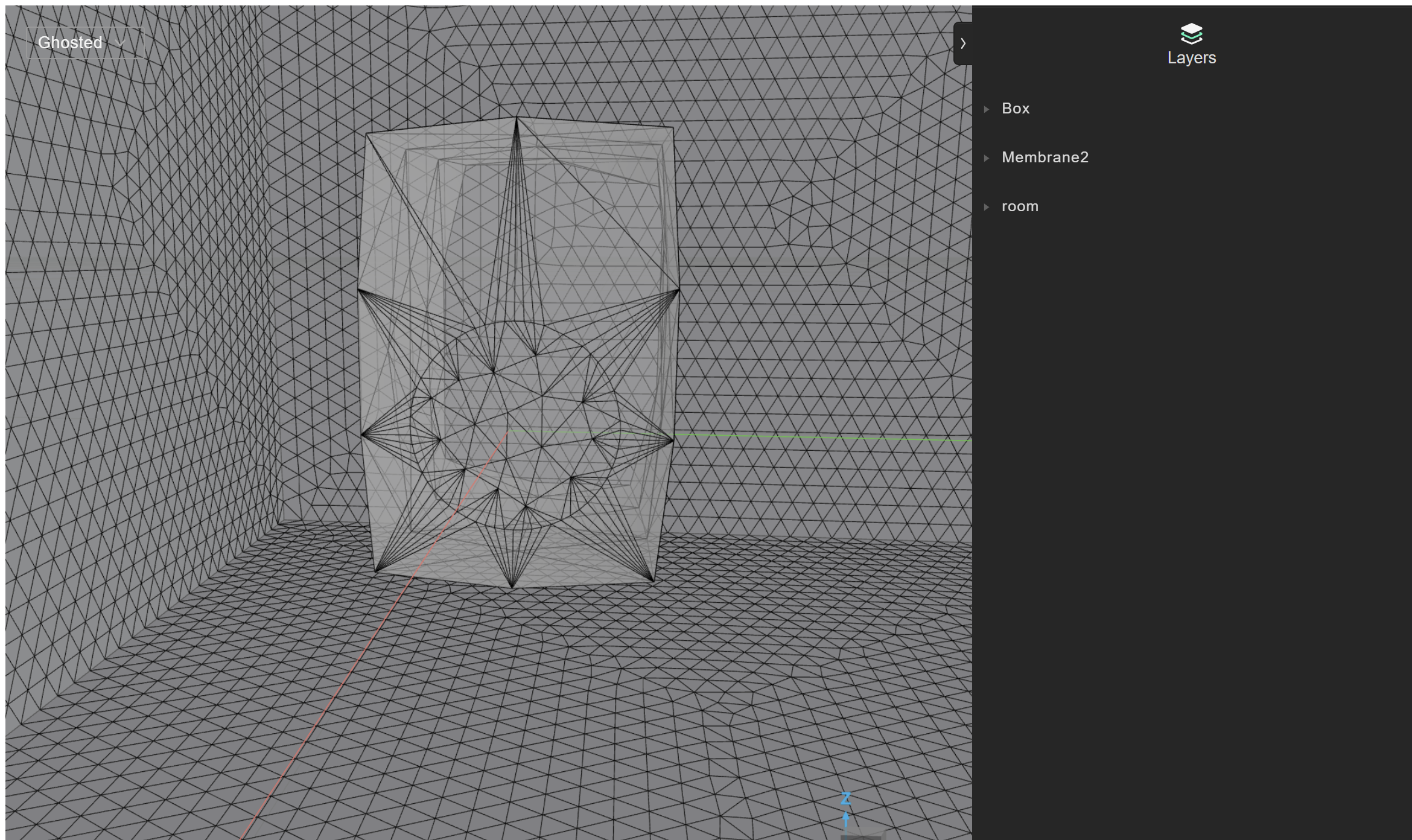
In this example, the local sizing for the membrane is 3 cm and the circle edges are preserved. Mesh quality decreases notably because a large number of segments remain on the membrane contour. This happens when the input model hasn't been pre-simplified with a simplification_threshold.
Simplification threshold controls the geometry you add to the project as a generic model. Local sizing controls the individual features of each layer, for example the layers of a device, and sets the mesh sizing used by the finite elements solver.
Keep exterior edges and simplification threshold
The code and image below show the effect of combining a 3 cm local sizing on the speaker membrane with a 1 cm simplification threshold applied at import. Mesh efficiency improves from 8% to 24%.
from treble_tsdk.core.model_obj import LocalMeshSizing

room_model = project.add_model(
    "speakerRoom_1cm_simplification",
    'mesh_examples/SpeakerRoom.3dm',
    geometry_checker_settings=treble.GeometryCheckerSettings(simplification_threshold=0.01),
)
room_model.wait_for_model_processing()

local_sizing = []
local_sizing.append(
    LocalMeshSizing(
        layer_name="Membrane2",
        mesh_sizing_m=0.03,
        keep_exterior_edges=True,
    )
)

sim_def = treble.SimulationDefinition(
    name="Test Speaker Room sizing_3cm Edges True",
    simulation_type=treble.SimulationType.dg,
    model=room_model,
    crossover_frequency=3000,
    energy_decay_threshold=35,
    receiver_list=receiver_list,
    source_list=[source_omni],
    material_assignment=material_assignment,
    local_mesh_sizing=local_sizing,
)

sim = project.add_simulation(sim_def)
sim.get_mesh_info().plot()
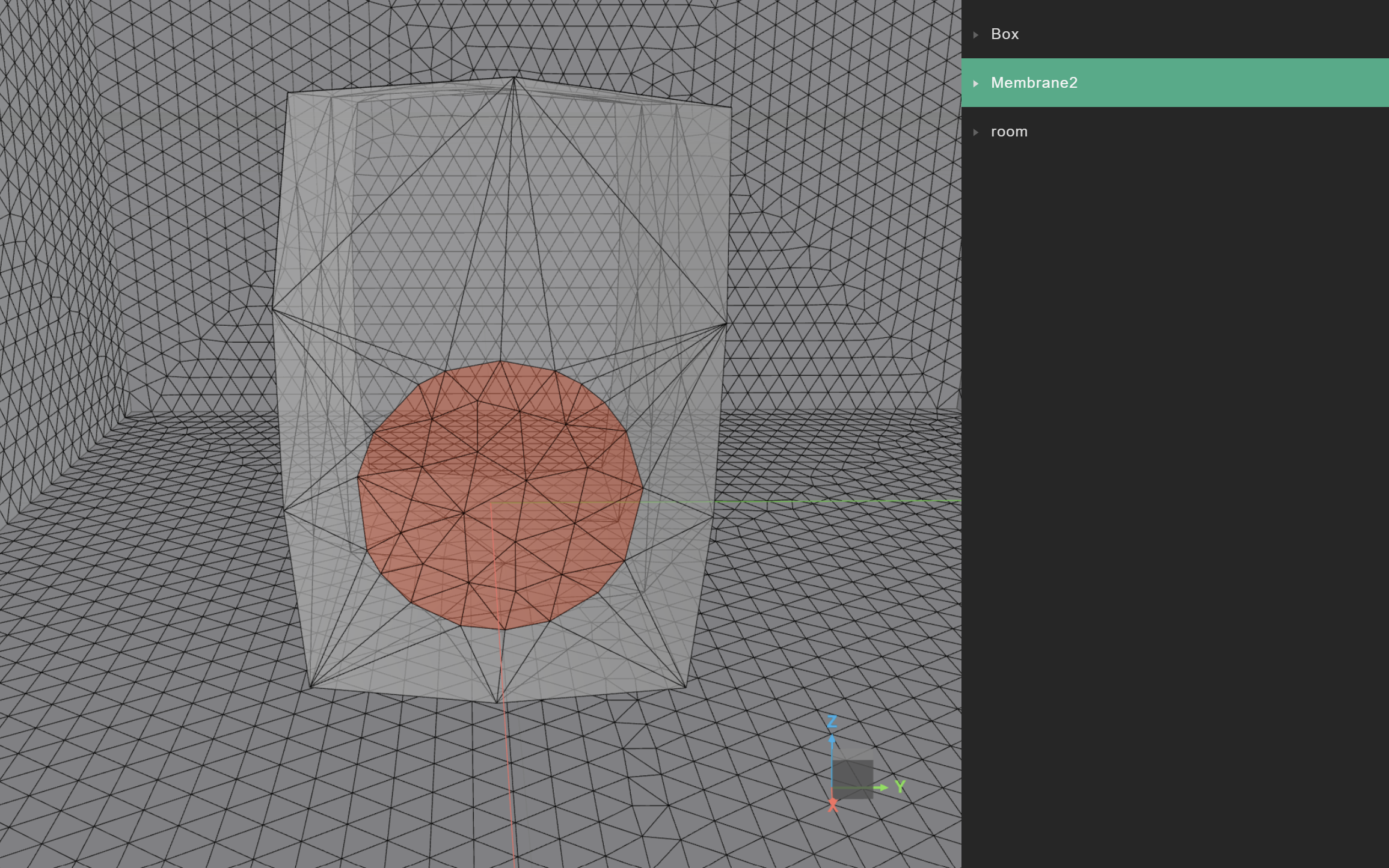
Disabling simplification is likely to increase simulation time by letting small edges remain in the mesh, introducing sub-optimal tetrahedrons.
To run the code examples, download the .3dm files below: