Simulating smart glasses on a mannequin
This tutorial takes a pair of smart glasses from a closed mesh to a device simulation on a head from the mannequin library. It works the same for other things you wear on the head. You need a Treble SDK license and the device as one closed mesh.
Key steps:
- Prepare the device
- Open the widget
- Import the device and a mannequin
- Put the device on the head
- Check the model
- Add the model to the project
- Set up the device simulation
Prepare the device
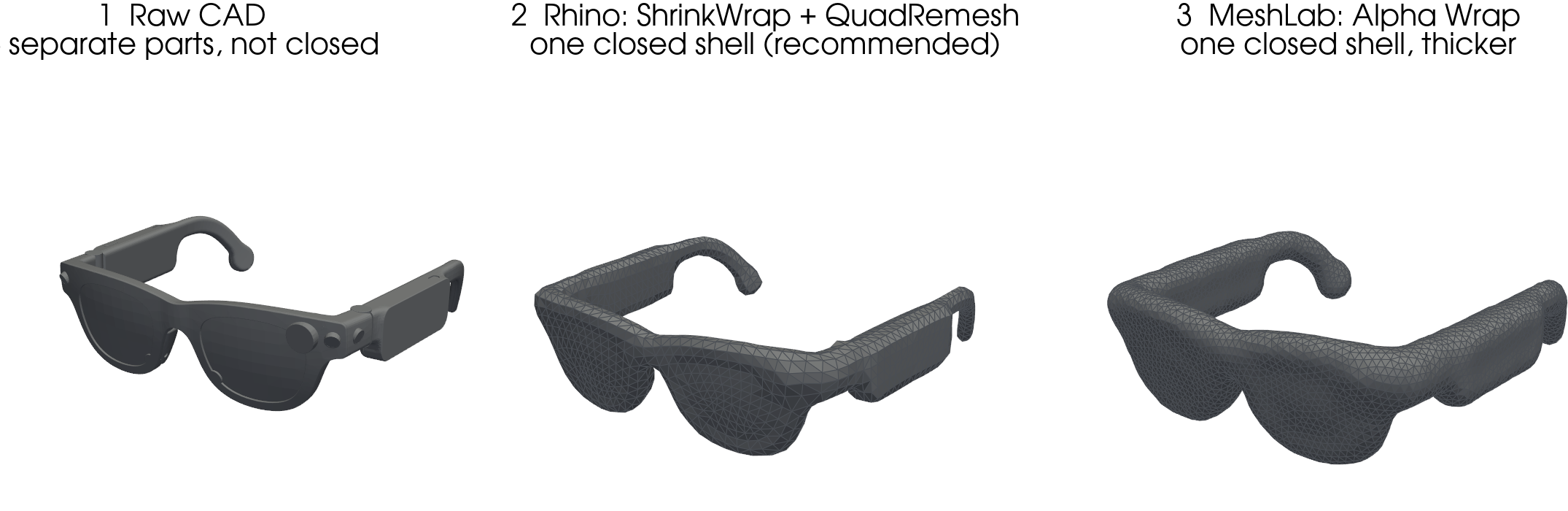
Start from one closed mesh of your device with even triangles of about 3 mm to 4 mm. How to make one from CAD is in Preparing device geometry.
Open the widget
Run this in a notebook.
from treble_tsdk import treble
from treble_tsdk.device import start_device_model_import

tsdk = treble.TSDK()
project = tsdk.get_or_create_project(name="<project_name>")
start_device_model_import(project)
Import the device and a mannequin
-
Click Import, then Import file, and pick the
.3dm.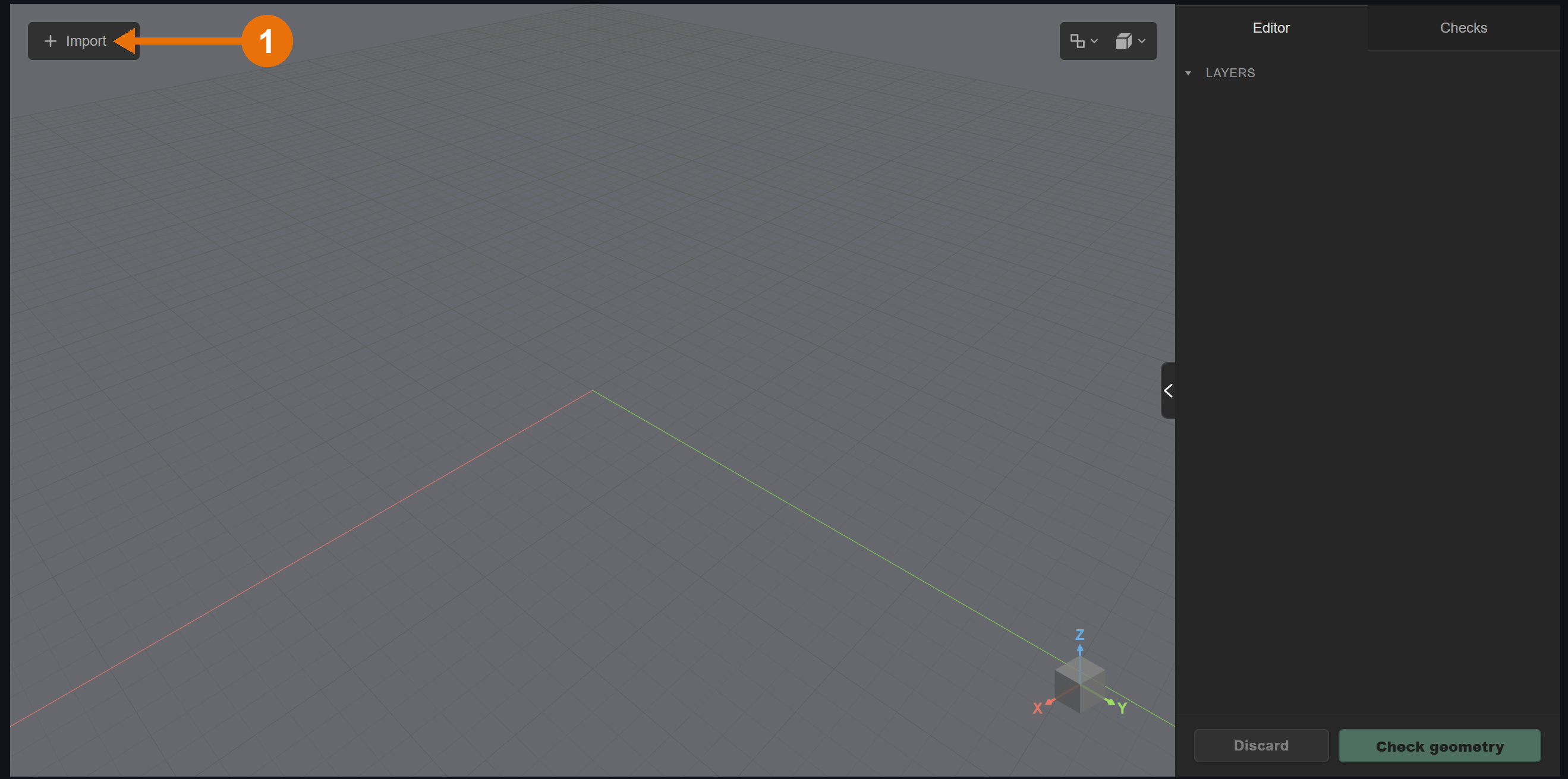
-
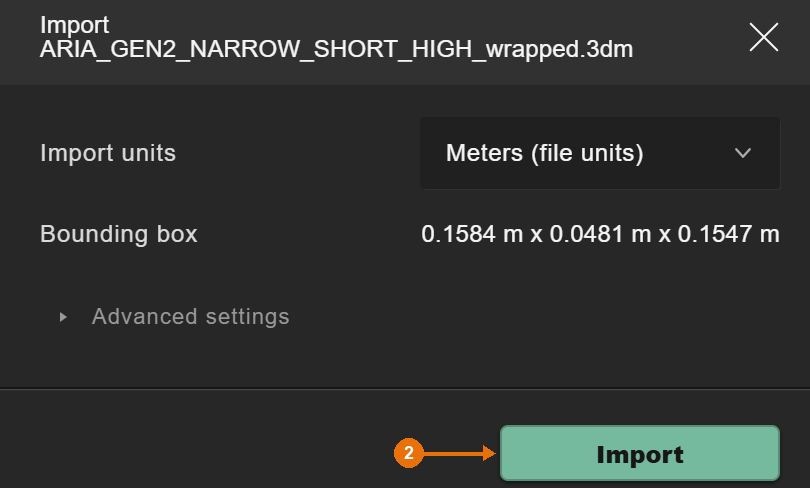
Check the import units and the bounding box, then click Import.
-
Click Import again, then Import mannequin.
-
Pick a Mannequin model and a Head variation.
-
Click Import.
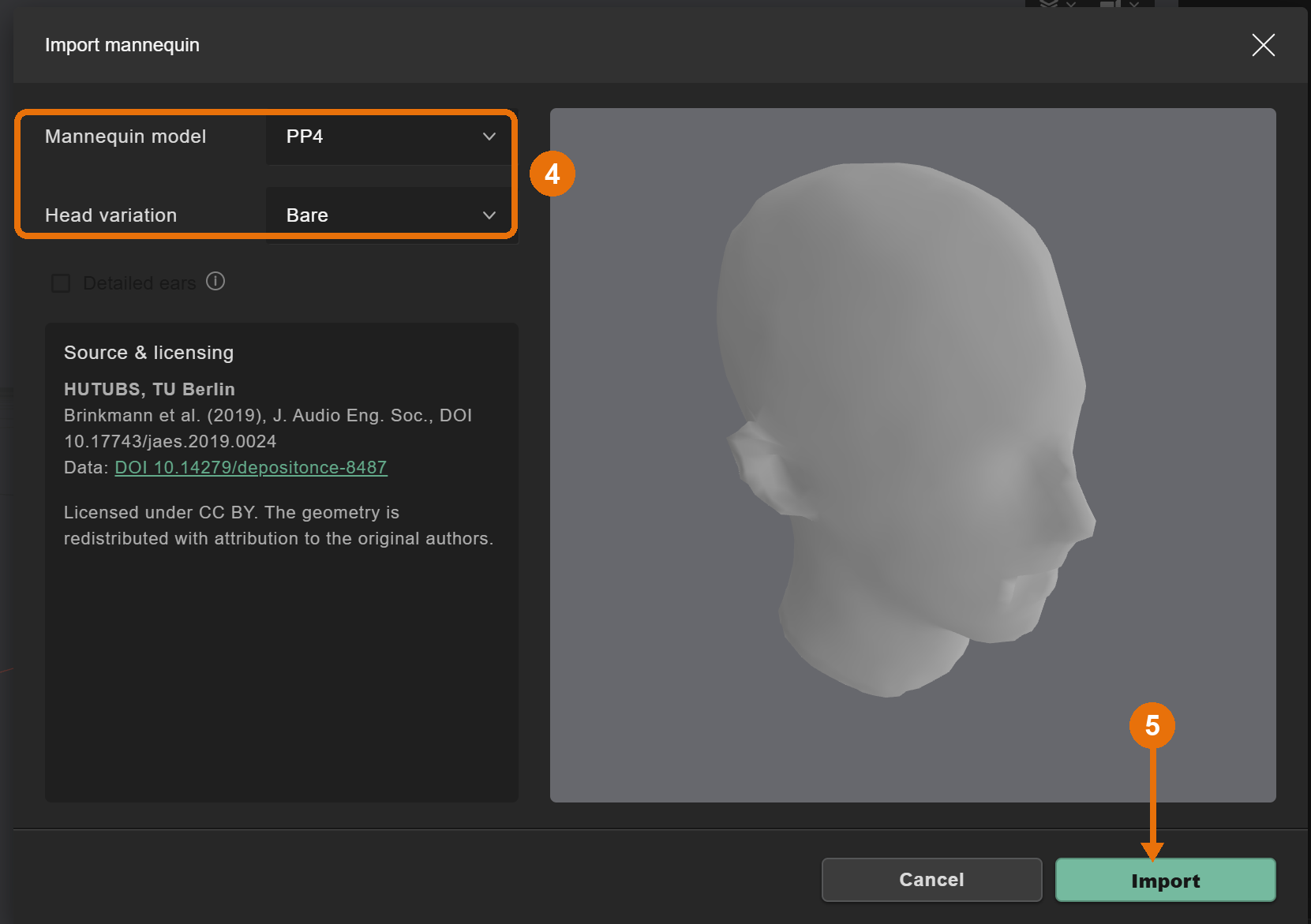
The device lands at the origin, inside the head. You move it in the next step.
Put the device on the head
-
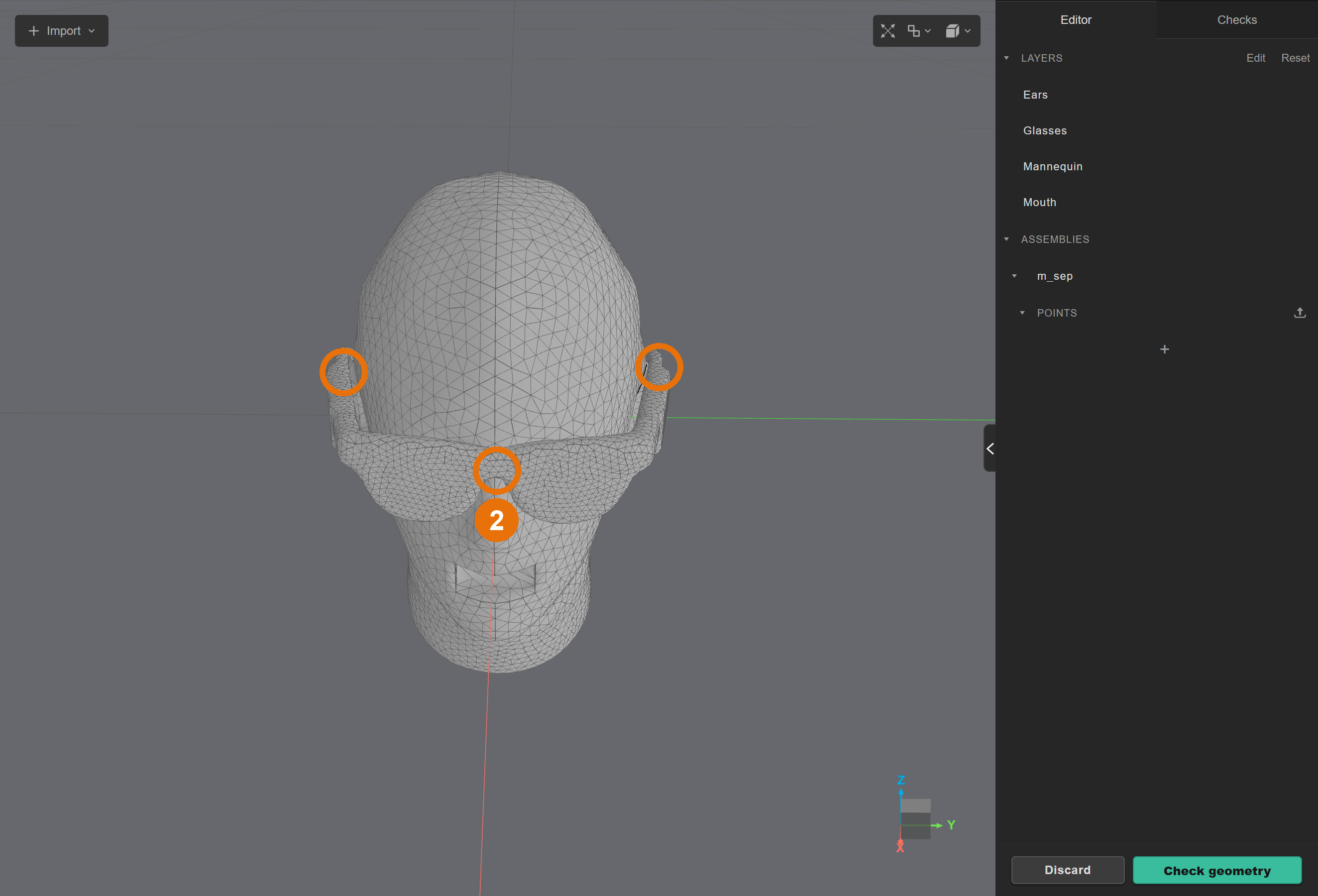
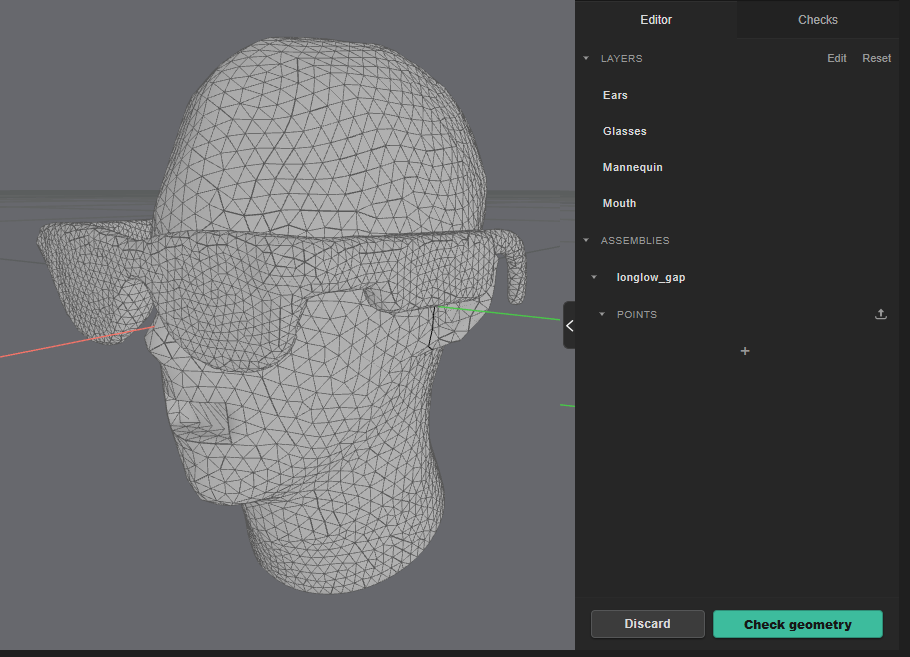
Drag the glasses onto the head with the gizmo: the inside of the bridge on the nose, the temple arms over the ears.
-
Push them about 3 mm into the skin where they rest, so on both sides of the nose and on top of the ears. Along the side of the head the arms can keep a bit of air. If the frame is too narrow, open the arms at the hinges. Look from below and from both sides to check it actually rests on the nose and both ears.
Check the model
-
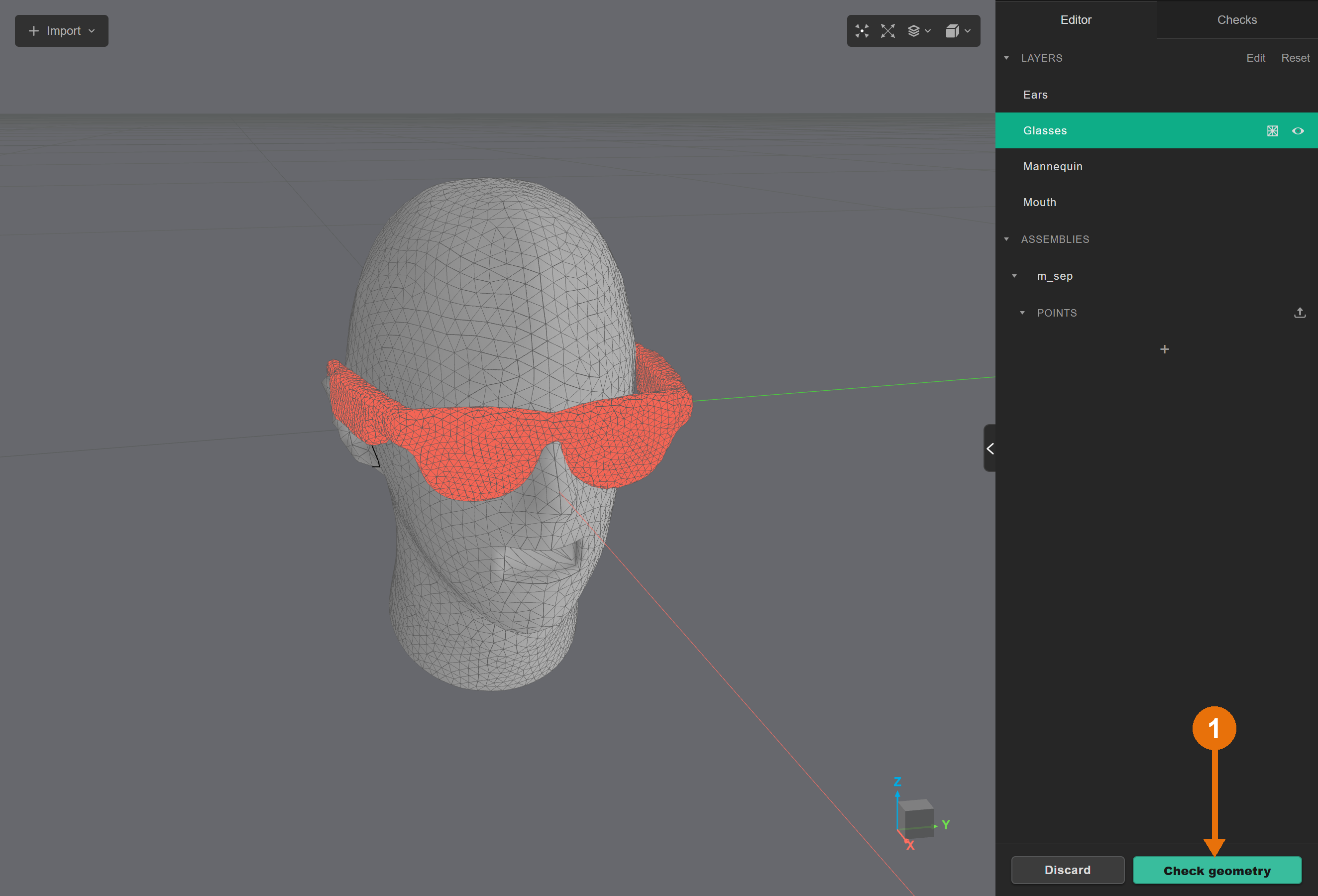
Click Check geometry.
-
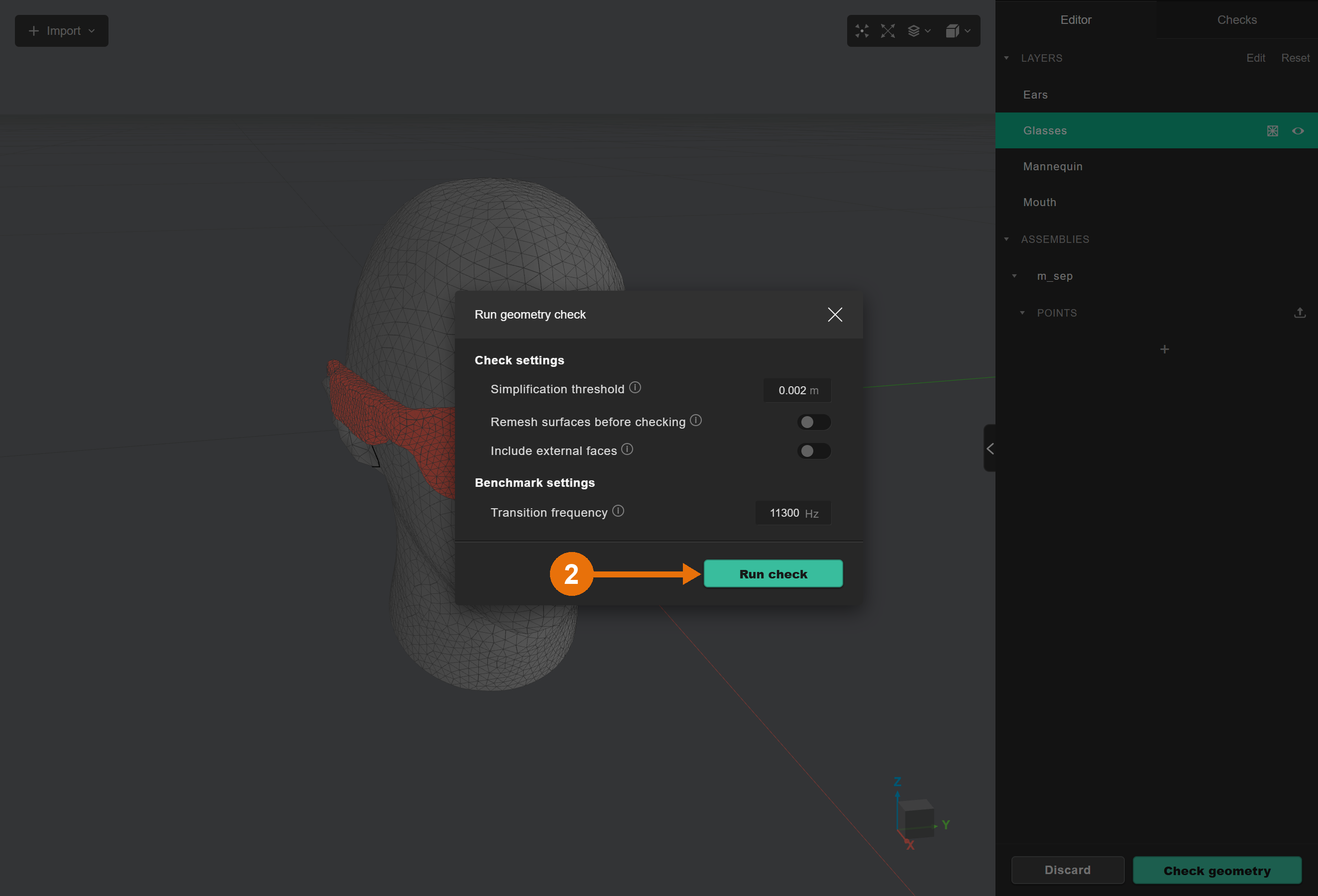
Click Run check. It takes about 2 minutes.
-
The result opens in Checks. Click on the
+next to the rating to expand the details on the mesh quality.
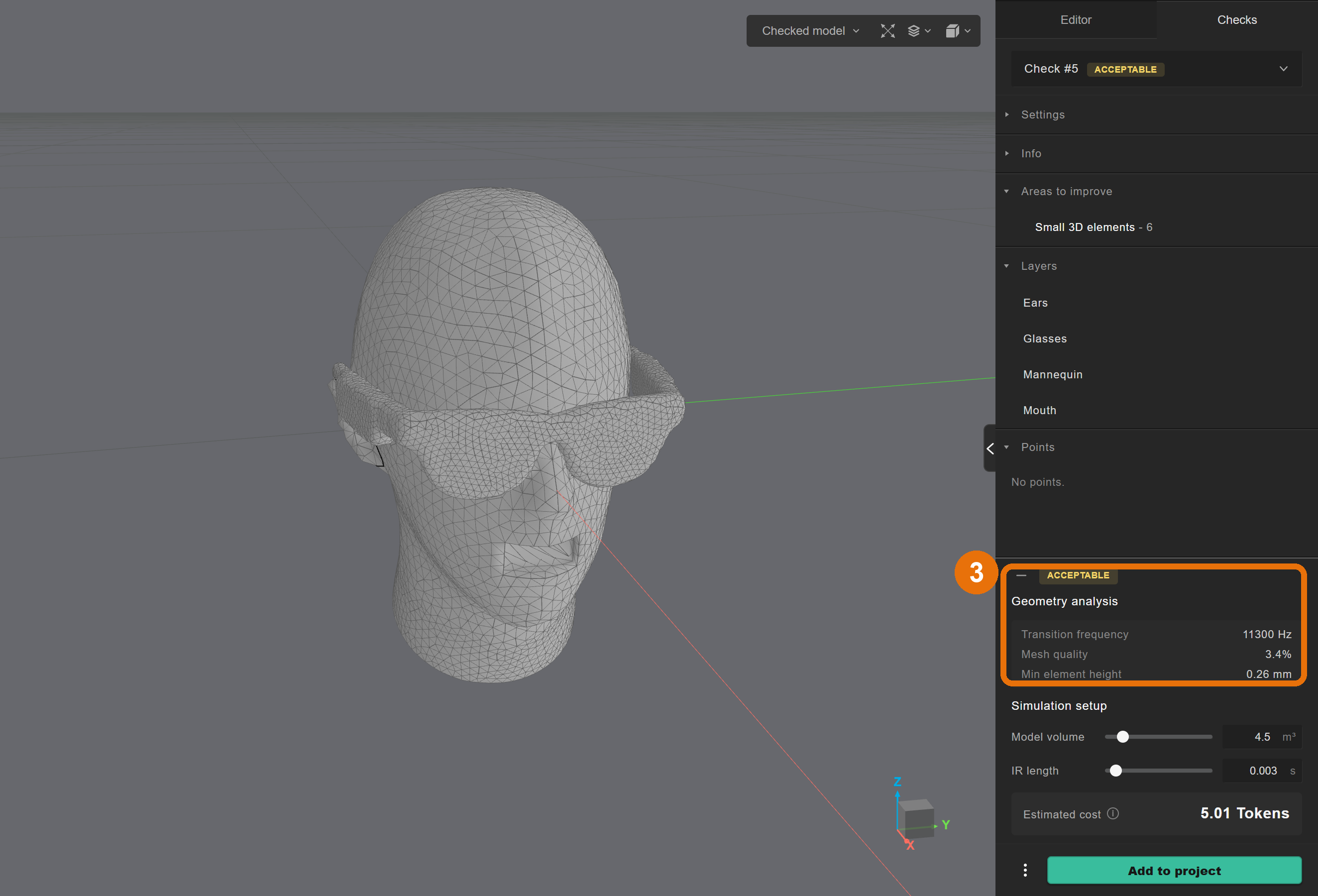
For the glasses on PP4 the check gives about 3 % mesh quality, which is acceptable for a device on a head. The contact lines between the frame and the skin set the quality, so if it's low, move the glasses a little and check again. Areas to improve shows where the smallest elements are.
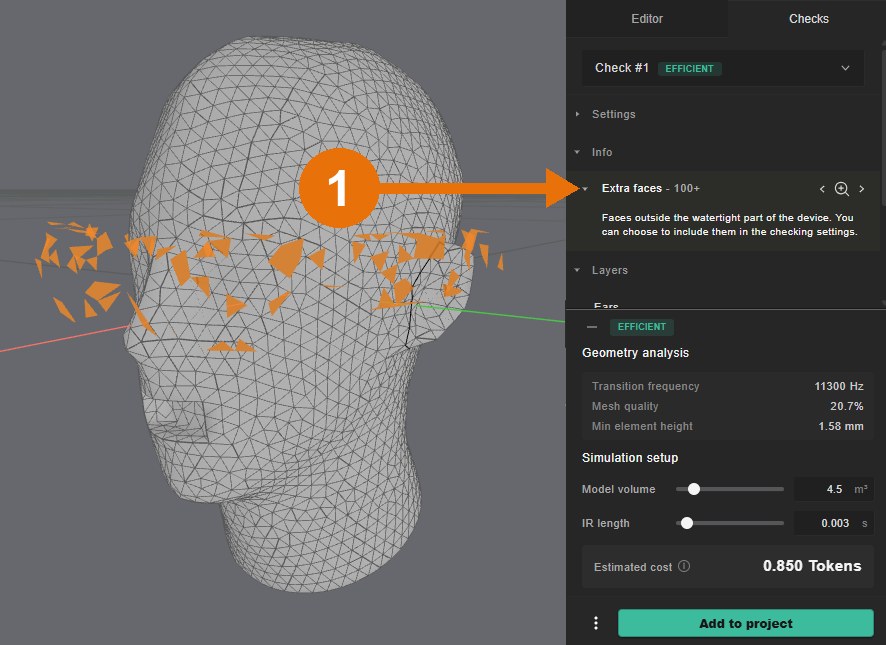
If the device doesn't touch the head, the check drops it without a warning, and the result has no Glasses layer. Open Info to see the dropped faces under Extra faces (1). They're highlighted in the model. Move the device so it rests on the head and check again.
Add the model to the project
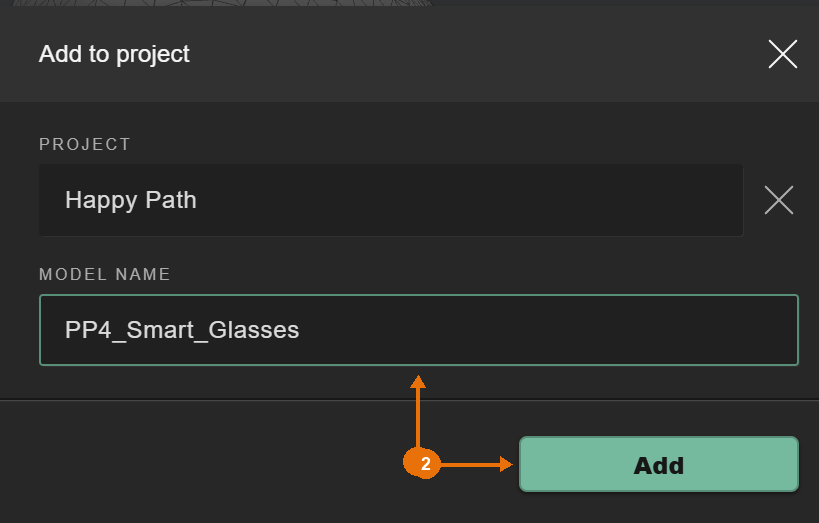
Click Add to project, give it a name (1) and click Add (2).
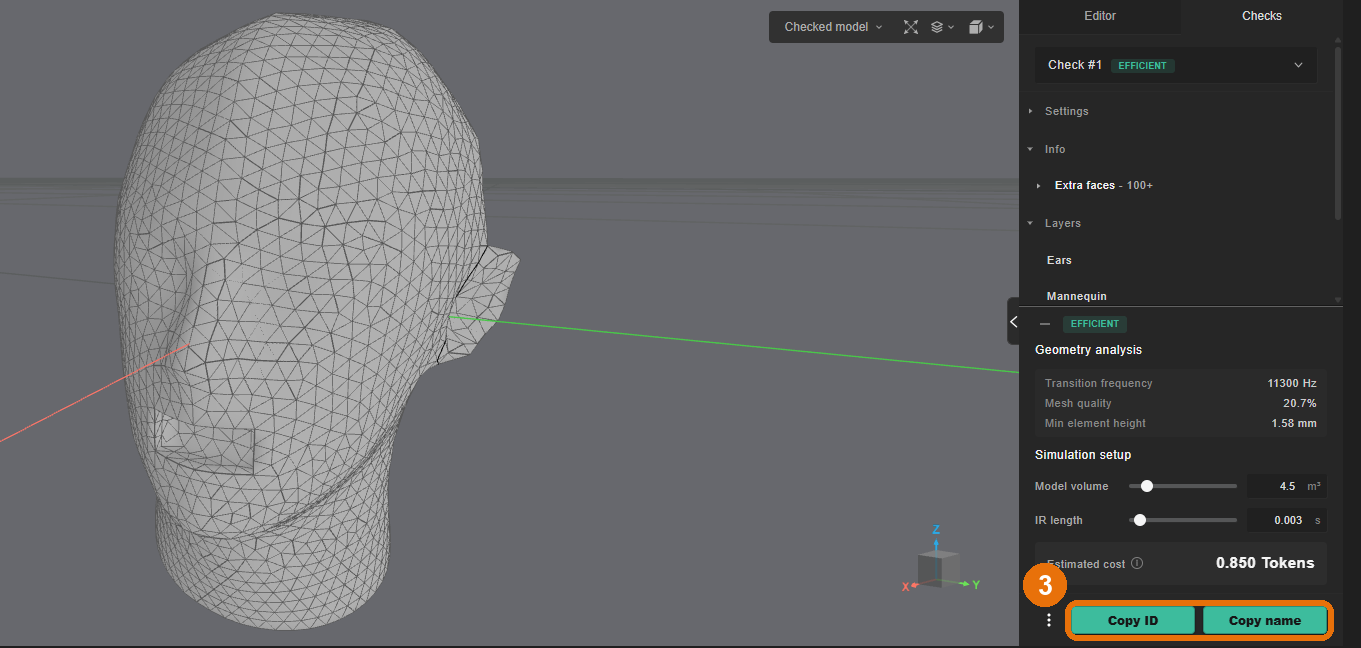
After that, use Copy ID or Copy name (3) to copy the model's ID or name to the clipboard.
You can now fetch the model in the next cells of your notebook:
device_model = project.get_model_by_name("<model_name>")
device_model.plot()
Set up the device simulation
We use the Mouth layer as the source, for the wearer's own voice. Put a microphone on the device and a reference microphone in free air, you can read the positions from device_model.plot().
from treble_tsdk.core.device_definition import DeviceMicrophoneInfo
from treble_tsdk.device import DeviceSimulationDefinition

sim_def = DeviceSimulationDefinition(
    name="<simulation_name>",
    model=device_model,
    frequency=4000,
    source_layers=["Mouth"],
    # project_to_mesh moves the microphone onto the nearest device surface
    device_microphones=[
        DeviceMicrophoneInfo(
            label="mic_1",
            location=treble.Point3d(<x>, <y>, <z>),
            project_to_mesh=True,
        )
    ],
    reference_microphones=[
        DeviceMicrophoneInfo(
            label="ref_1",
            location=treble.Point3d(<x>, <y>, <z>),
            project_to_mesh=False,
        )
    ],
)
sim_def.plot()
Add it, look at the estimate, then start it:
sim = project.add_simulation(sim_def)
sim.wait_for_estimate().as_tree()
sim.start()