Exporting a geometry from Rhino
When you import NURBS from Rhinoceros, the level of detail of the simulated mesh follows Rhino's display mesh settings. Make a copy of the file and join all the surfaces before you save the file for device import. The mesh then accounts for intersections between parts.
To set the tessellation yourself, use Rhino's tools (Mesh, ReduceMesh, QuadRemesh) or plugins such as Grasshopper or Weaverbird. As a rule of thumb, take the highest frequency of interest and simplify features smaller than a quarter of its wavelength.
Microphone placement works best away from edges and on a flat surface, so remeshing the device surface doesn't move it.
General recommendations
Single layer
The material is assigned to the entire device. If the geometry is organized in different layers, make a copy of the file for export, select all the objects and move them to one layer.
In the example below, the HeadphoneMesh is selected. Click the layered cake slice icon to open the change layer command, click the button with the arrow and select the Mannequin layer.
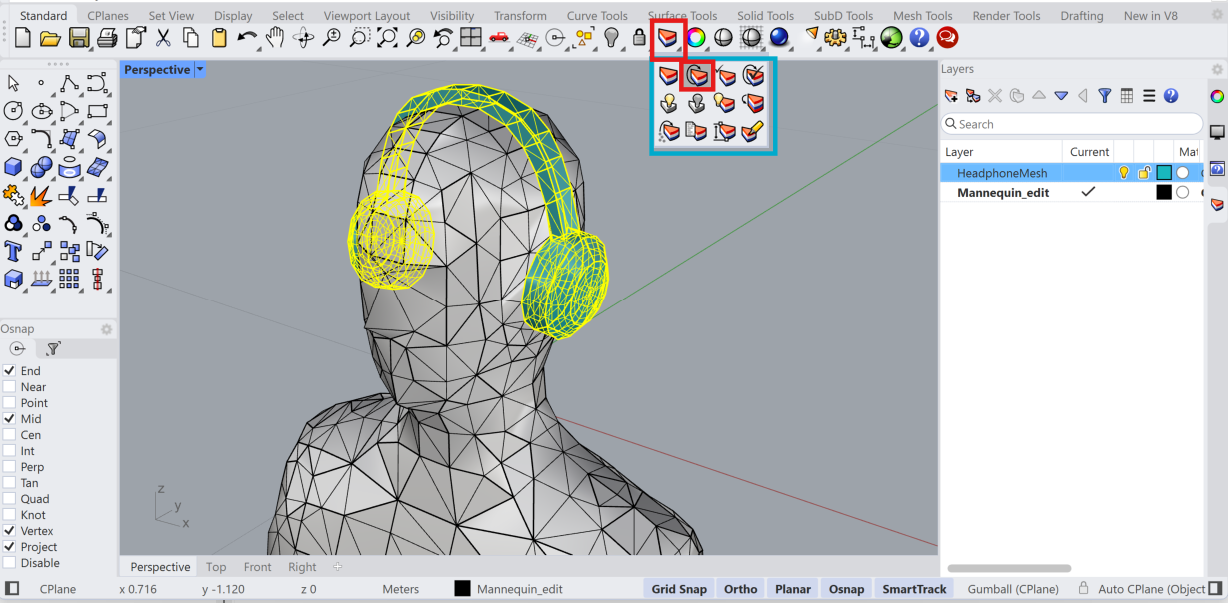
Joined geometry
DRTF creation works best with a geometry that is a Boolean union of the different parts. The meshing algorithm might automatically discard volumes external to the main one if they are not intersecting with each other.
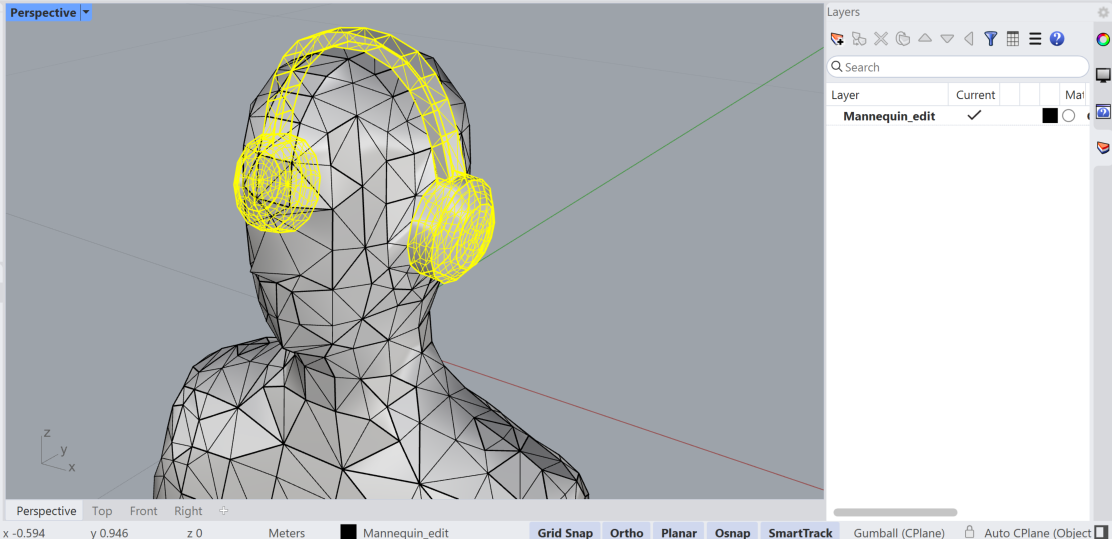
In the image below, the headphones are still separate from the rest of the mannequin. The new import workflow should automatically join these geometries.
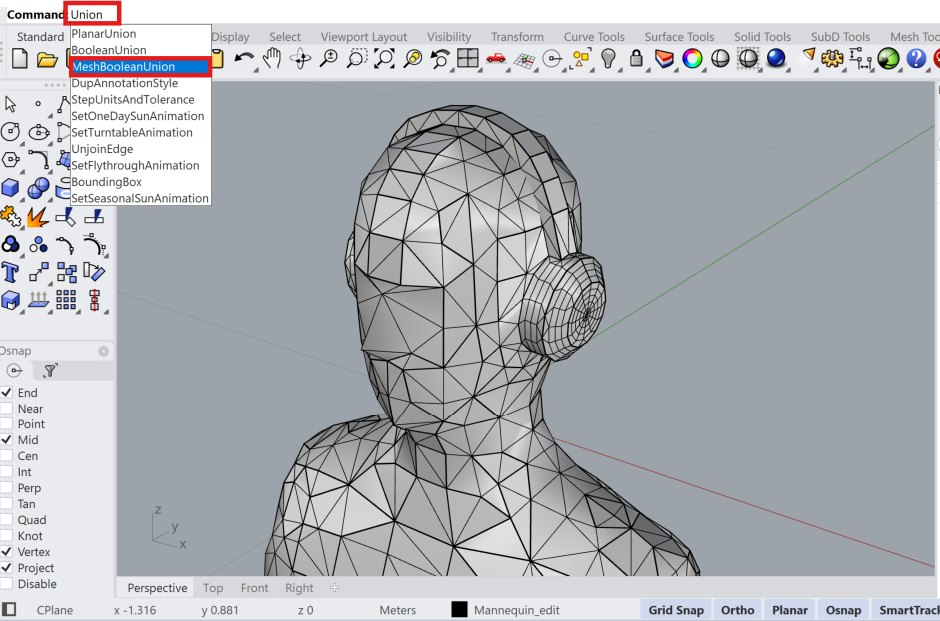
Type Union in the command line and select MeshBooleanUnion. Select the headphones and the mannequin and confirm. The resulting geometry is now a single object.
When the geometry is exported as .STL (and later converted to .OBJ or .DXF) all the parts will be automatically placed on one single layer and the creation of a single watertight volume will be attempted. The two steps above should therefore not be needed.
Thick geometry
When you import the geometry, you can set a simplificationThreshold with the geometry_checker_settings argument. Avoid importing geometries that are thinner than this threshold. This might cause excessive simplification or the removal of some parts. When omitted, the default simplificationThreshold is 5 mm, as in the example below:
from treble_tsdk.client.api_models import GeometryCheckerSettingsDto

ff_m = treble.free_field.add_free_field_model(  # Creates the freefield model
    project=project,
    name=freefield_model_name,
    geometry=device_model_path,
    sphere_geometry_radius=sphere_geometry_radius,
    device_microphone_placements=mics,
    freefield_model_additional_settings=ff_settings,
    geometry_checker_settings=GeometryCheckerSettingsDto(
        simplificationThreshold=0.005
    ),
)