Prepare device geometry for import
A CAD file is generally created with manufacturing details in mind, so device geometry files will generally come with many separate parts such as thin shells, small gaps, screws, hinges and internal details.
While we are developing an automatized, robust and accurate simplification process, the geometry check currently yields much better results with a prepared device geometry. In cases with very detailed CAD geometries, it does require such a preparation.
Goals of the preparation
We recommend wrapping the parts into one closed shell and remeshing that shell to even triangles.
We tested this in Rhino 8 and MeshLab on the publicly available Aria Gen2 smart glasses. Other tools such as Blender offer similar functions, although we haven't tried them directly.
A prepared device should meet these points:
| Requirement | Why |
|---|---|
| One closed shell | Internal parts don't affect the sound simulation |
| Even triangles of 3 mm to 4 mm | A finer mesh is slower to check and might not increase the quality |
| No loose parts | They will be dropped as outside the main device object |
Plain, top-level layer names, like Glasses | Nested layers are ignored and non-latin characters are not supported |
The picture shows the same glasses before and after preparing. The raw CAD is 6 separate parts. The Rhino and MeshLab recipes below turn it into one closed shell, the MeshLab one a bit thicker:
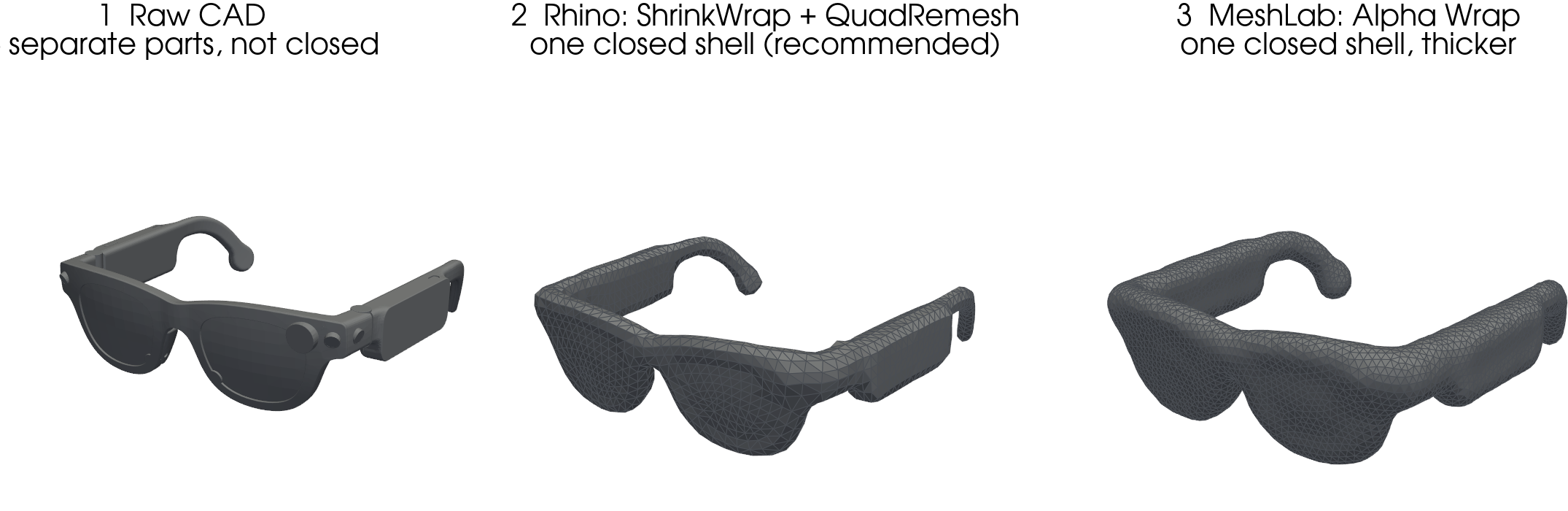
Pick the wrap's edge length from the thinnest part of your device, about a third of it. The settings below are for glasses, where the thinnest part is the temple arm at about 5 mm.
Prepare the device in Rhino 8
The shell sits about 0.8 mm outside the CAD surface.
-
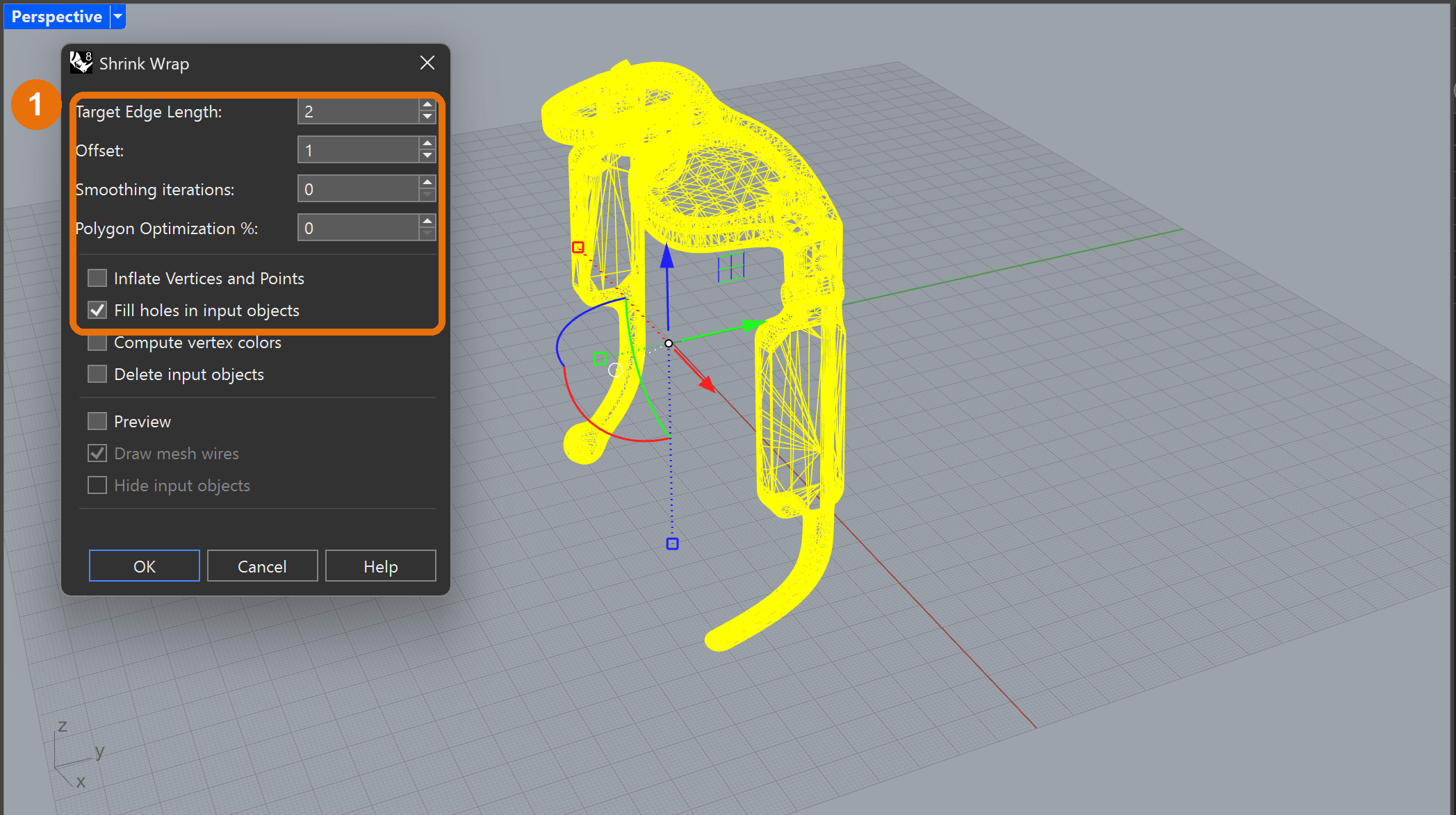
Select all parts of the device, including any NURBS surfaces, and run the command
ShrinkWrapwith:- a Target edge length of 2 mm - a third the temple arm thickness
- an Offset of 0.5 to 1 mm - smaller offset means the shell is closer to the CAD surface but might introduce holes; adapt to each case
- 0 Smoothing iterations - smoothing shrinks the shell and can cut off thin parts like a temple tip
- 0 Polygon optimization
- Fill holes in input objects turned on.
-
Run the command
QuadRemeshon the result with a Target edge length of 4 mm, Adaptive size 0 and Detect hard edges off.ShrinkWrapalone gives a dense mesh with far more detail than matters.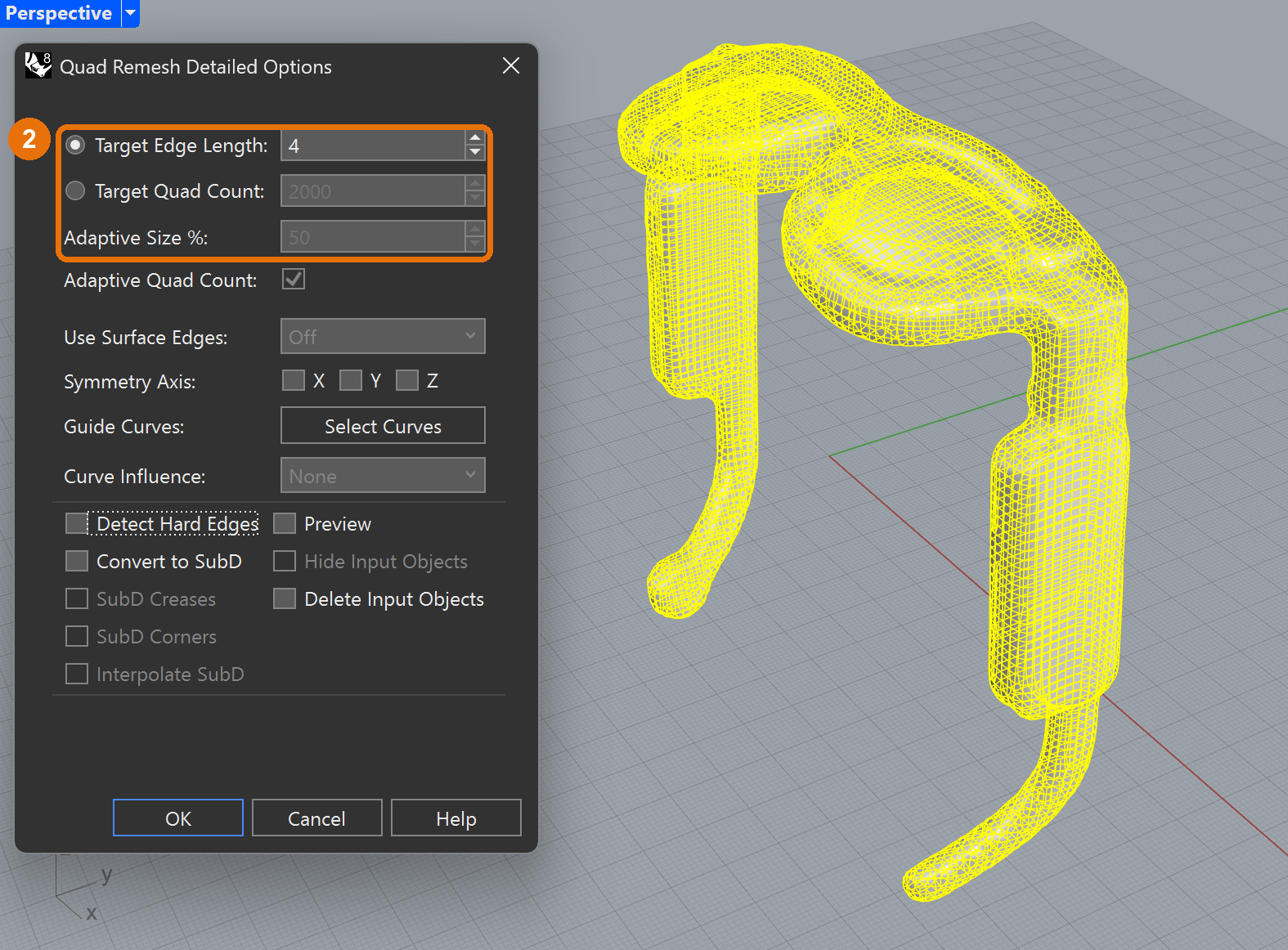
-
Run the command
Triangulateon the quad mesh.QuadRemeshgives even quads (left), but the check needs triangles. If you skip this step, the widget cuts every quad in two itself, which gives long thin triangles (right, arrow) and a lower mesh quality: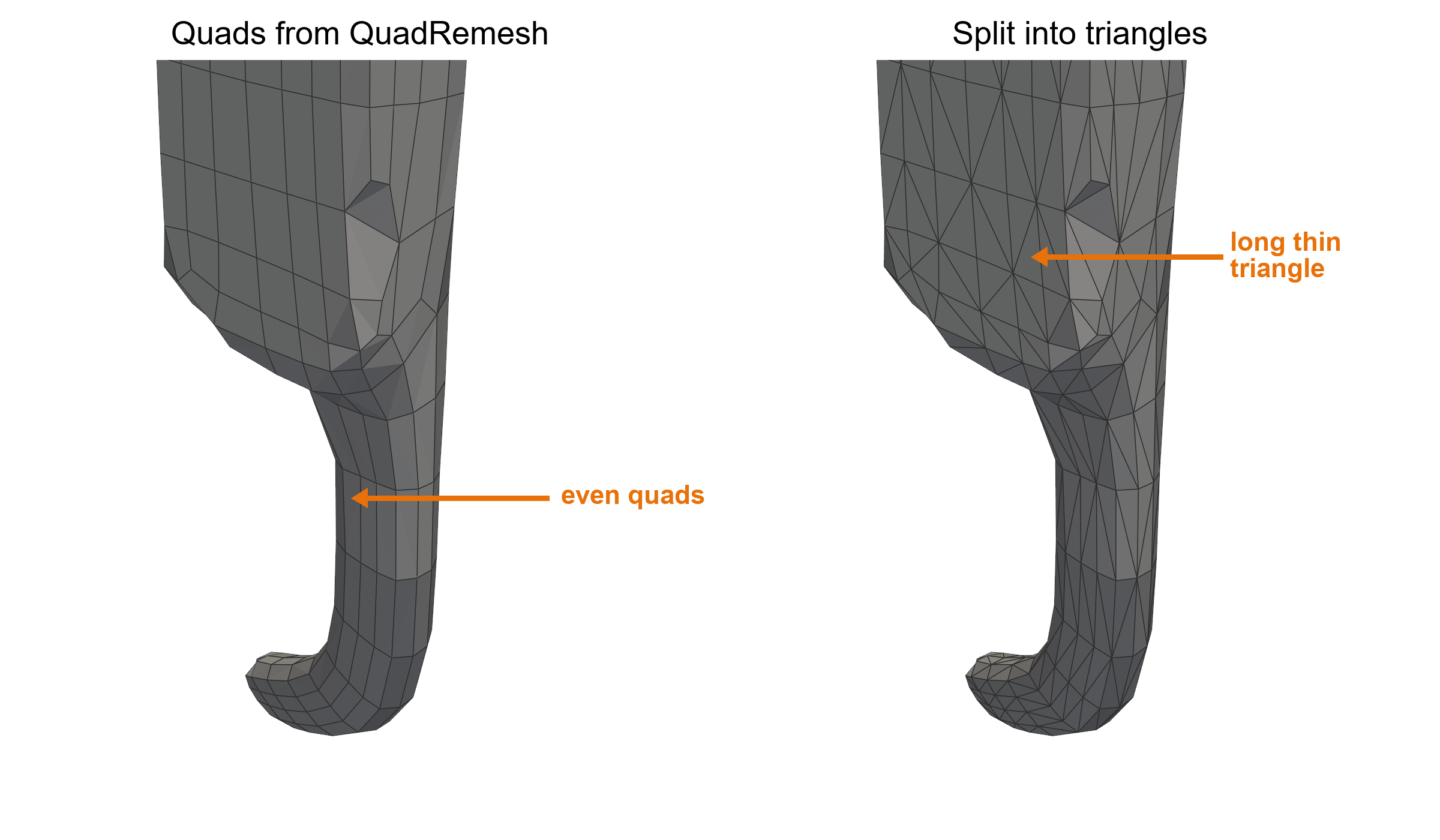
-
Run the command
SelClosedMeshand check it selects exactly one object. If the wrap broke into pieces, like a temple tip on its own, wrap again with a target edge length of 1 mm or an offset of 2 mm.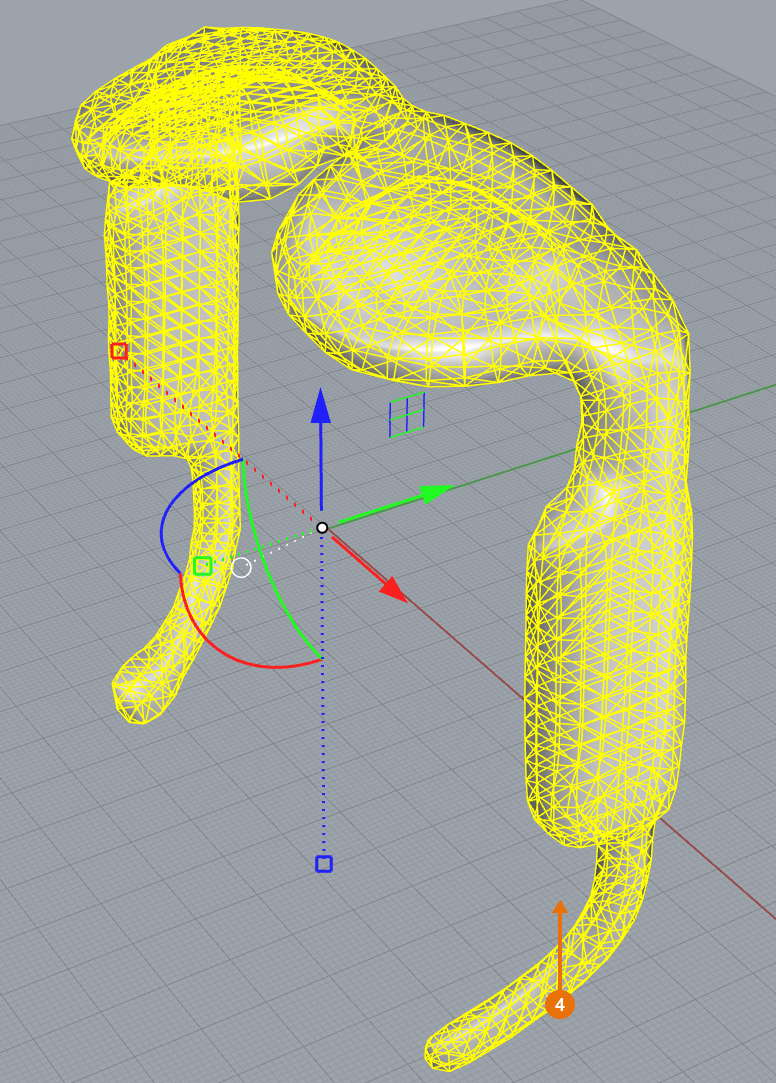
-
Move the mesh to its own layer, for example
Glasses, at the top level of the layer table. Select the mesh and Export Selected as a.3dmfile.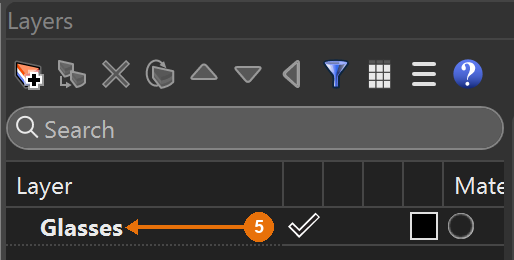
Prepare the device in MeshLab or PyMeshLab
MeshLab is free and you can script it. It needs a 3 mm offset, so the shell is much thicker than the Rhino one.
The script takes a raw mesh in mm, wraps it, remeshes to even 3 mm triangles, rounds off the creases and saves in meters:
import pymeshlab as ml

ms = ml.MeshSet()
ms.load_new_mesh("<device_in_mm>.obj")
# Alpha Wrap takes its sizes as a percentage of the bounding box diagonal
diag = ms.current_mesh().bounding_box().diagonal()
ms.generate_alpha_wrap(alpha=ml.PercentageValue(100 * 4.0 / diag), offset=ml.PercentageValue(100 * 3.0 / diag))
ms.meshing_isotropic_explicit_remeshing(targetlen=ml.PureValue(3.0), iterations=15, featuredeg=180, checksurfdist=False)
# Taubin smoothing rounds the wrap's creases without shrinking the shell
ms.apply_coord_taubin_smoothing(lambda_=0.5, mu=-0.53, stepsmoothnum=30)
ms.meshing_isotropic_explicit_remeshing(targetlen=ml.PureValue(3.0), iterations=10, featuredeg=180, checksurfdist=False)
ms.compute_matrix_from_scaling_or_normalization(axisx=0.001, axisy=0.001, axisz=0.001)
ms.save_current_mesh("<device_in_m>.obj")
In the MeshLab desktop app the same filters are under Filters > Remeshing, Simplification and Reconstruction: Alpha Wrap, then Remeshing: Isotropic Explicit Remeshing, then Taubin Smooth under Smoothing, Fairing and Deformation. Enter alpha and offset as a percentage of the bounding box diagonal, like in the script.
OBJ files have no layer names, so the widget puts them on a layer called default. If you refer to the device layer in code, save a .3dm with a named layer instead.
Prepare the device in Blender
Not tested yet. This uses Blender's voxel remesher as the wrap.
- Import the device and join all parts into one object with Object > Join.
- Add a Remesh modifier in Voxel mode with a Voxel Size of 1 mm and apply it. That closes every gap and merges the parts into one shell, but the mesh gets very dense.
- Add a Decimate modifier in Collapse mode and lower the Ratio until the typical edge length is about 3 mm to 4 mm, then apply it. For a smoother surface, use Object > Quadriflow Remesh instead, with a face count that gives about 4 mm faces, then Mesh > Face > Triangulate Faces in edit mode.
- Check that you have one closed body. In edit mode, Select > Select All by Trait > Non Manifold should select nothing, and Mesh > Separate > By Loose Parts shouldn't create extra objects.
- Export with File > Export > Wavefront (.obj) or STL. Set Forward Axis to Y and Up Axis to Z, and set Scale so the file is in meters (0.001 if you modeled in mm). The default export is Y-up and lays the device on its side.
Prepare the device from a CAD tool
SolidWorks, Fusion 360, Onshape, CATIA and similar tools can't shrink-wrap a mesh, so use them for a clean export and do the wrap in Rhino or MeshLab.
- Remove what the sound field doesn't see: internal parts, fasteners, cables and electronics. Keep the outer shells.
- Combine the remaining bodies into as few solids as the tool allows, for example with Combine in SolidWorks or Fusion 360 and Boolean in Onshape.
- Export as STL in meters with a fine tessellation, for example a chord deviation of about 0.05 mm or the tool's Fine preset. In SolidWorks, turn on Do not translate STL output data to positive space so the device keeps its coordinates. If the tool exports STEP, Rhino reads it directly and you can skip the tessellation.
- Open the STL or STEP in Rhino or MeshLab and follow the recipe above.
Check in the geometry
Once you have your geometry exported in a 3dm file, you can check it and/or add it to a mannequin using the our widget or the Python API.
Import the device on its own in the widget and run the check. Aim for a mesh quality of 10 % or more before you add a mannequin. Keep in mind that when the device is mounted on a head, the mesh quality might decrease, see Smart glasses on a mannequin.